This article provides step-by-step instructions on how to inactivate an assignment in BestNotes, including how to remove grades and unassign it if necessary.
Permissions Required
No specific BestNotes permissions are required.
Inactivating an Assignment
To inactivate an assignment, ensure it has no grades and has been unassigned. If the assignment has not been graded, skip steps 3-6. If the assignment has not been graded or assigned, skip steps 2-9.
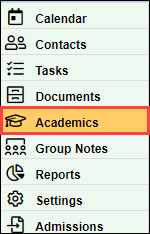
- Navigate to the 'Academics" tab.
- In the "View" drop-down, select the "Grade Book."

- Select the "Teacher", the "Section", and the "Year."

- Select the grade next to the assignment that needs to be inactivated.

- Remove the score, and select "Save Grades."
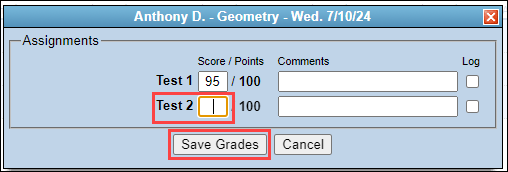
- Repeat for each student that has a grade on that assignment.
- Select "Asgn"
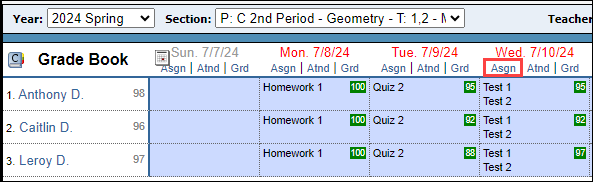
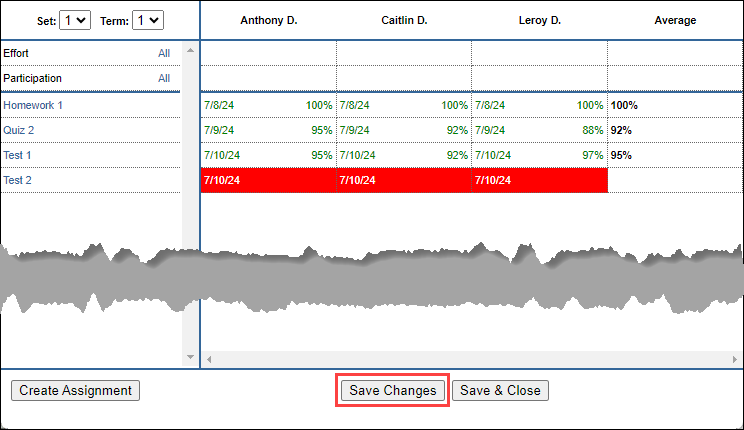
- Double-click the box next to the assignment below each student to unassign it. The box will turn red.

- Select "Save Changes."
- In the "View" drop-down, select "Assignment Plans."

- Select the "Teacher", the "Section", and the "Year."

- Select the assignment you would like to inactivate.

- Uncheck the "Active" checkbox, and select "Update."
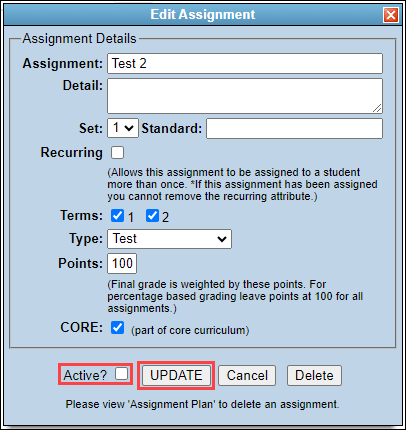
- The assignment will now be listed in the "Inactive Assignments" area.
