This article outlines the step-by-step process to subscribe to ASAM Continuum/CO-Triage within BestNotes, including information on required permissions and associated fees.
Permissions Required
- System Administrator
Subscribing to ASAM
Navigation
- Select "Settings" in the bottom left corner, then select "Account Details."
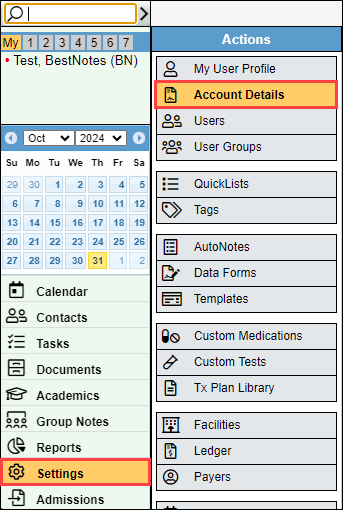
- In the "Account Integrations" section, select "ASAM Continuum/CO-Triage."

| Note: If there is a checkmark next to the feature, you are already subscribed. |
How to Sign Up
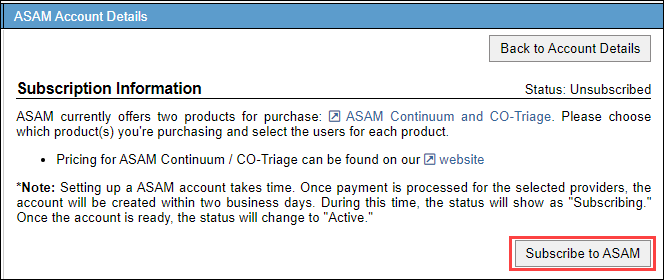
- Review the information in the "Subscription Information" section. Once you understand the requirements and have the information necessary to begin the subscription process, select "Subscribe to ASAM."
- Enter in the Practice address. This information is required to move forward.

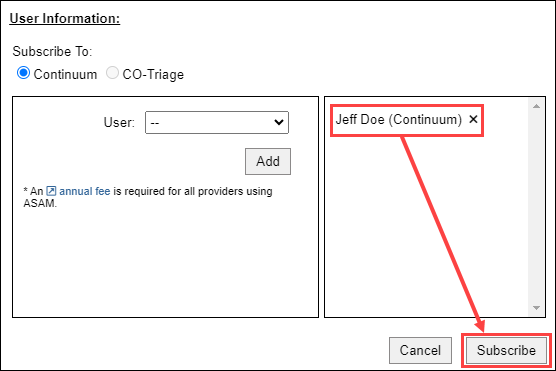
- Select "Continuum" or "CO-Triage." You can only choose one.
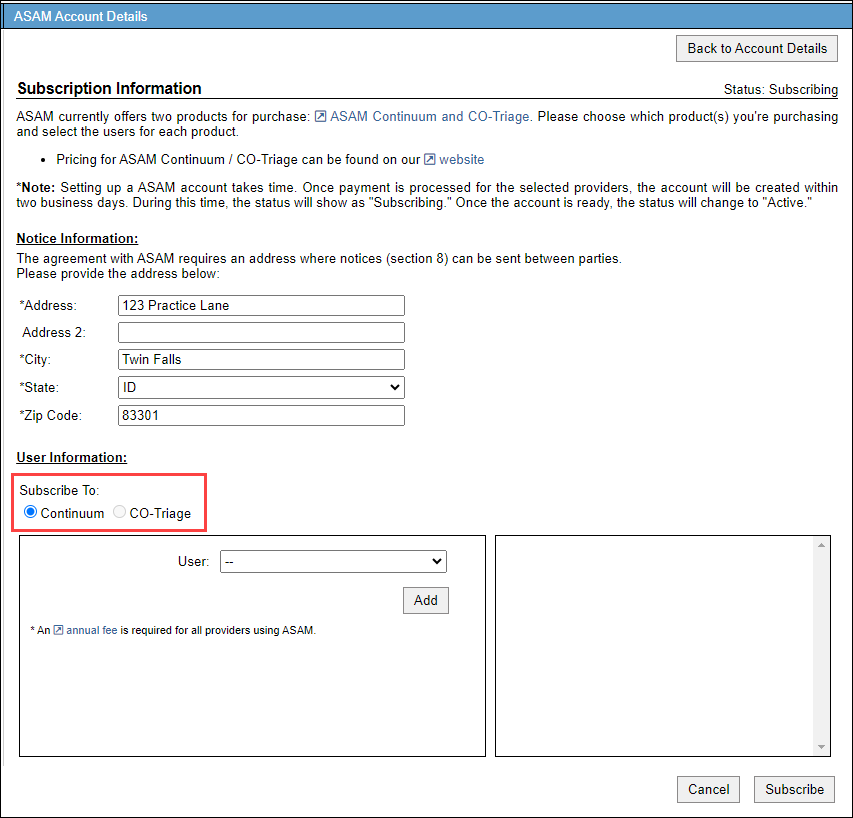
- Select the "User" drop-down. This drop-down will include all users that have a verified email address.

- Select the user, and select "Add."
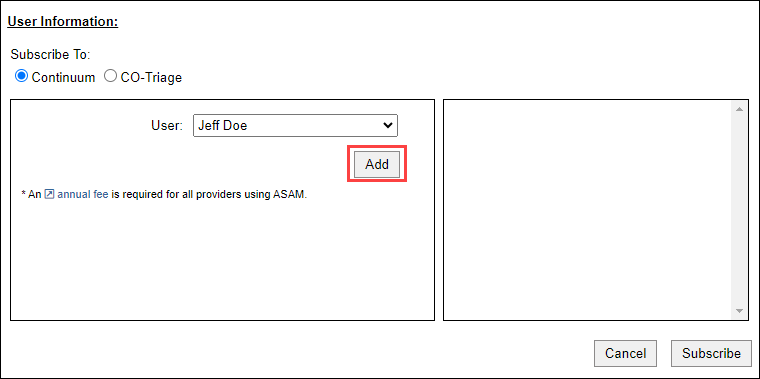
- You will receive an alert stating that an annual fee is required for a provider to use ASAM, and will be charged to the payment method on file. In order to add the user, select "OK" to initiate the payment.

- Once you have added all of the users you would like, select "Subscribe."
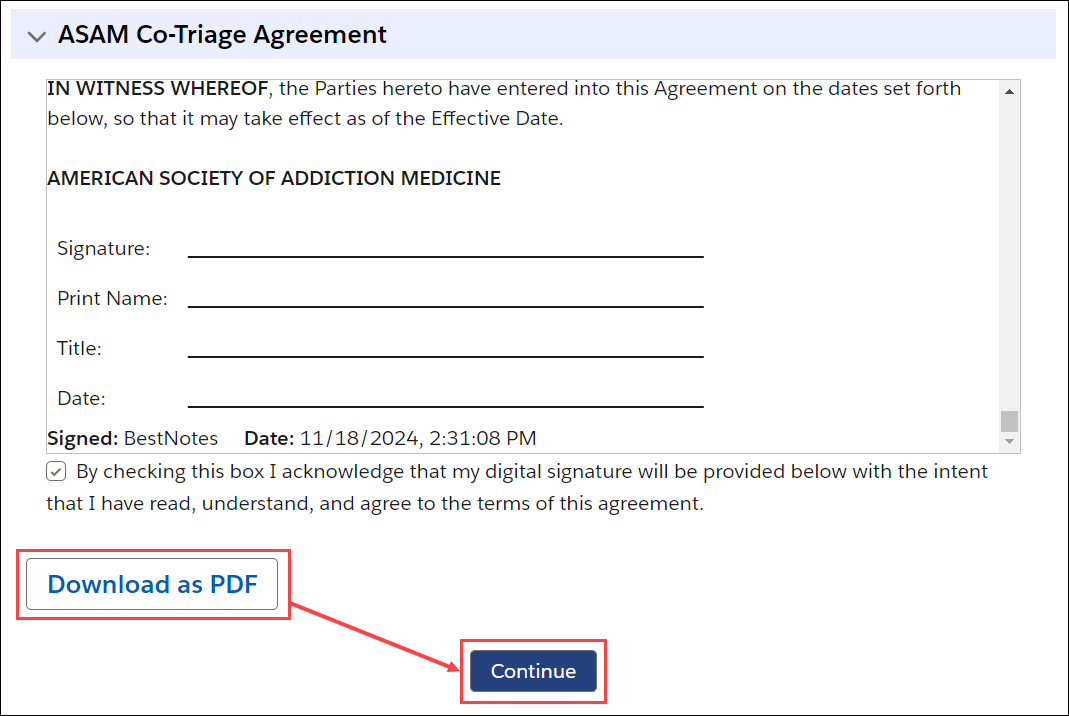
- The ASAM Continuum Agreement will open. Review the agreement, and select the checkbox at the bottom to add your digital signature to the agreement.

- You can download a copy of the agreement with your digital signature by selecting the "Download as PDF" button. Then select "Continue."
- Your ASAM subscription has been submitted successfully! Once we process the associated fees you will receive an email with further instruction.
Pricing
For information regarding pricing, please visit https://www.bestnotes.com/pricing.
Back to top of page