Manage and Log In with Multiple Site IDs in BestNotes
Modified on: Wed, Jul 15, 2026 at 2:36 PM
Some users may work for multiple companies and need to log in with different Site IDs. This article explains how to manage and select multiple Site IDs when logging into BestNotes.
Permissions Required
No specific BestNotes permissions are required.
Managing Multiple Site IDs for Login
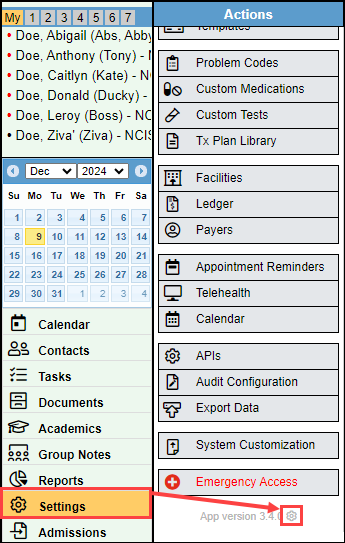
- Navigate to "Settings." At the bottom of the settings, next to the App Version number, select the settings cog icon.
- The "Preferences" window will open.
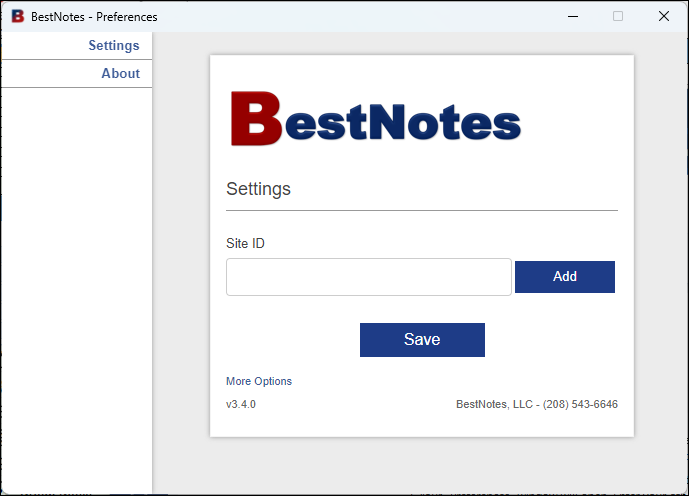
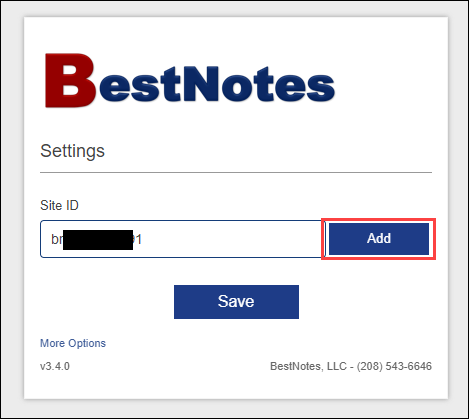
- Enter your other "Site ID" and select "Add." Repeat this for each Site ID.
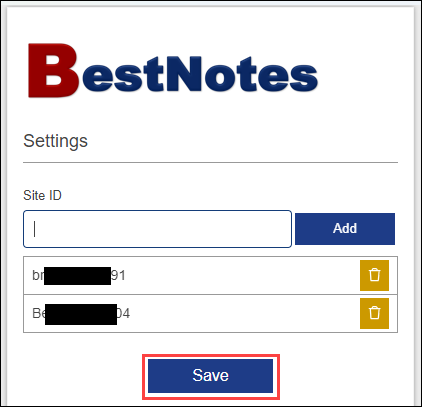
- Once you have added your Site IDs, select "Save."
- Log out of BestNotes, and close all BestNotes Windows.
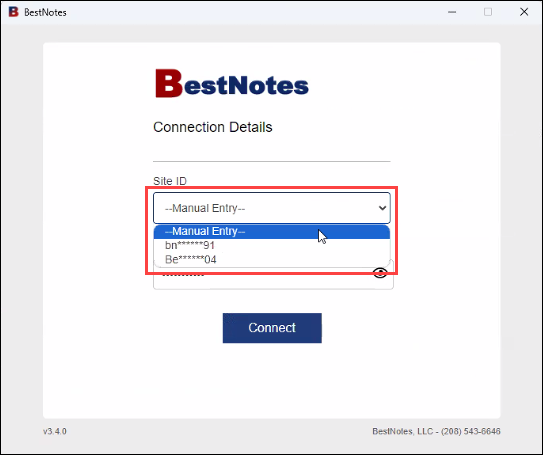
- Re-open BestNotes. The "Site ID" drop-down will include all Site IDs entered into your "Preferences" window.
- Select your desired Site ID, or you can choose "Manual Entry" to enter an additional Site ID.
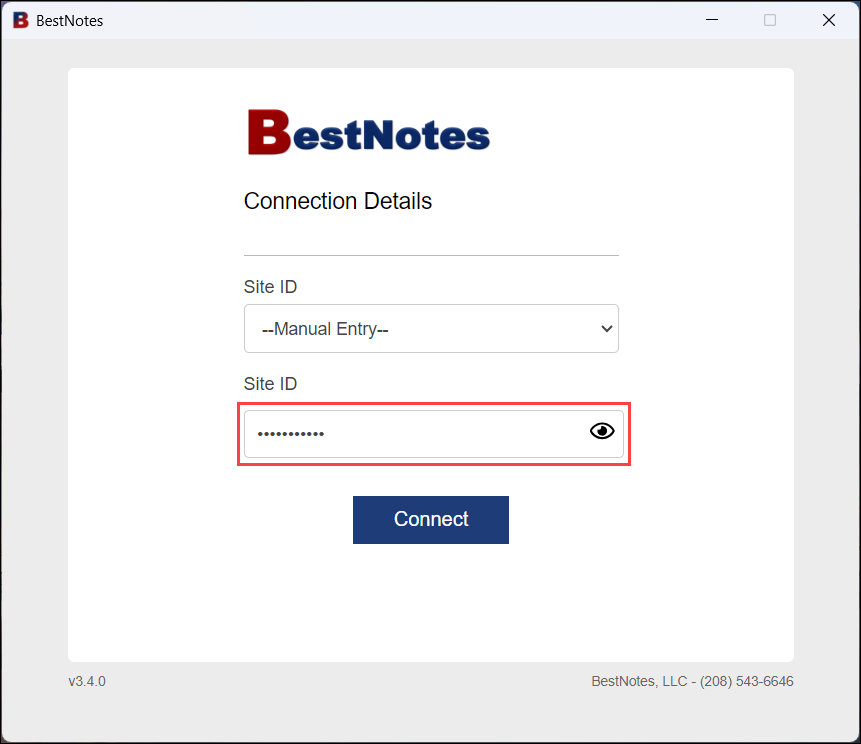
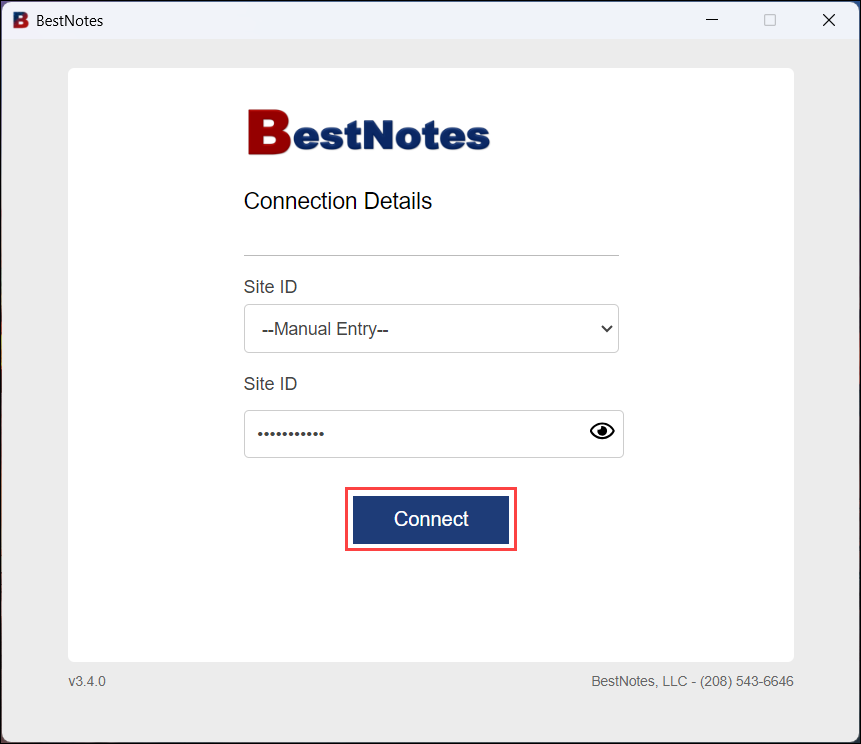
- Select "Connect."
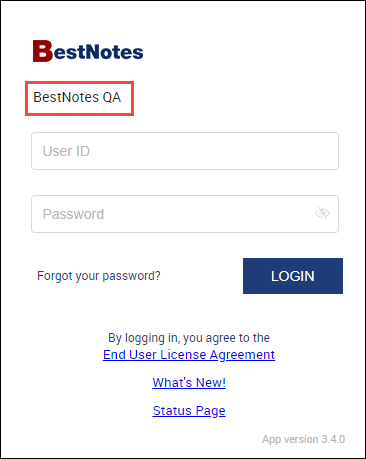
- Then you will be able to log in. The company name will be listed above the login information so you can verify that you are logging into the correct database.
Back to top of page