This article provides instructions on how to add and manage objectives within BestNotes.
Permissions Required
- Manage Tx Plan Library
Managing Treatment Plan Objectives
To add and manage objectives, you must have the "Manage Tx Plan Library" permission.
Navigate to Treatment Plan Library
- Navigate to "Settings" and "Tx Plan Library."
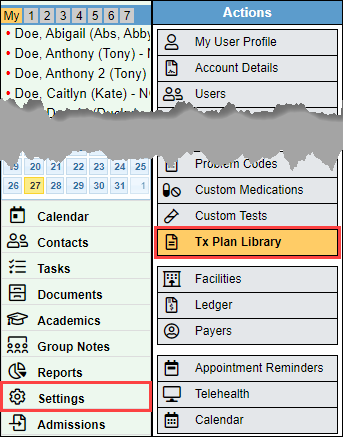
- This will bring you to the main window for the Treatment Plan Library.
Manage Objectives
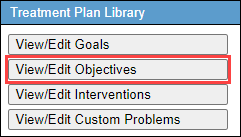
- Select the "View/Edit Objectives" button.
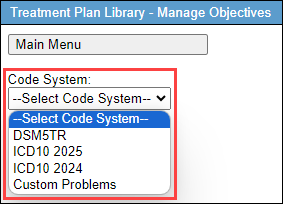
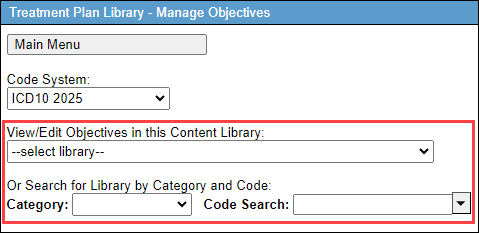
- Select the code system you would like to add it to from the "Code System" drop-down.
- Then select the library you would like to manage from the "View/Edit Goals in this Content Library", or search by selecting the appropriate category and code in the "Category" and "Code Search" drop-downs.
Create New Objective
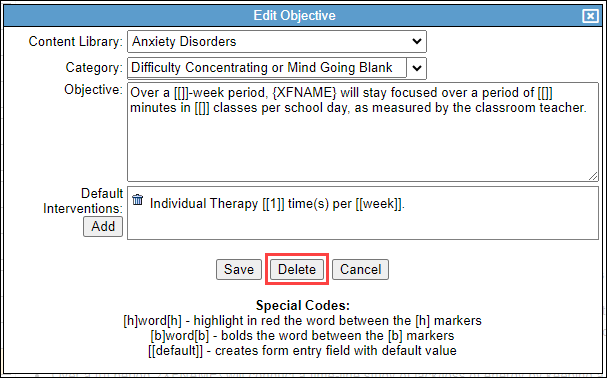
- Select "Add Objective" to create a new objective.
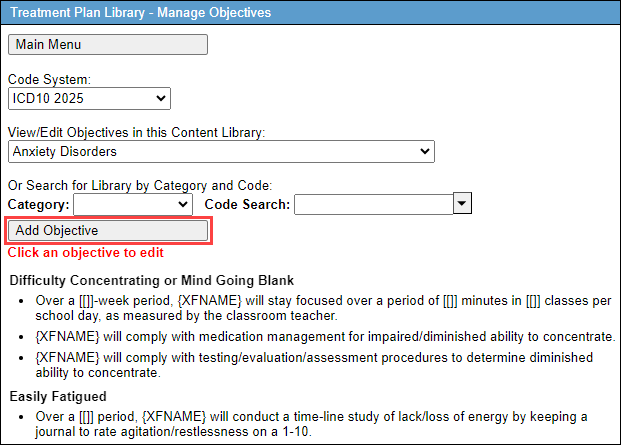
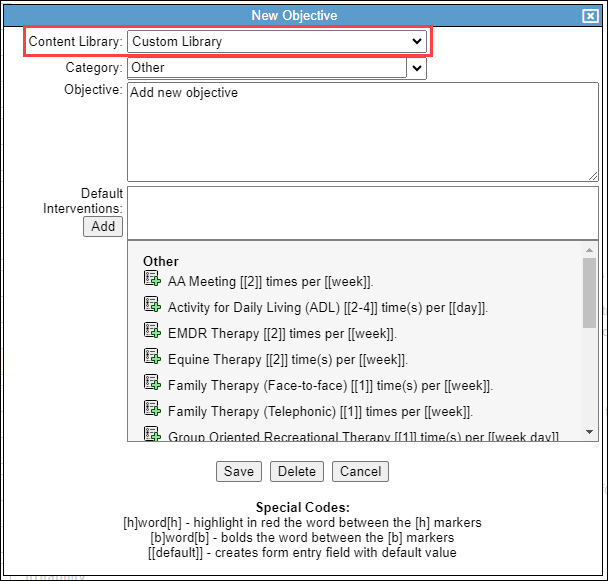
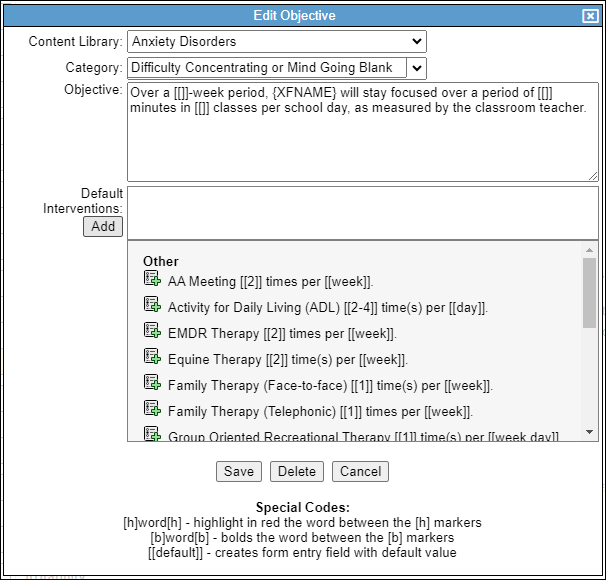
- The "Content Library" will default to the one selected. If none was selected, select the desired "Content Library."
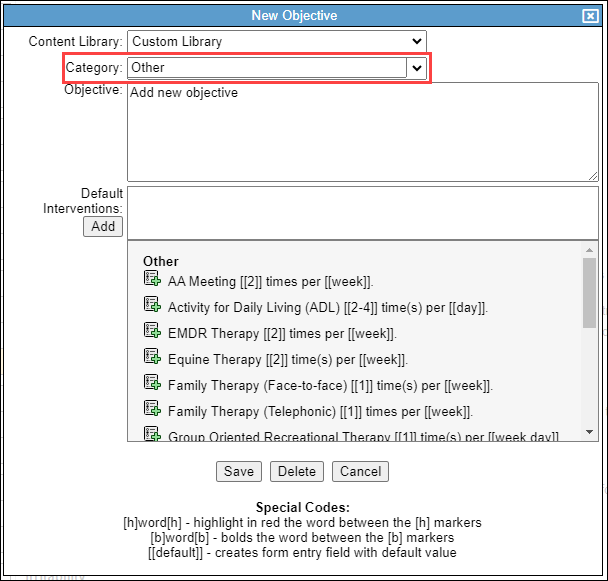
- Select the "Category" if applicable.
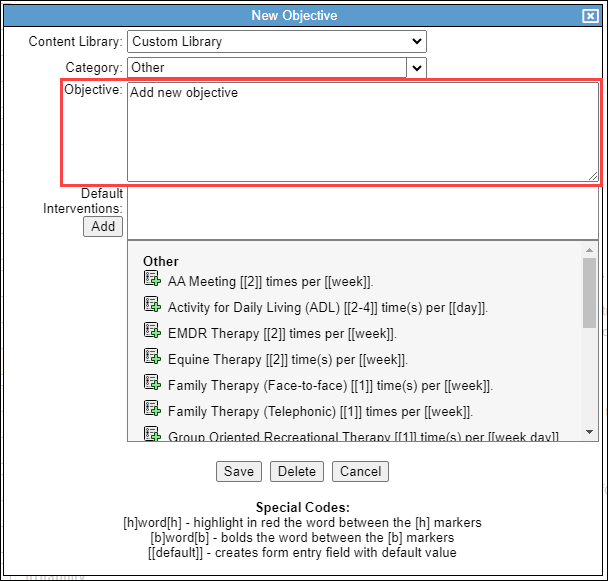
- Enter in the new objective in the "Objective" text area.
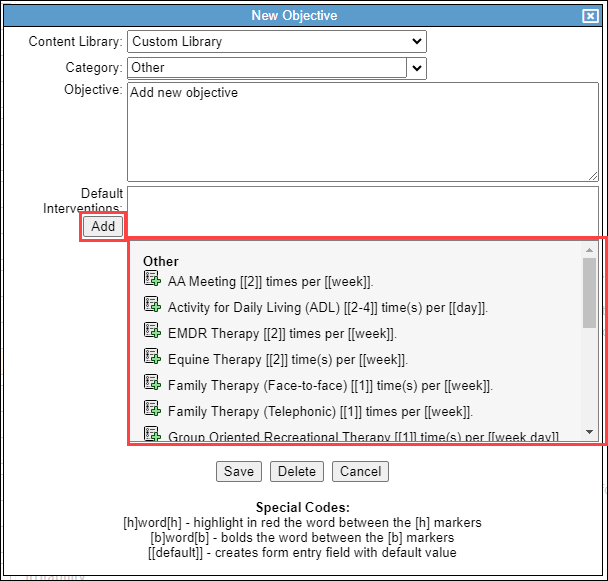
- Add any necessary "Default Interventions" by selecting "Add", and then selecting the intervention. The interventions listed are from the interventions created. See Manage interventions to learn more.
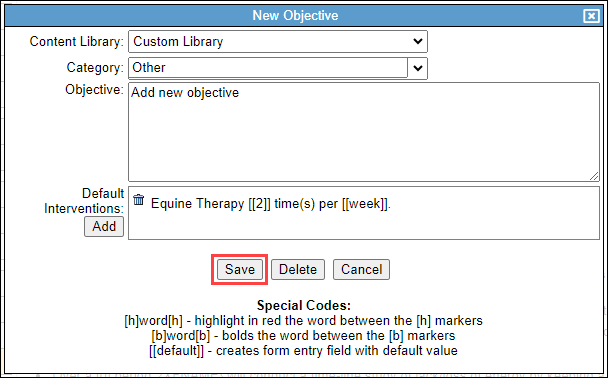
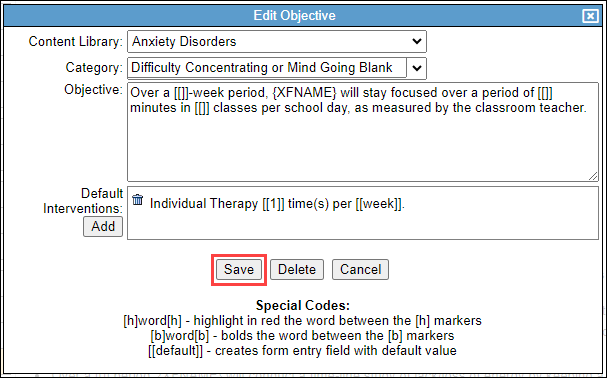
- Select "Save."
Update Existing Objective
- To edit an existing objective, select the objective you would like to edit.
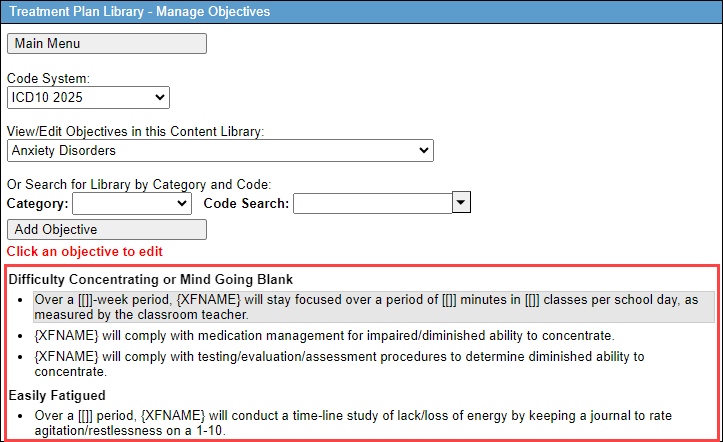
- Make any necessary adjustments.
- Select "Save."
- Select "Delete" to delete the objective.