This document details the procedure for a complete uninstall of the BestNotes application. Performing this action will remove the application from the computer, preventing further access to BestNotes on that device until it is reinstalled.
Permissions Required
No specific BestNotes permissions are required.
Uninstalling the BestNotes Application
Uninstall from Windows
NOTE: Uninstalling applications often requires local Administrator permissions. If a password prompt arises and the credentials are not known, please reach out to your organization's IT department or the individual who manages your computer.
- Close the BestNotes Application. Ensure it is completely closed before proceeding with the uninstallation.
- Settings
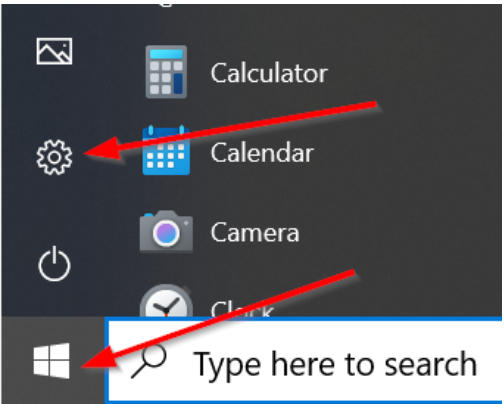
- Click the Start button (Windows icon in the bottom-left corner of the screen).
- Click the Gear icon to open the Settings.
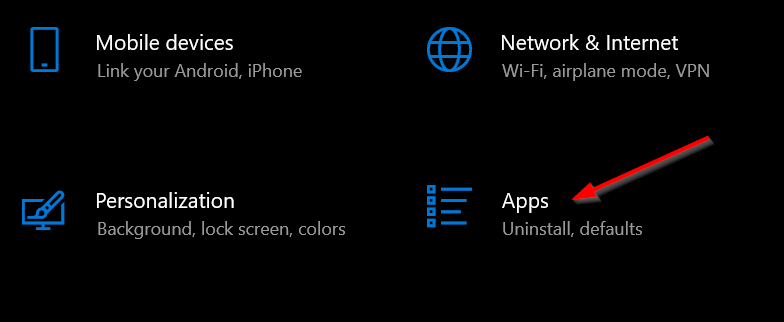
- In the Settings, click on Apps.
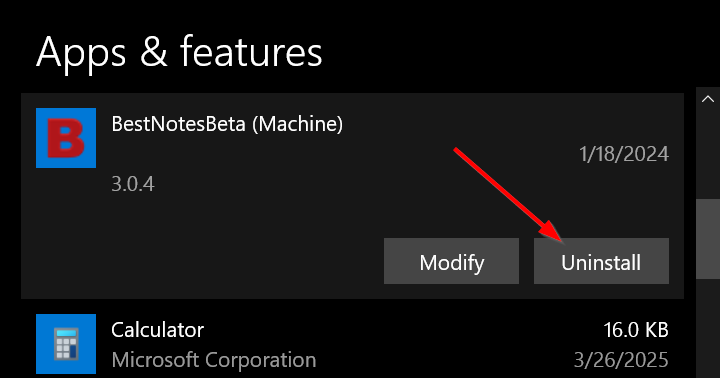
- In the list of apps, locate and single click on BestNotes.
- Click the Uninstall button.
- Follow the Uninstallation Wizard
- Clicking Uninstall will open an uninstallation wizard. Follow the on-screen instructions provided by the wizard. This may involve clicking Next, Yes, or Uninstall to proceed.
- A confirmation message will appear once the uninstallation is complete. Click OK or Finish to close the uninstaller.
Uninstall from MacOS
NOTE: Uninstalling applications often requires local Administrator permissions. If a password prompt arises and the credentials are not known, please reach out to your organization's IT department or the individual who manages your computer.
- Quit the BestNotes Application. Ensure it is completely closed before proceeding with the uninstallation.
- Click the Finder icon (blue and white smiling face icon) in the Dock (bottom of screen).
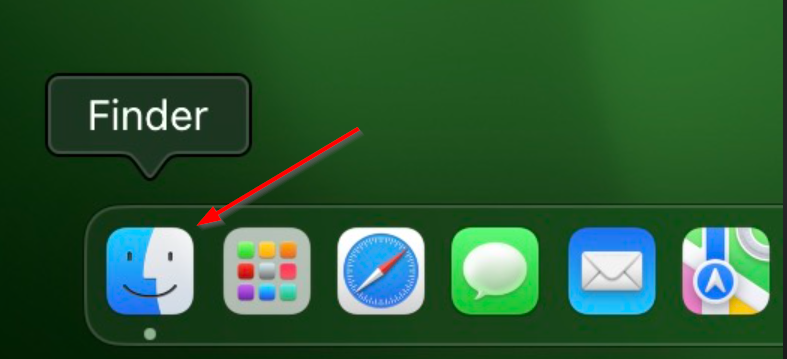
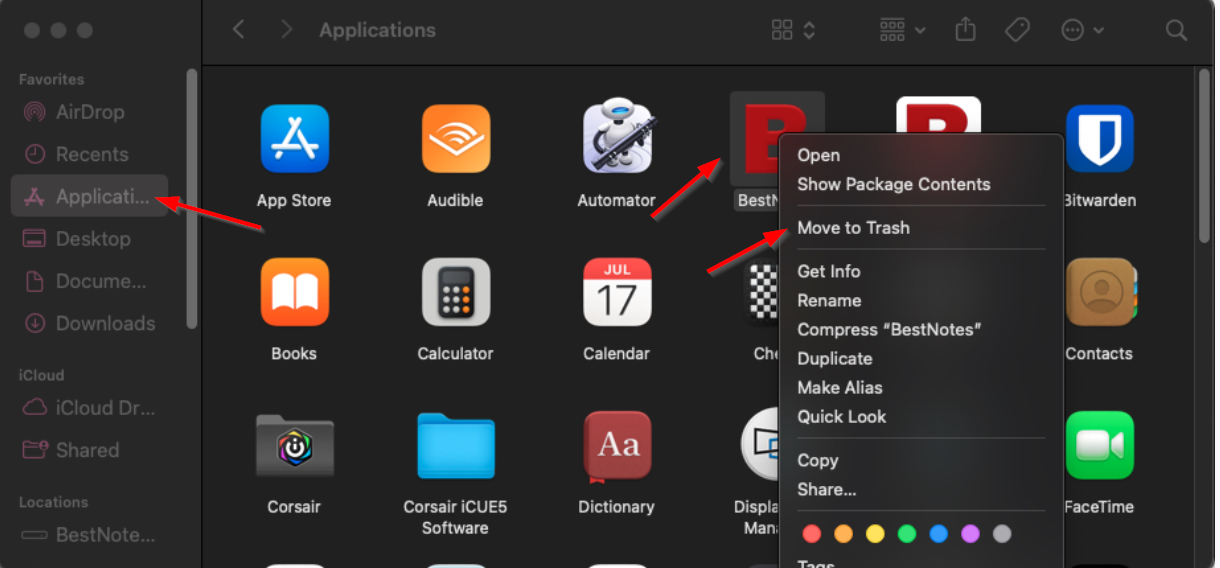
- Click the Applications option on the left sidebar of the Finder window.
- In the list of apps, locate BestNotes then click and drag it to the Trash. Alternatively, right click (or Control-click) on the icon and select Move to Trash.
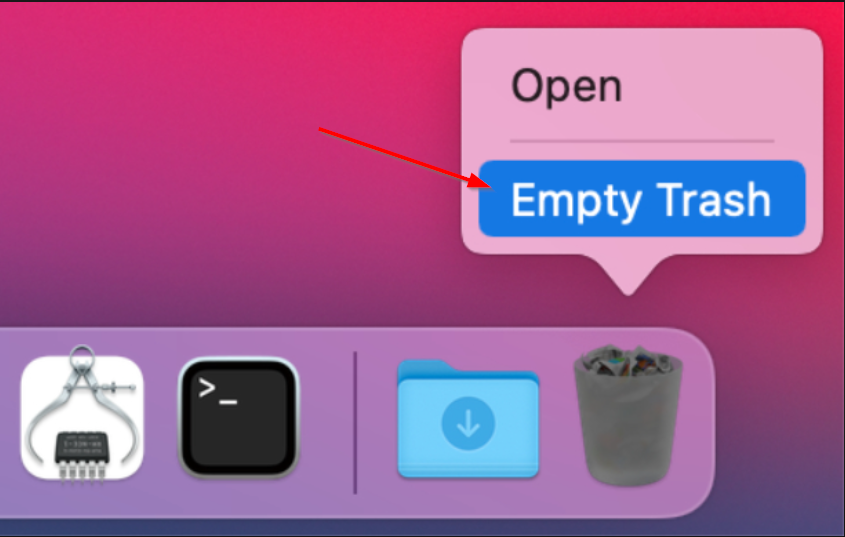
- Locate the Trash icon in the Dock (usually at the bottom-right).
- Right-click (or Control-click) on the Trash icon.
- Select Empty Trash from the menu that appears.
- Click Empty Trash in the confirmation window.