Administrative Reports provide essential oversight into your system’s configuration, security, and user activity. These reports allow you to audit medical record changes, manage user permissions, and monitor login activity to ensure data security and compliance. By reviewing settings for appointments, ledgers, and portal accounts, you can maintain an organized workflow and verify that your team has the appropriate access levels for their roles.
Permissions Required
No specific BestNotes permissions are required.
Administrative Reports Overview
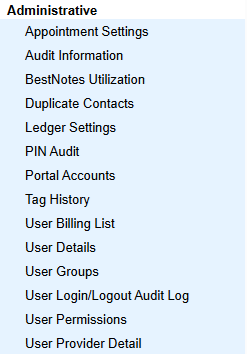
Appointment Settings
Previously named C - Calendar Setup. Displays Appointment Types and their details, including Appointment Type Name, Token, Inactive, Required Contact, Require Facility, Check-in Trigger (Start and/or End Dates), Assigned Template(s), Assigned Group Note(s), and Assigned Ledger.
Audit Information
The Audit Information report displays create/update/delete events related to patient medical records. Audit events currently tracked include patient, diagnosis, vitals, clinical notes, live document notes, medications, and demographics.
BestNotes Utilization
The BestNotes Utilization report displays primary BestNotes features and includes usage data by month.
Duplicate Contacts
Displays possible contact duplicates. Includes a Contact Type filter and allows for multi-select in the Tag filter. For contact type filter, all checkboxes but "Active Only" will disappear when business/program are selected as they are irrelevant to these types. The tag filter applies exclusively to the original record; it will not include results based on tags from related records.
Ledger Settings
Previously named Ledger Setup. The Ledger Settings report displays a review of ledger settings and ledger configuration details. It includes all Ledger Items/Codes created in BestNotes. You may filter the view by category.
PIN Audit
Previously named Client PIN Change. The PIN Audit report displays the most recent PIN change for patients that have a PIN set. The report displays: CID, Name, User Set By, IP Address, and Date/Time Last Set (CT).
Portal Accounts
The Portal Accounts report displays portal accounts that have been created, showing the name and email of portal users. The report can be filtered by Date Type and Range, Tag, and whether or not to search by linked contacts only.
Tag History
The Tag History report displays an audit of contact tag add and remove actions and the staff that completed them. The report can be filtered by name (contact name or tag name) and date range.
User Billing List
The User Billing List displays a review of users to be billed and billed last month.
User Details
Previously named User Logins. The User Details report displays a user list showing first and last login date/time, password last updated, and 2FA enabled. Inactive Users can be hidden from the report.
User Groups
The User Groups report displays all users in groups. User groups restrict access to specific areas of BestNotes, and the report can be shown by group or user.
User Login/Logout Audit Log
Previously named User Audit. The User Login/Logout Audit Log report displays an audit of each user's login and logout information, including any failed login attempts and any proxy users. It also provides details such as IP Address, platform, and operating system used during login.
User Permissions
Previously named User Permission. The User Permissions report allows you to see which users have what permissions. A multi-select filter for permission searches, enabling users to view individuals who hold any of the selected permissions. This can be filtered by User Permissions, User Group, and Show Permissions. The report displays total number of active and inactive users at the top, followed by details such as First Name, Last Name, User ID/Login, Title, Email, 2FA Status, Time Zone, User Level, Permission Group, Access Tags, Providers, User Group, Supervising Provider Required, and Assigned Permissions (if the Show Permissions box is checked).
User Provider Detail
Previously named User Providers. The User Provider Details report displays a list of providers by assignment type or setup. The 'Show by Provider Type' option shows provider assignments (provider 1-4), and the 'Show Provider Setup' option lists each provider with specific details such as NPI and State License.
Back to top of page