This article explains the purpose of each report available in the Billing section of Reports and how these reports work together to support billing workflows.
All Billing Reports are accessible within the Reports section of BestNotes, where they can be filtered by report type and are sectioned by color
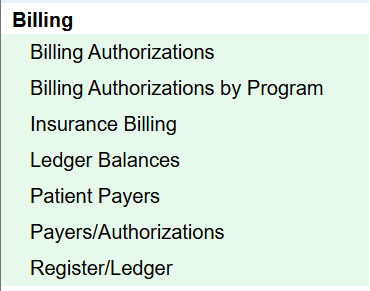
Billing Reports – Table of Contents
The following Billing reports have been renamed as part of recent reporting updates:
Billing Authorizations by Program (formerly P – Authorization Status)
Insurance Billing (formerly Billing Report)
Ledger Balances (formerly Contact Ledger Balances)
Patient Payers (formerly Billing Client Payers)
Billing Authorizations
The Billing Authorizations report displays active patient payer authorizations grouped by payer, provider, or tag. These authorizations represent the services and units approved by payers for each patient and help ensure services are billed within approved limits.
Billing Authorizations by Program
Billing Authorizations by Program displays payer authorizations for all patients active in a specific program. This report helps billing and program staff understand authorization status across program populations.
At a glance, this report shows all authorizations per patient:
Blue – Authorization has expired
Green – Authorization is current
Yellow – Patient was discharged from the program within the last 7 days
Blue and Orange indicators are commonly reviewed by billing and program staff to identify expired authorizations or recently discharged patients that may require additional review.
Insurance Billing
The Insurance Billing report displays claim-related ledger details and claim statuses.
What it shows and why it’s used:
Delivered - The claim has been released from BestNotes to connected billing software.
Pending -The claim has not yet been released and can be managed through the Claims Manager.
Claim dates - The dates associated with each claim status.
Claim statuses - Indicates whether claims are pending or delivered.
This report helps users review billing progress in BestNotes before sending claims to an external billing partner or clearinghouse.
Ledger Balances
The Ledger Balances report displays overall ledger balances across contacts, with options to filter by balance type and date range.
Displays balances as shown on the Register tab
Can be filtered by date range, facility, balance type, and status:
Client Owing (positive balance)
Client Credit (negative balance)
Non-Zero Balances
All
Includes all contact types, not just clients, as ledger items can be applied to non-client contacts
Patient Payers
The Patient Payers report displays active patient insurance by payer and/or tag.
Only includes patients with active insurance set up on the Episode tab.
Can be filtered by Tag and by Payer (insurance companies listed in Settings → Payers).
Payers/Authorizations
The Payers/Authorizations reports provide authorization and payer coverage visibility across the system and are organized into three tabs:
Payers Report – Shows payer status of current / active patients and allows a user the following views:
Active patients with payers.
Active patients with payers but no active authorizations.
Active patients without payers.
Auth Reconciliation Report
Reconciles authorized services against services provided.
Can be filtered by service dates.
Displays matched and unmatched services across all contacts.
Auth Expiration Report
Displays authorizations approaching expiration
Identifies authorizations expiring before a selected date or with fewer than a specified number of remaining units
Register/Ledger
The Register/Ledger report displays all ledger activity within selected filter criteria.
Key features:
Includes charges and payments
Organizes data by billing categories and codes
Supports filtering by date range, client, provider, category, item/code, tag, and more
Allows users to select which data fields appear in the report
Can display Provider NPI and Facility Tax ID