This article explains the purpose of each report available in the Census section of Reports and how these reports provide visibility into census data, admissions and discharges, demographic information, and population reporting.
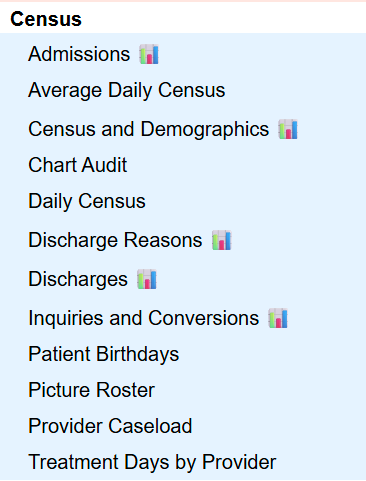
Census Reports – Table of Contents
Report Name Changes
The following Census reports have been renamed as part of recent reporting updates:
Admissions (C – Admissions)
Average Daily Census (C – Average Daily Census)
CCP – Encounter Discharge (C – CCP – Encounter Discharge)
Census and Demographics (C – Census and Demographics)
Chart Audit (C – Chart Audit)
Daily Census (C – Daily Census)
Discharge Reasons (C – Discharge Reasons)
Discharges (C – Discharges)
Inquiries and Conversions (C – Inquiries and Conversions)
Patient Birthdays (C – Patient Birthdays)
Picture Roster (C – Picture Roster)
Provider Caseload (C – Provider Caseload)
Treatment Days by Provider (C – Treatment Days by Provider)
Admissions
The Admissions report displays how many clients were admitted and where they were referred from within a selected date range.
Key details
Displays admission counts
Includes referral source information
Can be filtered by Date Range: Quarterly, Monthly, Yearly
Average Daily Census
The Average Daily Census report displays average census information over a selected period of time.
Allows filtering by date and tag
Displays client count in selected date window
Shows admissions, discharges, total client days, average daily census, and Average length of stay (LOS)
Census and Demographics
Highlighted in “BestNotes Reporting Tools” Webinar at 6:56
The Census and Demographics report displays a census dashboard that includes a calendar census view along with demographic and summary charts, with optional client-level detail.
Key details
Includes top diagnosis chart
Includes age/sex bar chart
Includes top payers chart
“Show Details” displays additional client-level rows
If “Show Details” box is selected the following information is displayed in addition to the visual graphs.
Chart Audit
Highlighted in “BestNotes Reporting Tools” Webinar at 44:50
The Chart Audit report displays a daily, calendar-style view of client activity.
Key details
Displays a daily, calendar-like view of client activity
Includes billed charges, appointments, progress notes, and program enrollment events
Daily Census
The Daily Census report displays all clients active within a selected date range, grouped by provider.
Key details
Displays active clients within a date range
Groups results by Access Tag
Displays Clinician Case Load
Discharge Reasons Highlighted in “BestNotes Reporting Tools” Webinar at 25:30
The Discharge Reasons report displays inactivation (discharge) reasons for clients.
Key details
Displays discharge reason information
Discharges
The Discharges report displays how many clients were discharged and where they were referred from within a selected date range.
Key details
Displays discharge counts by referral source
Includes referral destination information
Can be filtered by Date Range
Inquiries and Conversions
Highlighted in “BestNotes Reporting Tools” Webinar at 17:07
The Inquiries and Conversions report displays the number of inquiries with a qualified status during a selected time frame, grouped by referral category.
Key details
Displays qualified inquiry counts
Groups results by referral category
Can be filtered by Date Range: Quarterly, Monthly, Yearly
Custom Date Range
Can be filtered by Tag
Patient Birthdays
The Patient Birthdays report displays patient birthdays grouped by month and can be generated for current or past contacts.
Key details
This can be pulled for current or past contacts. Current contacts are those that have a Start Date/DOA but no End Date/DOD. Past clients have an entry in both Start and End Date.
Picture Roster
The Picture Roster report displays a list of current clients with pictures, listed alphabetically by last name.
Key details
Displays current clients with photos
Lists clients alphabetically by last name
Can be filtered by Tags
“Include Allergies” check box enables a visual view of patient allergy concerns
Adding a patient photo “Edit photo” function is found in the patient chart, otherwise default image shown below
Provider Caseload
The Provider Caseload report displays clients assigned to each provider.
Highlighted in “BestNotes Reporting Tools” Webinar at 28:50
Key details
Displays provider-to-client assignments
Treatment Days by Provider
The Treatment Days by Provider report displays providers, associated clients, and average length of stay (LOS) with summarization.
Key details
Displays provider and client information
Includes average length of stay (LOS) values