This article provides instructions on how to import data into BestNotes using a CSV file, including details on preparing the file, selecting clients, and understanding import status indicators.
Permissions Required
- Data Import
Importing Data into BestNotes
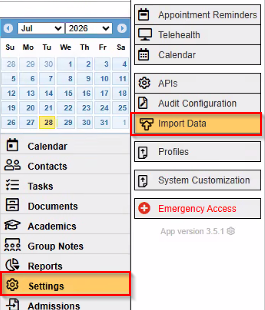
- Navigate to Settings.
- Navigate to Import Data.
- A sample .CSV import file can be downloaded by clicking Download CSV Template.

- NOTE: Do not change the order of the rows or column names in the .CSV template.
- Fill out the .CSV template with the data to be imported. Ensure to perform any data validation prior to attempting a data import.
- Select Choose file and select your CSV file.
- When selecting clients for import, you can check the checkbox to the left of each client's name. Checking the top checkbox will select all applicable entries.

NOTE: Invalid fields will not import with the client chart
- For any import, all contacts must import with an access tag.

- To hide existing contacts, click the "Hide existing contacts" checkbox.

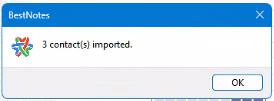
- After the import is run, you will receive a confirmation showing the total number of contacts successfully imported.
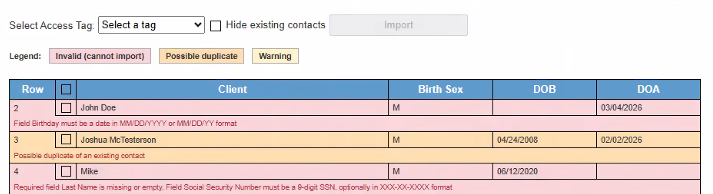
Color Legend for Import
White - Indicates an error and warning-free client to import.

Orange - Still able to import but must be manually selected. Be sure to review any orange entries prior to attempting any data import. Indicates possible duplicate contacts based on:
- First name
- Last name
- Date of birth

Yellow - Warning, data will need to be corrected for specific fields. Still able to import but must be manually selected.
Red - Error - will not import (missing first name, or last name, dates must be in specific formats).
Missing first name, last name, or date fields in improper formats may result in errors. Acceptable date formats are:
- MM/DD/YYYY
- MM/DD/YY
Possible Errors
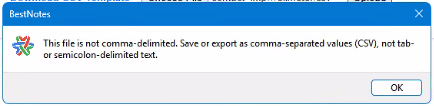
NOTE: Ensure the file is in a comma-delimited format (.CSV).
If a warning is present (e.g., "Field Social Security Number must be a 9-digit SSN, optionally in XXX-XX-XXXX format"), then this field will not populate when the client chart is created from import. Ensure warnings are corrected prior to processing the import.
Back to top of page