Documentation
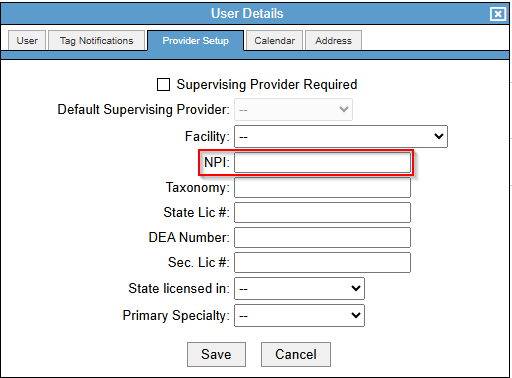
Each ordering provider needs their NPI Number entered into their User Details as it is required to create a lab order:
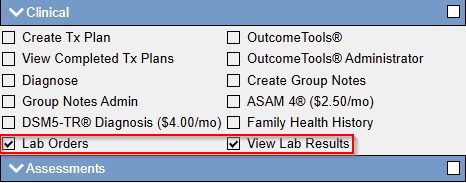
 User Permissions Required (contact your BestNotes System Administrator for user permissions):
Step 1 - Contact Setup
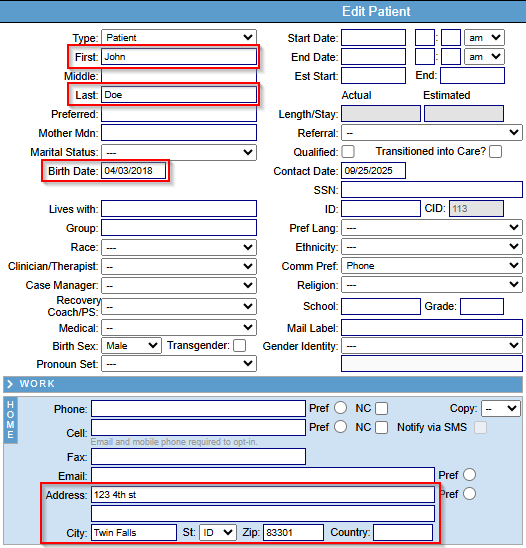
Before a lab order can be submitted, a client needs the following information added to their chart:
- First and Last Name
- Date of Birth
- Birth Sex
- Phone and/or Cell
- Home Address
- If your company has Payers in Settings, this information should be added in the client's Payers tab (For more information, Click HERE)
- For more information on adding Payers to Settings, Click HERE)
- Payers need their full information
- If the client is a child, it is recommended the Related Contact (Parent/Guardian) has the following:
- Full Name
- DOB
- Gender
- Home Address
- The Guarantor relationship has been applied to the Parent/Guardian contact
- If your company has Payers in Settings, a Payer needs to be added in the related contact's Payers tab (For more information, Click HERE)

 | NOTE: If any information is missing, you will receive an error specifying the missing required information. Once the error is corrected, click Prepare Order again.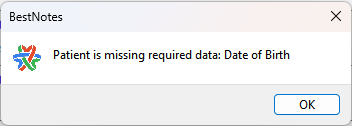 |
Step 2 - Create Lab Order
From the client's chart, click Create Lab Order.
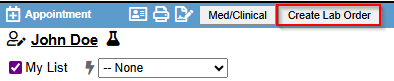
| NOTE: If there are multiple lab options available in your account, you will be prompted to choose the which lab the order is intended for before selecting Create Order. |
Step 3 - Navigating the Order
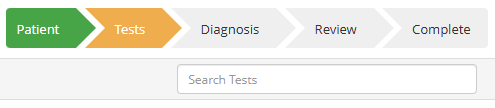
Each section within the Lab Order can be navigated using the Chevron icons.

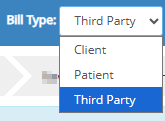
When creating a new order you may update the Order Type, Bill Type, or Cancel the order if created in error: 
The Order Type determines the draw time: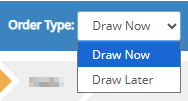
The Bill Type determines which party will be billed for the order:
Step 3 - Patient Information
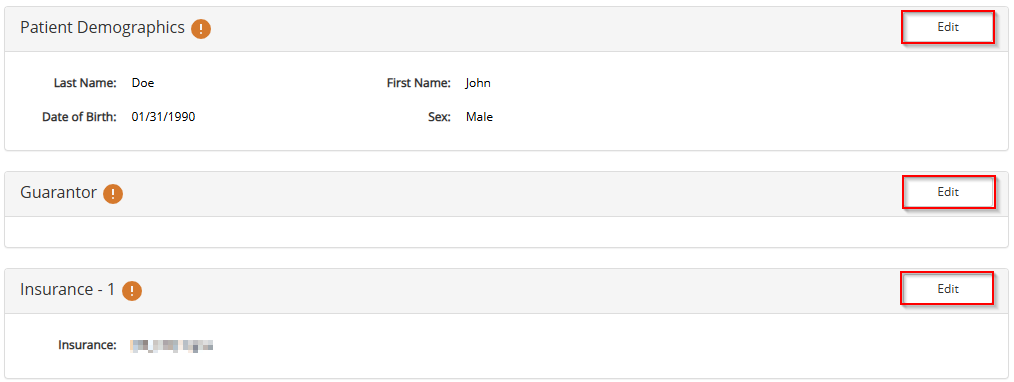
The Patient section of the order is populated with the Patient’s information: including demographics, guarantor, and insurance from the client's Payers tab. For more information, Click HERE.
It is best practice to enter as much information as possible while creating any lab orders, to mitigate potential conflicts or result delays. The following information will automatically import from the client's chart within BestNotes:
- Client Demographics
- Primary Insurance
- Secondary Insurance
- Guarantor Contact Information
Individual sections of the order can be modified by clicking Edit.
Step 6 - Tests
At least one test must be selected before the order will be valid. In the Search Tests field, search for the desired test by entering either the Test Code or search for the code by keyword. Once a code is added into the lab order it will be shown in the Selected Tests section:
| NOTE: Available test and matching codes will differ depending on the preferred lab partner you've chosen. Any selected or recommended code can be selected to view additional details related to the test. |
The Tests section will display the most recent tests that have been ordered on the current client chart. Below the client-specific collection, other frequent tests will be available to select. This listed test options will change based on the facility and the frequency of each test.
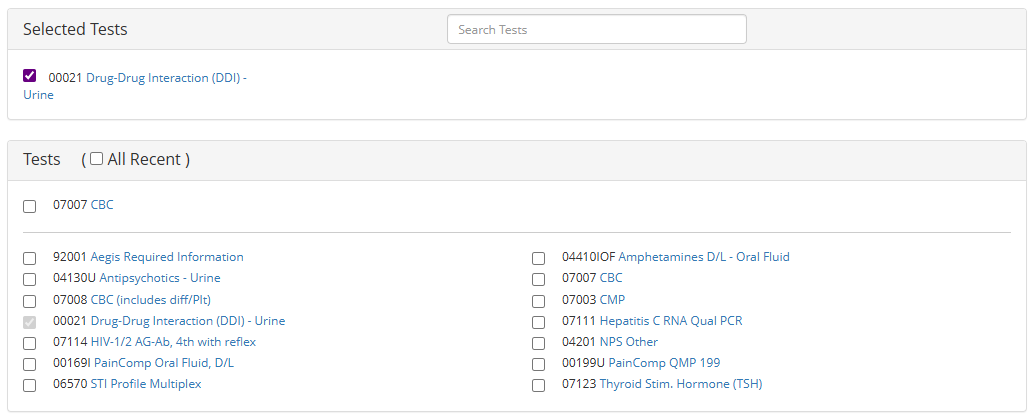
Some tests may have related questions (AOE's) to help inform the lab of unique client circumstances. If these questions are required, they will be presented after clicking Next.
Step 7 - Diagnosis
At least one diagnosis must be selected before the order will be valid.
The Diagnosis section will display the most recent diagnosis that have been ordered on the current client chart. Below the client-specific collection, other frequent diagnoses will be available to select. This listed test options will change based on the facility and the frequency of each diagnosis.
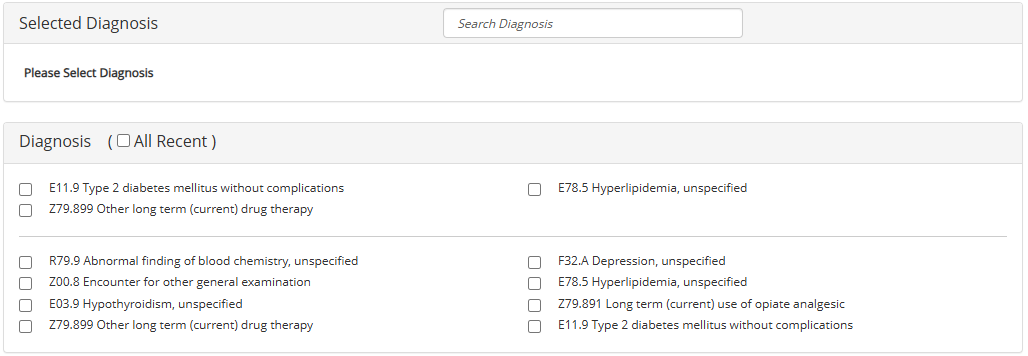
 | NOTE: Un-checking the checkbox for a test or diagnosis will remove the selection from the order. |
Step 8 - Review
Review the options selected for the order. Any necessary changes can be made by clicking Edit in the respective section. Once the information has been reviewed and confirmed correct, select Complete.
Step 9 - Order Requisition
Upon order submission, you will be presented with a downloadable PDF referred to as the Order Requisition and Specimen Label. It is best practice to securely obtain a copy of the order requisition at this time. BestNotes will not maintain a copy of this document, if it is needed at a later time you will need to obtain it via your preferred lab partner's portal.
| NOTE: ELLKAY currently supports DYMO label printers for specimen labels. |