This article explains how clients can sign documents that have been shared with them through the BestNotes portal.
Permissions Required
No specific BestNotes permissions are required.
Signing Portal Documents
Identifying Documents Requiring Signature
When a document is shared to the portal, that document will be visible on the main page of the portal. If a signature is required for that document, there will be an electronic signature icon next to the name of the document.
Signing a Document
To sign this document, follow the instructions below:
- Select the name of the document.
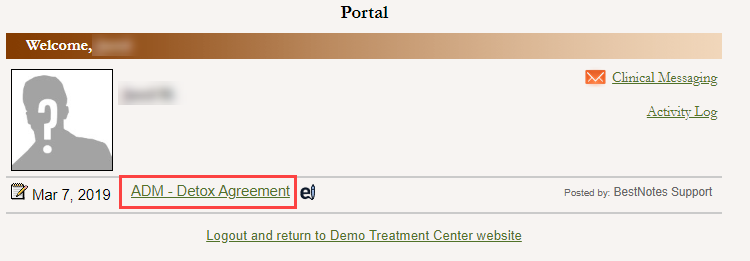
- This will open the document for review, and the option to sign will be located on the top and bottom left of the document.

- To sign the document, enter the portal password that was used to login to the portal and select "Sign."

- This action will sign the document, return to the main page, and see the electronic signature icon will disappear.

- This document has now been signed, and the signature will reflect within the client's chart in BestNotes.