This article provides instructions on how to add new contacts in BestNotes, including clients, individuals, and businesses. It also explains how to manage contact identification details and display additional demographics.
Permissions Required
- Add Contacts
- Edit Contact Records
Visual Tutorial
Click Play button
Adding and Managing Contacts
Adding a Contact
When adding a new contact, it is important that the First Name, Last Name, and Preferred Name are correct, and only include the contacts names and no special instructions. This will ensure that special fields are pulling the correct information, and that the actual name is being used to identify the contact in an integrated system.
- At the top-left of the Dashboard, search for a contact by last name or check the Advanced Search settings for more categories. Searching will ensure that you do NOT create unwanted duplicate contacts, but it will only display the first 50 results. Enter as many characters as possible to optimize your search.
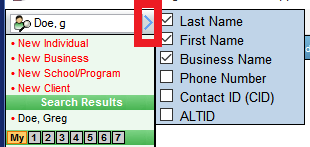
- If the search returns with no match and for example this is a patient, click on New Client. Only 50 names will populate the results list. Keep entering characters to reduce the result amount.

- Fill out the New Client form and select the appropriate Tags (required to save).
- Click Save.
You can also create a new contact for:
- Individual (Related Contact)
- Business
- School/Program (BestNotes recommends Business instead)
Parents or related contacts should be added as Individuals and NOT as a Client/Student. They should receive the same Access tags as the Client they are associated with, as well.
- Red Dot = Client (e.g. Patient / Student)
- Black Dot = Individual or Business (e.g. Related Contacts)
- Gray Dot = Inactive Contact
Edit Contact Window - Identification (ID) Descriptions

- This is a BestNotes ID
- It is locked and only used by BestNotes Support (e.g. Merging duplicate contact's)
- Manually enter a 2nd ID that is unique for your company
- This will be populated during an Implementation Import from another software.
- A 3rd place to manually enter an alternate ID that is unique to your company (e.g. if ID (above, next to CID) was already populated from an import)
Display Additional Side Demographics

Key Comments to Provider 1 will automatically display when that client's field has data. Provider 2 through CID or Allergies must be requested by your System Administrator.
Additional information can be populated from data form fields (e.g. insurance and diet info). This data can be turned red per request.
Client Demographics Report
Displays all client ethnicities and total counts for gender, state, country, and age group with graphs for each (entered in client info page). It can be sorted by tags (Access Tags) and Admit date.
Next Steps
- See also: Reports Documentation
- See also: Import Documentation