This article provides instructions on how to create and send messages, also known as Q-Logs, within BestNotes, including details on message options and recipient notifications.
Permissions Required
No specific BestNotes permissions are required.
Visual Tutorial
Click Play button
Creating and Sending Messages (Q-Logs)
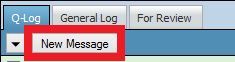
- To create a new message, navigate to the Dashboard (home screen) and click on the new message button.
- A new message window will display.

- In this window, you can:
- Select the type of message, the participants or recipients of the message, enter the body of the message, or log this message to a Contact's Face Page.
- The visibility of the message can be restricted to members of specific groups.
- At the bottom of this window is an Email Alert checkbox. Check this box if an e-mail alert needs to be sent to the recipients.

- Select the type of message, the participants or recipients of the message, enter the body of the message, or log this message to a Contact's Face Page.
- After composing the message, two options are available:
- Send - This option will send the message and leave a copy in your inbox. Choose this option if you want notification that the recipient has read the message. The names of the recipients will appear in red until the message is read, then they will appear black.
- Send and Archive - This option will send the message to the participants and then move the original message to the archived folder.

Next Steps
- See also: Dashboard