This article explains how to inactivate or delete a contact (client) in BestNotes and how to access the Inactivate Reasons Report.
Permissions Required
- Edit Contact Records
- Inactivate Contact
- Delete Contacts
Managing Contact Status and Deletion
To perform actions like editing, inactivating, or deleting a contact, specific permissions are required. If you do not have these permissions, please contact your BestNotes System Administrator.
Inactivating a Contact
When a client leaves a program and has been tagged as “Past”, you can inactivate the client so that their name appears in grey in search results or reports. To inactivate a client:
- Navigate to the client’s page.
- Click on the edit contact icon (a pencil icon) next to their name in the upper left-hand corner of the screen.
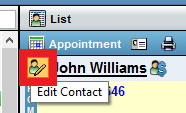
- Once in the edit contact view, choose the inactivate option at the bottom of the screen after selecting a reason for inactivating.

Deleting a Contact
If a need arises to delete a client from BestNotes, you must have the Delete Contact permission and then navigate to the client’s page.
- Click on the edit contact icon (a pencil icon).
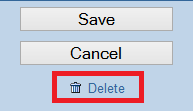
- Click the Delete button at the bottom of the edit contact page.
Inactivate Reasons Report
This report allows you to track all clients who are inactive in the system and the reason they have been inactivated (information pulled from the client information form).
- It can be filtered by Tag and Date Range.
- This report displays: Reason Inactive, Number of Contacts, Percentage, Name, Date of Admission (DOA), Date of Discharge (DOD), Zip Code, Inactive Status, Referral Category, Primary Referrer, Referred Out.
Next Steps
- See also: Reports Documentation