Once your Academic Year and Terms have been defined, you will need to define the periods. Periods must be defined in order to create classes and enroll students.
Permissions Required
- Administrator
Managing Academic Periods
Navigate to Periods Management
- Select "Academics" in the bottom left menu.
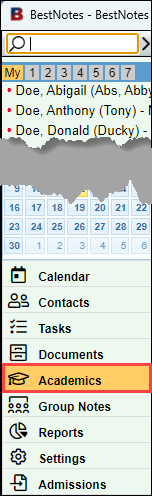
- In the "View" drop-down, select "Admin."

- Select the "Periods" tab.

Add a New Period
- Below the "New Period" label, enter the name of the period in the first field.

- In the first drop-down, select the "Start" time.
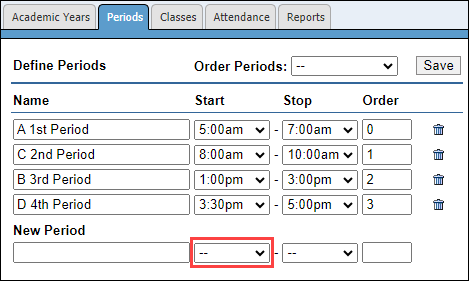
- In the second drop-down, select the "Stop" time.

- In the last field, Enter the order number to define where in the list the period will be.
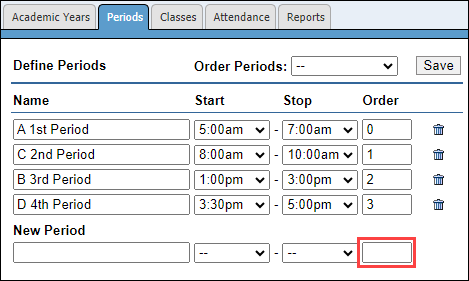
- If you need to update the order of the existing periods, update the number in the order column.

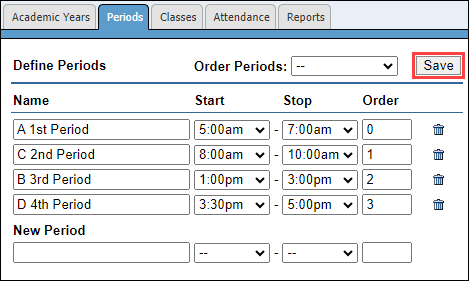
- Select Save.
Filter Periods
You can define the order in which your periods will display in this window. Select the "Order Periods" drop-down to define the order as follows:
- "--" is the default display will place your periods in order based on the "Order" column.
- "Alphabetically" will display your periods in alphabetical order based on the name.
- "By Start Time" will display your periods in order based on their "Start" time.
