Academic reports are intended to be used to review Academic information as a whole.
Permissions Required
- Administrator
- Reports
- Academic Reports
Visual Tutorial
Accessing and Using Academic Reports
There are two ways to access the Academic Reports, and there are different permission sets required to access each area.
Administrator Permission
With the "Administrator" permission, you can access the reports by following the steps below:
- Navigate to "Reports" in the bottom left menu.

- In the "Report Type" drop-down, select "Academics."
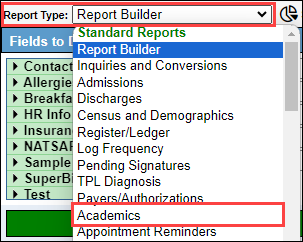
Academic Reports Permission
With the "Academic Reports" permission, you can access the reports following the steps below:
- Navigate to "Academics" in the bottom left menu.

- In the top right hand corner, select the "View" drop-down, and select the "Admin" option.
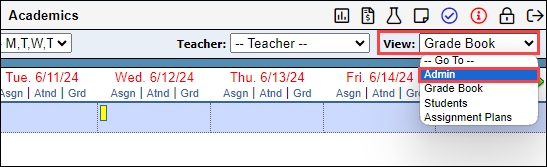
- Select the "Reports" tab in the top left of the page.

Academic Reports Overview
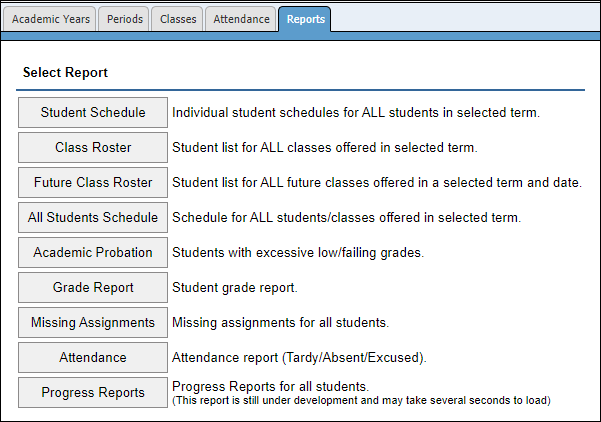
The reports included with the Academic Reports are as follows:
- Student Schedule: Individual student schedules for ALL students in selected term.
- Class Roster: Student list for ALL classes offered in selected term.
- Future Class Roster: Student list for ALL future classes offered in a selected term and date.
- All Students Schedule: Schedule for ALL students/classes offered in selected term.
- Academic Probation: Students with excessive low/failing grades.
- Grade Report: Student grade report
- Missing Assignments: Missing assignments for all students.
- Attendance: Attendance report (tardy/absent/excused).
- Progress Reports: Progress Reports for all students (This report is still under development and may take several seconds to load).
Student Schedule
The "Student Schedule" report will display a printable view of each student's schedule.
This report can be filtered by the following:
- Year
- Term
- Type (daily, period, weekly)
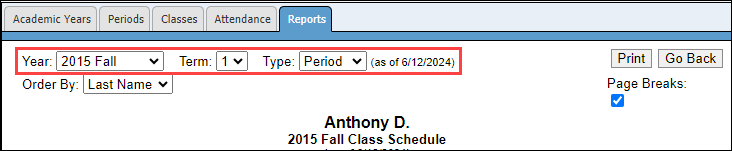
The results of the report can be ordered by:
- Last Name
- First Name
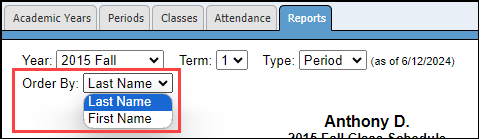
To print this report, it is important to ensure the "Page Breaks" checkbox has been selected to ensure that each schedule is printed on its own page. Then select "Print."

Class Roster
The "Class Roster" report will display the class roster for all classes that are in BestNotes.
This report can be filtered by the following:
- Year
- Term
- Period
- Teacher
- As of Today
To print this report, it is important to ensure the "Page Breaks" checkbox has been selected if you want each class to be printed on its own page. Then select "Print."

Future Class Roster
The "Future Class Roster" will show you the class roster for future courses. This can be used to prepare courses for future terms.
This report can be filtered by the following:
- Year
- Term
- Period
- Teacher
- Enrollment on (Date)

To print this report, it is important to ensure the "Page Breaks" checkbox has been selected if you want each class to be printed on its own page. Then select "Print."

All Student Schedule
The "All Student Schedule" report will display a grid view of all classes being attended by a student, where periods and student names are on the axis of the grid.
This report can be filtered by the following:
- Year
- Term

This report can also be adjusted to:
- Group by Grade
- Order by
- Last Name
- First Name

You can print the information in this report by selecting the "Print" button.

Academic Probation
The "Academic Probation" report displays students with D's and/or F's.
This report can be filtered by the following:
- Year
- Term
- Subject
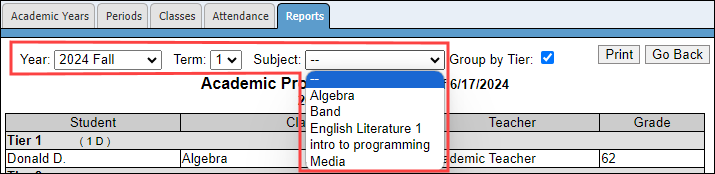
This report can also be set to "Group by Tier." Students are placed in certain Tiers based on the grade and the number of grades. The tiers are as follows:
- Tier 1: Student with 1 "D"
- Tier 2: Student with 2 "D"'s
- Tier 3: Student with 3 or more "D's" OR 1 or more "F"'s
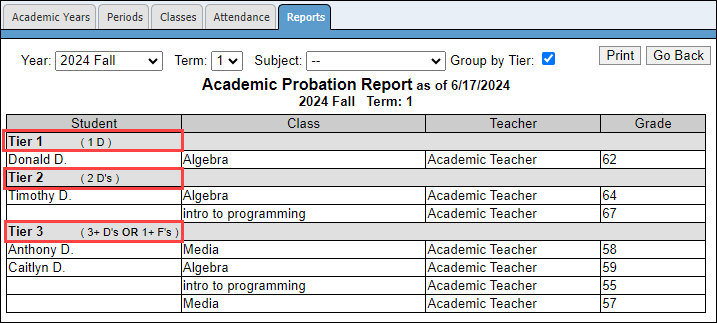
If you select the "Group by Tier" option, each Tier will have an explanation beside it.
The report can be printed by selecting the "Print" button.

Grade Report
The "Grade Report" will show each student's grades for each class they are taking.
This report can be filtered by the following:
- Year
- Term

This report can also be set to sort by three options:
- Default
- Last Name
- First Name

This report will automatically add page breaks between each client, which will print each student on a different page when you select "Print."

Missing Assignments
The "Missing Assignment" report will display the missing assignments for each student for all of the classes they are enrolled in.
This report can be filtered by the following:
- Year
- Term
- Section
- '0' Score (to include)

The report can be printed by selecting the "Print" button. This report does not have a "Page Break" option, and all of the missing assignments for each student will print on the same page.

Attendance
The "Attendance" Report will display all of the attendance records for all of the enrolled students.
This report can be filtered by the following:
- Department
- Date range
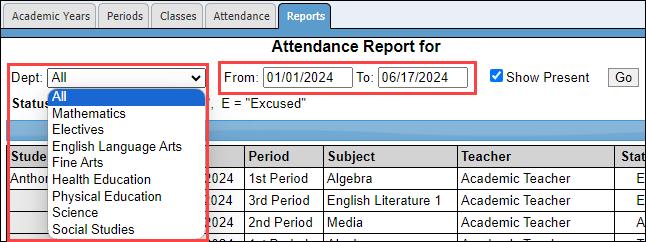
This report can also be set to "Show Present" or to only show tardies and absences.

This report can be printed by selecting the "Print" button.

Progress Reports
The "Progress Reports" report will show the progress reports for all students. This report can be filtered by the following:
- Year/Semester
- Term

This report can also be set to be ordered by:
- Last Name
- First Name

This report will automatically add page breaks between each client, which will print each student on a different page when you select "Print."

Next Steps
- See also: Students Academics Page