This article provides a video tutorial and step-by-step instructions on how to build custom reports in BestNotes.
Permissions Required
No specific BestNotes permissions are required.
Visual Tutorial
Click Play button
Building a Custom Report
After choosing the fields that need to be displayed, set some filters to gather the information that will be reported.
- In the blue bar filter, select what type of contact is available.
- Additional filters under Filter Criteria.
- When the criteria is selected, choose which option in the Equal drop down box.
- All five criteria boxes can be used
Example: Create a Report for Current Clients
- In Fields to Display, select Contact Detail
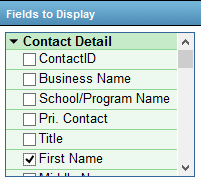
- Check First and Last name
- Select Client from the blue bar

- Choose TAG under the first box in Filter Criteria

- Choose Equal from the next dropdown box
- Choose "Current" from the last dropdown box
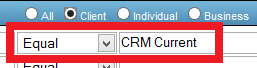
- Click View Report, and a report will generate from the criteria specified.
