This article explains how to build, save, and manage custom reports within the BestNotes Saved Reports section, allowing users to efficiently access frequently needed information.
Permissions Required
No specific BestNotes permissions are required.
Visual Tutorial
Click Play button
Building and Managing Saved Reports
The Saved Reports section is a list of any reports that have been built in the past and were saved. This allows the user to save time when needing information on a daily, weekly or monthly basis. A report can be built once and then modified to reflect the information needed at any given time.

How to Build and Save a Report
- Start with the Report Builder
- Select Headers from the green Fields to Display section.
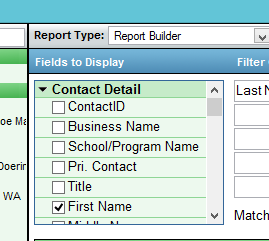
- Filter the report for specific criteria by clicking on the white boxes.

- Designate what you are specifying in the Equal operator drop-down menu and type in the criteria.
- Save the report by clicking on the Save Report icon (Under Fields to Display, Top-left of results).
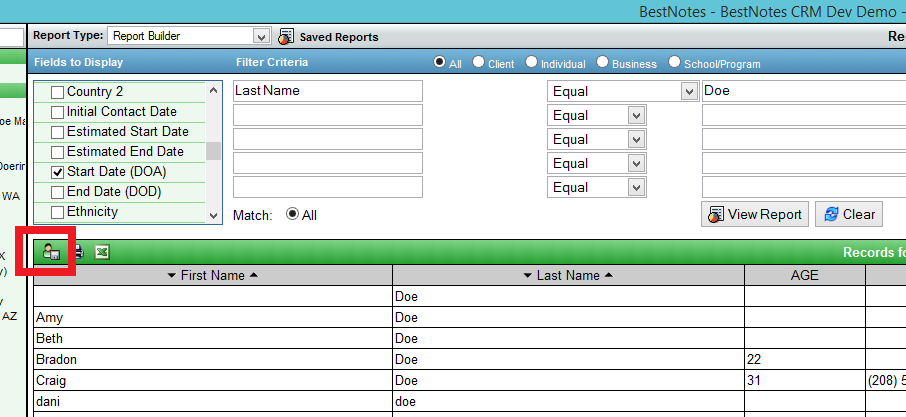

- Return to the report by clicking the Saved Reports button.
