This article outlines the process for inactivating a user in BestNotes, which prevents them from logging in.
Permissions Required
- Manage Users
Inactivating a User
To inactivate a user, follow these steps. If you are looking for a user and do not see them in the list, your System Administrator may need to update your "Access Tags" to give you access to see that user.
- Navigate to "Settings", and then select "Users."

- Select the user you would like to inactivate.
- In the "User Details" window, select the "Inactivate & force log off" checkbox.
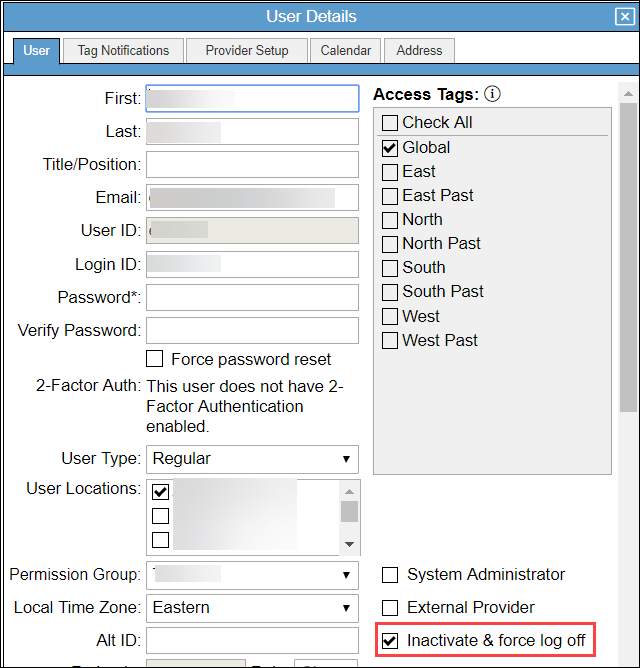
- You will then receive a confirmation to inactivate the user and force the logoff. Select "OK."

- Select "Save."
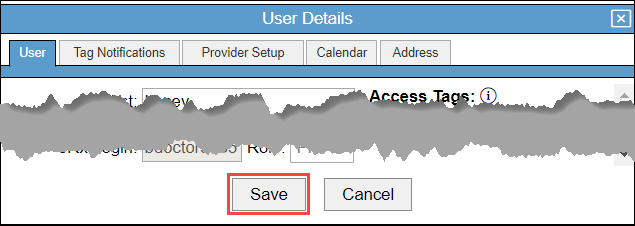
That user will now be logged out of BestNotes and will not be able to log back in.
Pricing
You will be billed for any active user, and for inactive users that logged in during the billing period. For more information on BestNotes pricing, please visit https://www.bestnotes.com/pricing.
Next Steps
- See also: Reactivate a user