This article explains how to print your BestNotes calendar in Agenda View, including options for multiple calendars and displaying cancellations.
Permissions Required
- Overlay Calendars
Printing Calendar Agenda View
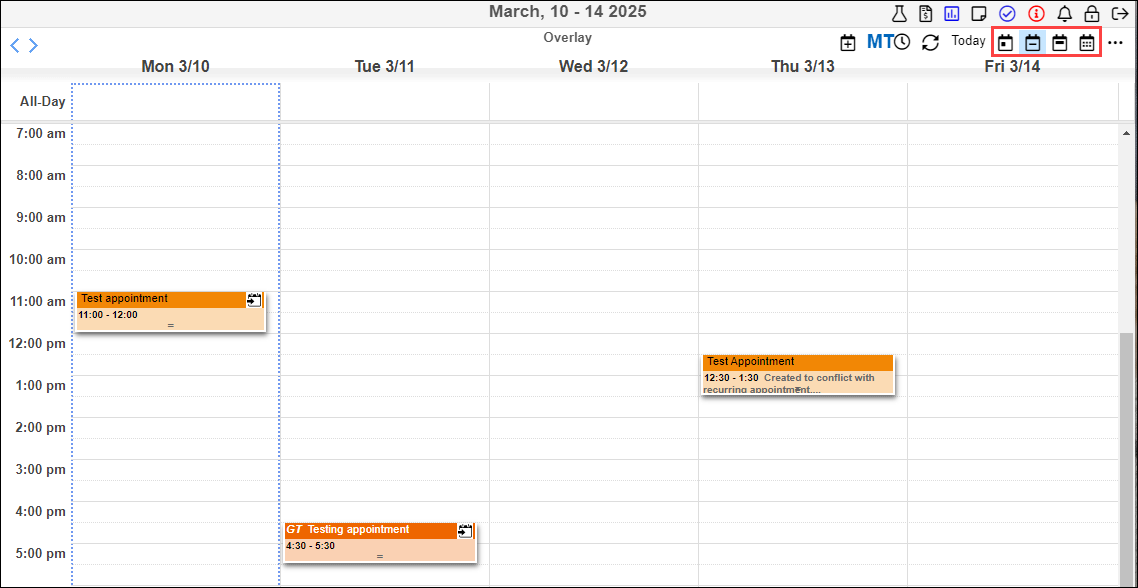
- Select the calendar view to define the dates that will be printed. If the date is visible on your screen, it will be included in the print.
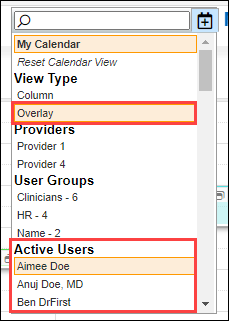
- To print multiple calendars, select the calendars you want included, and select the "Overlay" view.
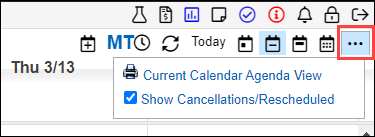
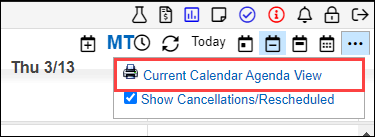
- In the top right corner, select the three dots.
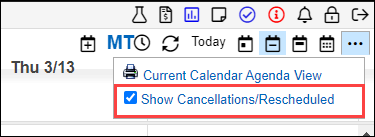
- If you want to include cancellations or rescheduled appointments, make sure the checkbox is selected.
- Select the "Current Calendar Agenda View" button with the print icon.
- A PDF will open with your agenda view, and appointments will be listed by appointment start time.