This article provides instructions on managing related contacts in BestNotes, including adding new contacts, defining relationships, reordering contacts, accessing their pages, and generating related contact reports.
Permissions Required
No specific BestNotes permissions are required.
Visual Tutorial
Click Play button
Managing Related Contacts
Adding A Related Contact
- On the contact's page, go to the Add/Edit Related Contacts search box.
- Type in the last name of the individual that needs to be related to the contact.

- If they are a new contact in the database, select New Individual.
- Fill in the Relationship
- Fill out the contact detail
- Use the same Access tags
- If they are an existing contact, then select the contact from the search results.
- Input the relationship into the Define Contact Relationship box and select the check boxes that apply to this relationship:
- Referrer (REF)
- Parent/Guardian (PG)
- Legal Custody (LC)
- Information Release (IR)
- Web Portal
Note: To copy a note from a client's Activity Log into the related contacts page, unlock the note (if needed) and at the top right use the drop down menu to choose the related contact.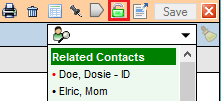
Adding Relationship Information
- Click on the two person icon to define or edit relationship details.


Move a Contact to the Top of the List
Click on the circle next to the name to move it to the top of the related contacts list.
NOTE: Although this also displays the Related Contact's information, it is best practice to only click on the circle to move this person / business to the top, and click on the name to display the information.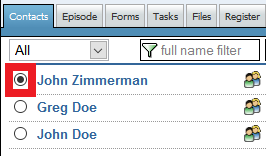
Jump to / Open Related Contact's Page
Click the jump button/icon to open the Related Contact's page.

Related Contact Reports
Parent Emails: This report displays the preferred email of parents (if selected).
- It can be filtered by Date Range.
- Parents shown have been marked with “PG” on the relationship.
- This report displays: Student Name, DOA (Date of Admission), DOD (Date of Discharge), Parent Name, Relationship, Preferred Email, Home Email, and Work Email.
Related Contacts by Tag: This report displays - by default - all current clients in the system with an Admit Date and the contacts that are tied to them.
- It can be filtered by: Date Type (see red ? for more information on this option), Date Range, Relationship (CTRL+Click), Provider, Tag and Format.
- This report displays: Client, Related Contact, Related Address, Related Phone, and Related Email.
Next Steps
- See also: BestNotes Reports