This article explains how to use the Calendar Overlay and Column views in BestNotes to efficiently manage and view multiple calendars simultaneously.
Permissions Required
- Overlay Calendars
- Schedule for Others
Visual Tutorial
Managing Multiple Calendar Views
Permissions Details
To view others' calendars, you must have the "Overlay Calendar" permission.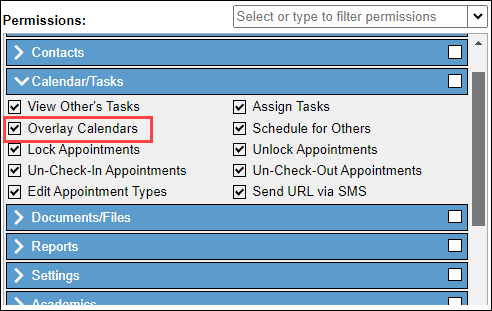
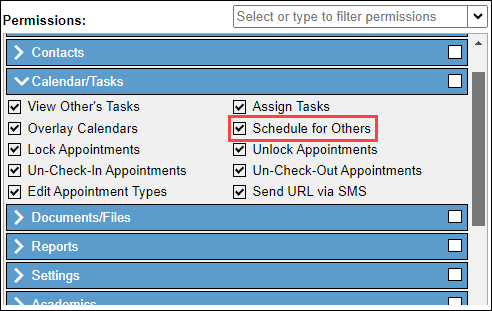
To schedule appointments for others, you must have the "Schedule for others" permission.
Overlay Calendar View
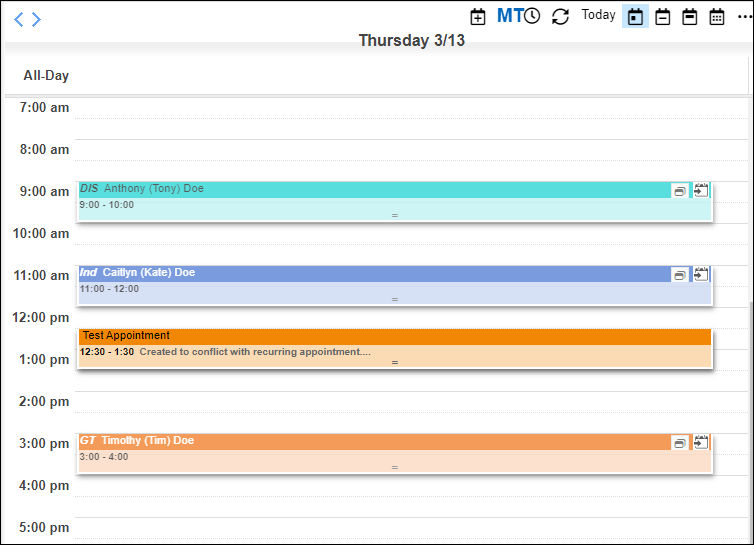
You have the ability to view multiple calendars in the same column.
- When viewing the calendar in BestNotes, select the view you prefer. You can choose Single day, work week, full week, and month view.

- Then in the calendar drop-down, within the "View Type" section, choose "Overlay."
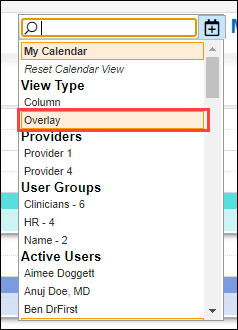
- Then select the calendars you would like to view.
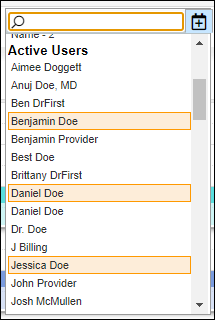
- Appointments that belong to other users will be faded, and you will be able to see if there is an open appointment time between multiple calendars.
Column Calendar View
You also have the ability to view multiple calendars with a column for each user.
- When viewing the calendar in BestNotes, select the view you prefer. You can choose Single day, work week, full week, and month view.

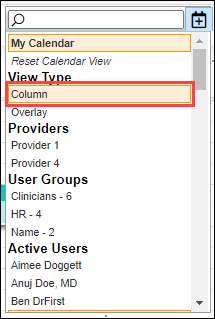
- Then in the calendar drop-down, within the "View Type" section, choose "Column."
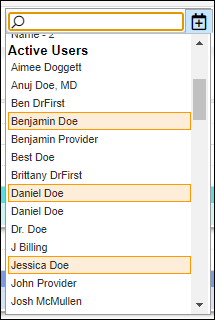
- Then select the calendars you would like to view.
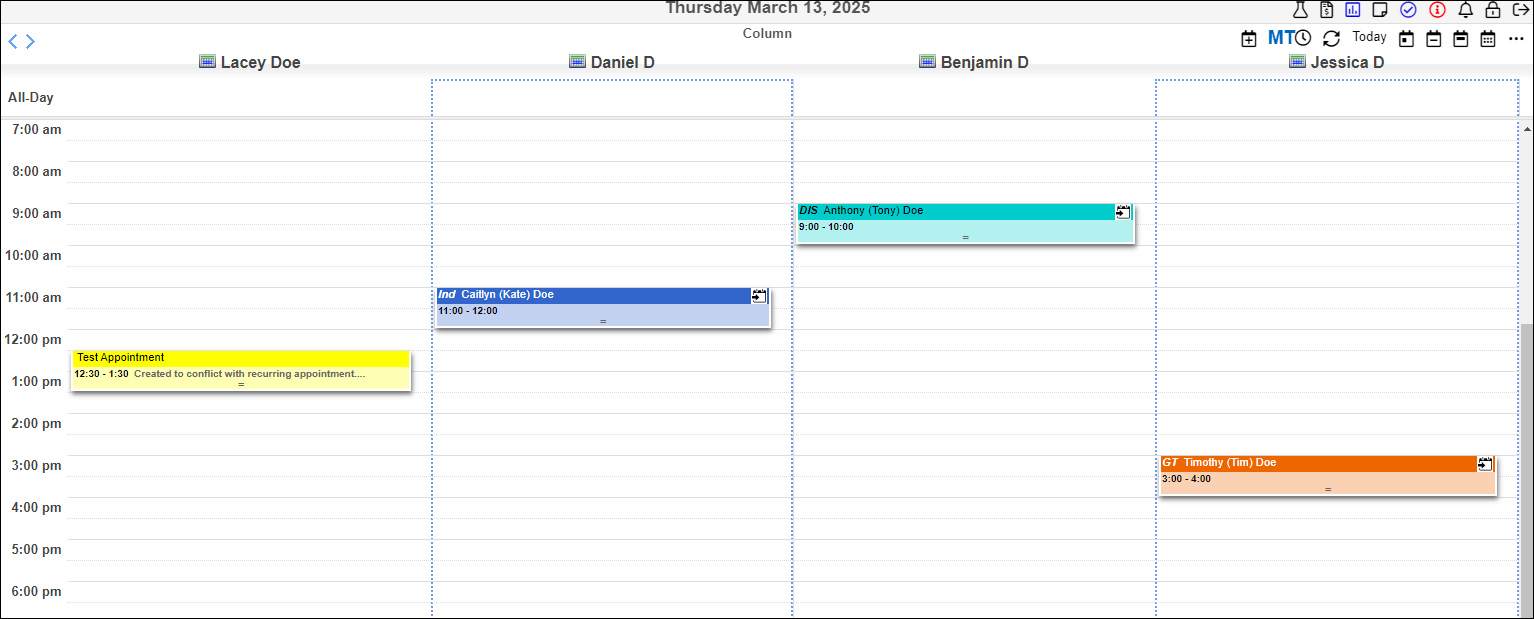
- Each calendar selected will have its own column.
Viewing Others' Calendars from Column View
When you are viewing multiple calendars in the column view, you can select one of the users to view just their calendar for the week.
- Select the calendar icon next to the users name.
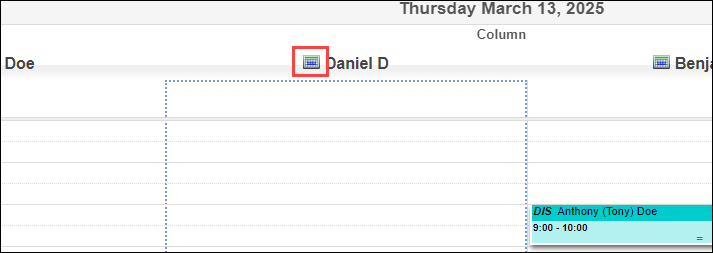
- You can view and schedule for this user with the appropriate permission. If that user had a different time zone, the calendar will change color, and the time zone will be indicated in red in the top right.

- To return to the multi-calendar view, select the "Exit User's Calendar" button in the top right corner.
