This article explains how user groups impact various areas within BestNotes, including user selection for appointments and document access restrictions.
Permissions Required
No specific BestNotes permissions are required.
Utilizing User Groups
Adding User Groups
A user group can be selected in the calendar, appointments, and within documents as signers.
Calendar
To utilize user groups in the calendar:
- Select "Calendar" in the left side menu.
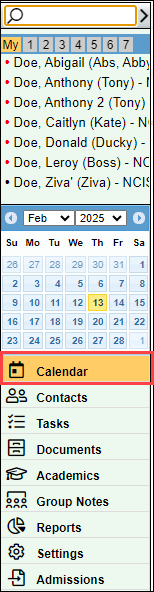
- Select the calendar icon to update the view.

- Select "Column" and the desired user group.
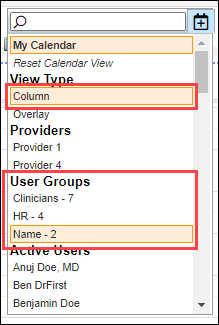
- You will see the calendar for each user, listed in the order specified when the user group was created, and in the time zone selected.

Appointments
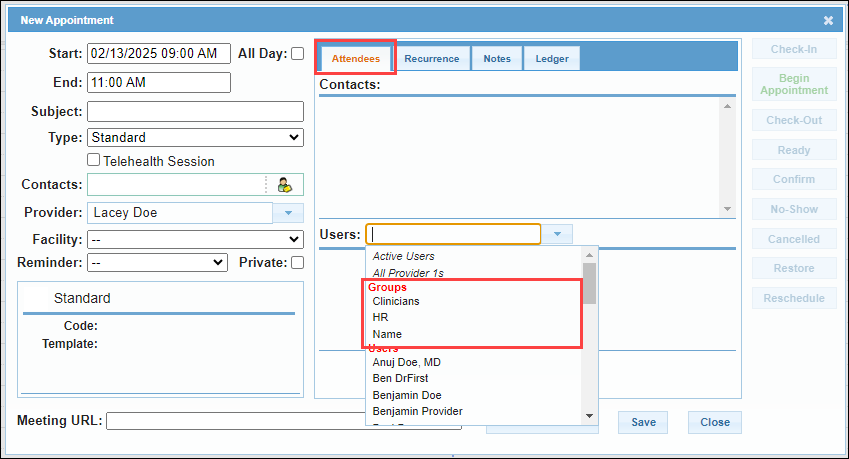
When creating an appointment, in the "Attendees" tab, you can select a user group instead of selecting multiple users.
Q-Log
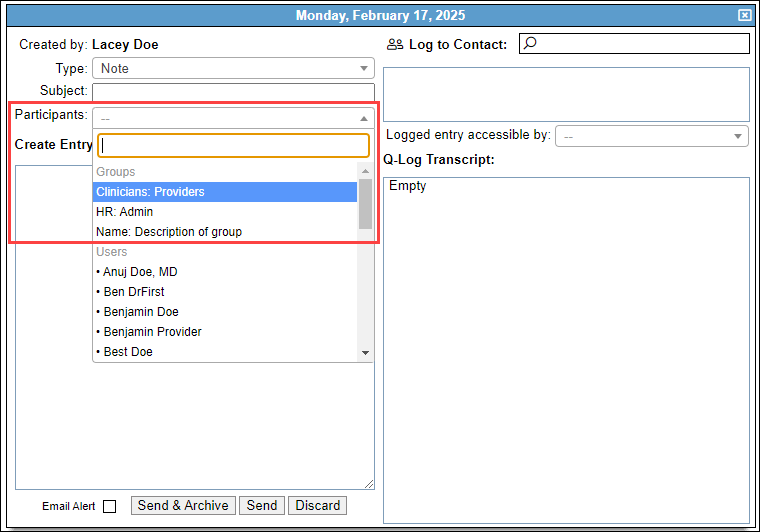
When adding participants to a Q-Log, the user groups will be listed as options.
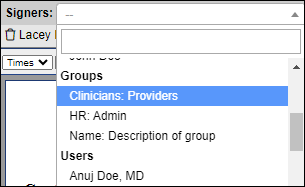
Signers
When adding a signer to any kind of document, the user groups will be listed as options.
Document Restrictions with User Groups
Restricting a document with User Groups will define the users that have access to a document. This will affect Templates, Group Notes, Data Forms, and uploaded documents.
Templates
When editing a template in the template builder, you can restrict the template to specific user groups.
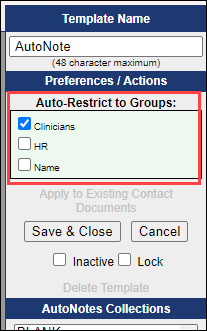
If the user is not in the assigned group, they will be able to create the template, but once the template has been saved they will not be able to view or edit the template on the client's chart.
Group Notes
When editing a group note in the "Admin" tab, you can restrict to user groups.
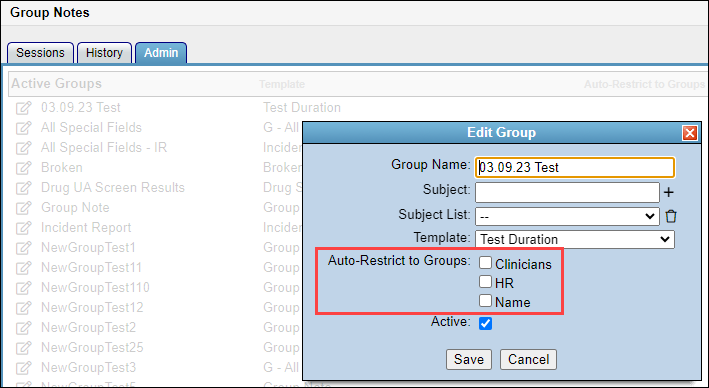
If the user is not in the assigned group, they will not be able to create or view the group note at any time.
Data Forms
When editing a Data Form, you can restrict to User Groups.
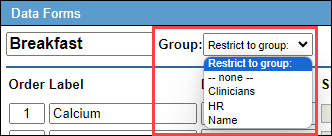
If the user is not in the assigned group, they will not be able to add the Data Form to a client's chart, or be able to view that Data Form on the client's chart.
Documents
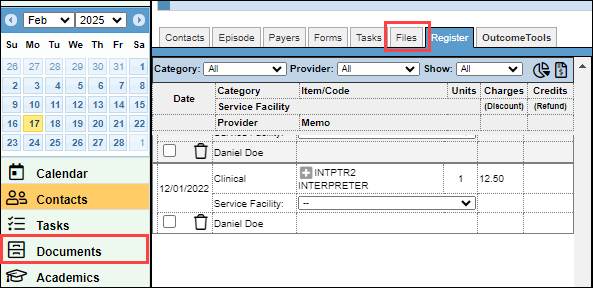
When uploading documents to the "Documents" tab, or the "Files" tab on a client's chart, you will have the ability to restrict to User Groups.
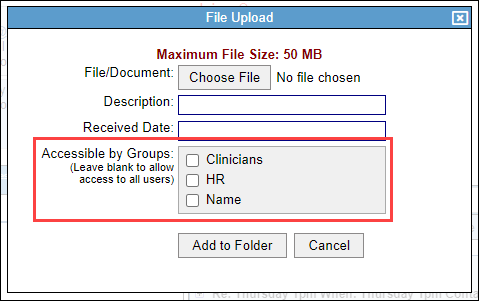
If the user is not in the assigned group, they will not be able to view the document.
Next Steps
- See also: Create a user group
- See also: User Group reports