This article explains how to access and manage vCards associated with contacts in BestNotes.
Permissions Required
No specific BestNotes permissions are required.
Managing vCards
- Click on the vCard above the contact's name.
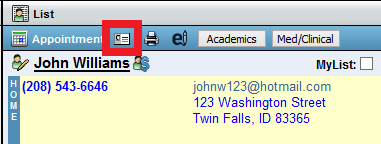
- Click on the program you want to import this vCard or Save to Disk to import into another program (e.g., Google, iCloud).
