This article provides steps to minimize data loss when saving templates and notes in BestNotes, especially when experiencing an intermittent internet connection.
Permissions Required
No specific BestNotes permissions are required.
Saving Templates and Notes with Intermittent Connection
When working with an intermittent connection, frequent saving can help minimize the risk of unsaved data. Use the Save button often. For example, when writing a progress note:
- Open the note and immediately save.
- Look in the templates History tab to ensure it is there.
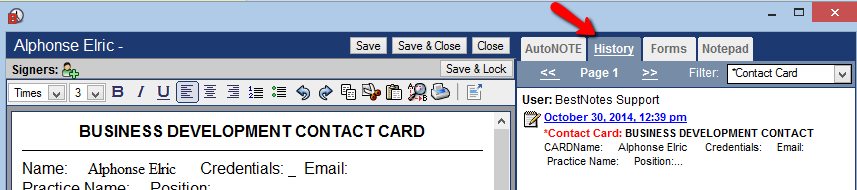
- Once there, continue working and saving periodically.
- TIP: Use the Hot key Ctrl+S (as you would in MS Word) to save time (Templates only).
- Before using Save & Close or Save, Sign & Lock, click Save one last time, and make sure the whole document is in the History tab.
- Once there, use Save & Close or Save, Sign & Lock.
For Notes and Group Notes, frequent saves can also help, though the process is not as streamlined as with templates.
Do not leave any document window open for a long period of time unattended. If you need to step away from the computer, save your work and return to the client screen or Group Note screen.
Your onsite IT team could use network tools to monitor the connection to BestNotes and see if there are any items that stand out as to why BestNotes is not available during those times. For example, ping crm.bestnotes.com -t will send a ping each second to ensure that a connection is still active to BestNotes.
Review with your Internet Service Provider (ISP) what your guaranteed uptime is and see why connections to BestNotes may be dropping.
Back to top of page