This article explains how to schedule and manage recurring calendar appointments in BestNotes, allowing them to repeat based on a specified pattern over time.
Permissions Required
No specific BestNotes permissions are required.
Setting Up and Managing Recurring Calendar Appointments
Recurrence tab (Creating Recurring Appointments)
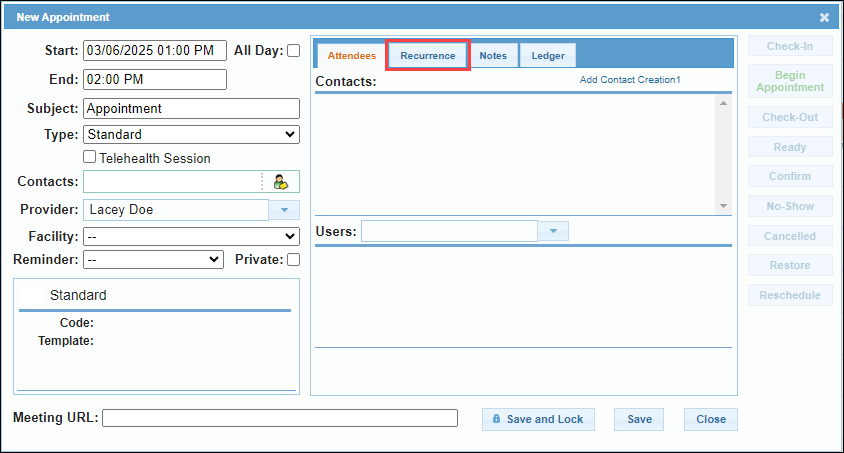
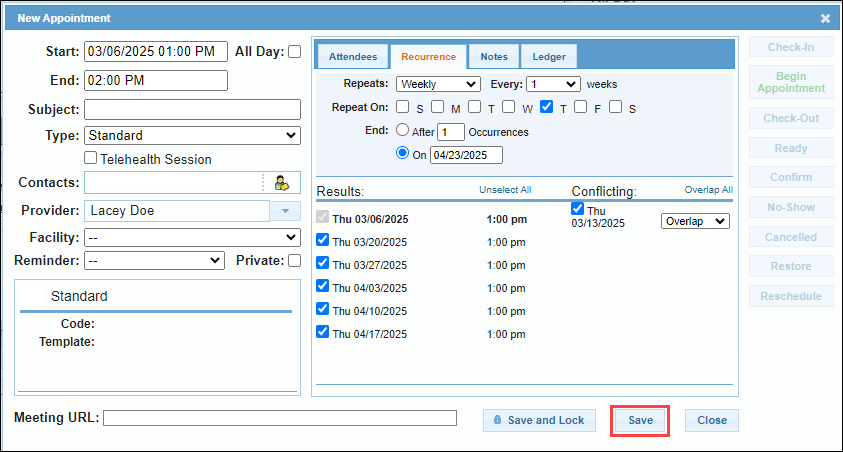
When creating or viewing an appointment, you can set the appointment to be recurring in the Recurrence tab.
- From within the appointment, navigate to the "Recurrence" tab.
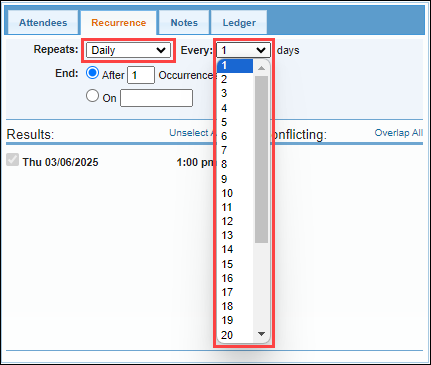
- The "Repeats" and "Every" options will allow you to select the frequency of the recurrence.
- Repeats "Daily" will create an appointment every 1-30 days.
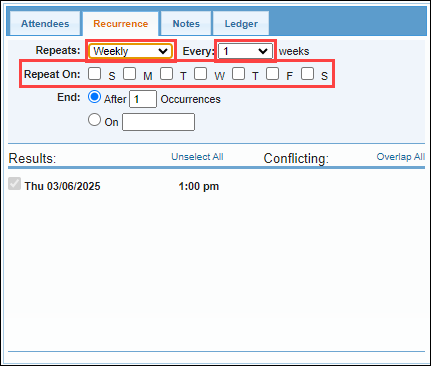
- Repeats "Weekly" will create an appointment every 1-30 weeks, on the days of the week specified with the checkboxes.
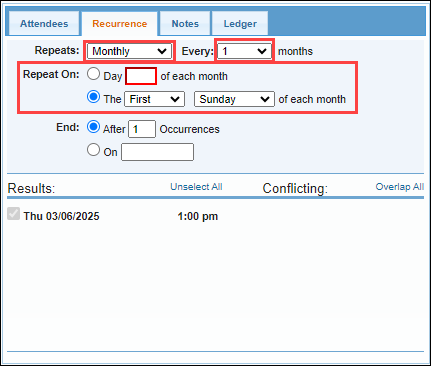
- Repeats "Monthly" will create an appointment every 1-30 months, on the date or the weekday specified with the "Repeat On" options.
- Repeats "Yearly" will create an appointment on every 1-30 years, on the date specified with the "Repeat On" options.
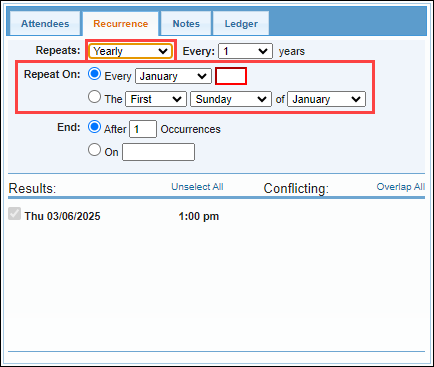
- Repeats "Daily" will create an appointment every 1-30 days.
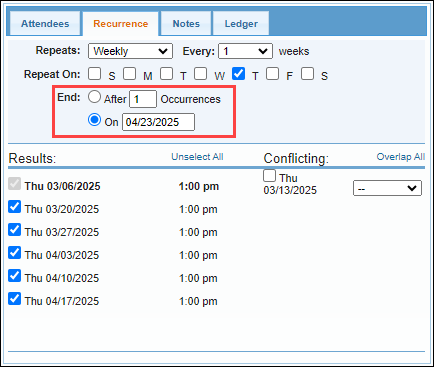
- Once you have the frequency defined, the "End" options will allow you to select the length of the recurrence by the number of appointments scheduled, or to end on a specific date.
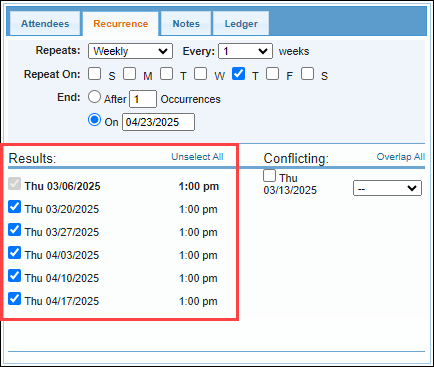
- Once you have defined the recurrence of your appointment, the recurring appointments will be displayed below "Results." You can remove a specific appointment by unchecking the box next to the date.
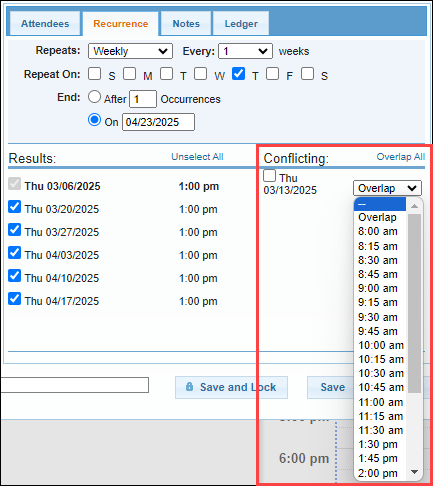
- Any appointments that conflict with other appointments will be displayed below "Conflicting." For each conflicting appointment you can select "Overlap" to schedule the appointment for that time even though there is a conflict, or you can choose a different time to apply only to the conflicting appointment. You must manually select the checkbox in order for the appointment to be created.
- If you are finished creating the appointment, select "Save."
Manage Recurring Appointment (Editing/Deleting Recurring Appointments)
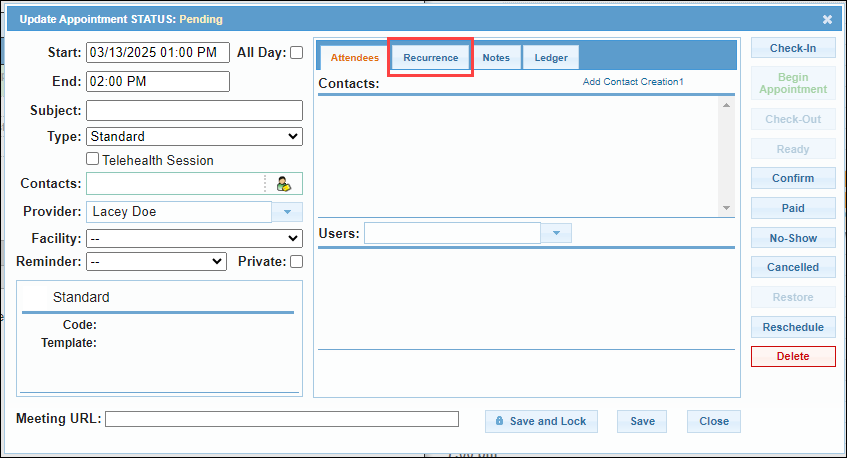
To view, edit, or delete an existing recurring appointment, navigate to the appointment.
- From within the appointment, navigate to the "Recurrence" tab.
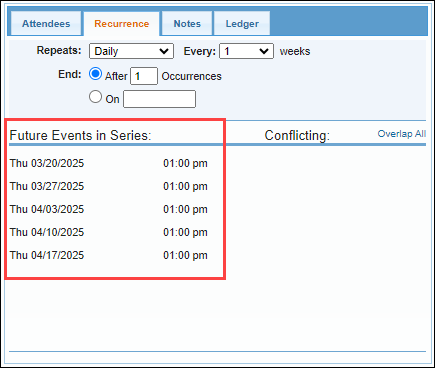
- The future recurring appointment will be listed below "Future Events in Series" for reference.
- When you make adjustments to an appointment that is included in a recurring series, when you select "Save" you will receive a prompt. This prompt will allow you to choose if the updates will affect this appointment, all future appointments, or all appointments in the series.
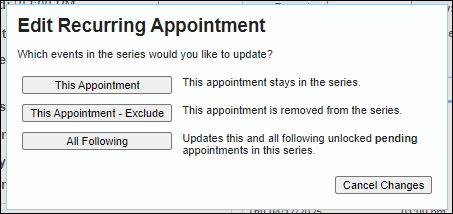
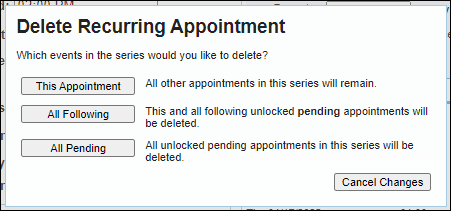
- When you delete an appointment that is included in a recurring series, you will receive a prompt to choose if you would like to delete just this appointment, delete all future appointments that are not locked, or delete all appointments in the series.
Next Steps
- See also: Creating appointments