This article explains how to review lab results, filter them, mark them as reviewed, and understand how lab results are automatically and manually linked to client charts in BestNotes.
Permissions Required
- View ALL Lab Results
Reviewing and Linking Lab Results
In order for lab results to successfully import, the ordering provider specified on the order must exist as an active user in BestNotes with a valid NPI number.
Review Results
- To access lab results, click on the Lab Results button at the top-right corner of the screen. Clicking it opens a separate window showing all new and existing lab results available in BestNotes.

The following filter options are available while navigating results:
- From Date: Results prior to this date will be removed from view.
- To Date: Results following this date will be removed from view.
- Provider: Filters for lab results based on the authorizing provider.
- Patient: Search by CID or patient name.
- Lab: Filters for lab results based on the integrated lab partner.
- Order Status: Filters based on the status of the issued order.
- Result Status: Filters based on the status of the imported result.
- Clicking the PDF icon will open the result in a new window, as a PDF document. While in this view, a user will be able to print or download any result available:


- While the PDF result is visible, selecting the Reviewed By option will allow a user to be added into this result as a Reviewer:
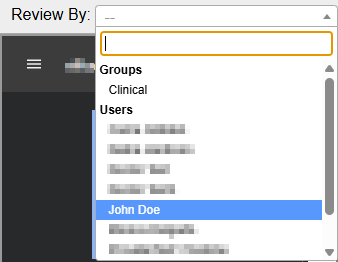
- Once a user has been added as a reviewer, upon viewing the result the user can choose to Complete Review:

- Once the Complete Review button has been clicked, the reviewing user will be visible with an indication that the review has been completed.
- Any user with access to lab results may hover over the Reviewed Icons to view a detailed list of pending and completed reviewers:


Automatic Linking of Lab Results
Lab results will automatically link to a client's chart if the order was submitted from within BestNotes. If the order did not originate from BestNotes, then automatic linking will only occur if the following information within the result is identical to a BestNotes chart:
- First Name
- Last Name
- Birth Sex
- DOB
- Active Chart
Results will not automatically link to a client chart if:
- The imported result does not identically match a chart's First Name, Last Name, Birth Sex, or DOB.
- There are multiple identical matches (duplicate charts).
If a lab result did not automatically link to the appropriate chart due to any discrepancy with First Name, Last Name, Birth Sex, or DOB, the result must be manually linked.
Manual Linking of Lab Results
- To manually link a lab result, click the patient's name to the left of a client's name in the Lab Results window:

- Select the radio button that represents the desired patient to link the lab result, and click Match:
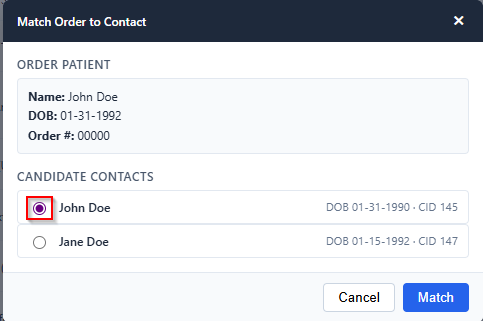
BestNotes will present similar charts to assist in manually linking results. Clients with similar information (such as last name) may appear as potentially linkable charts.
Back to top of page