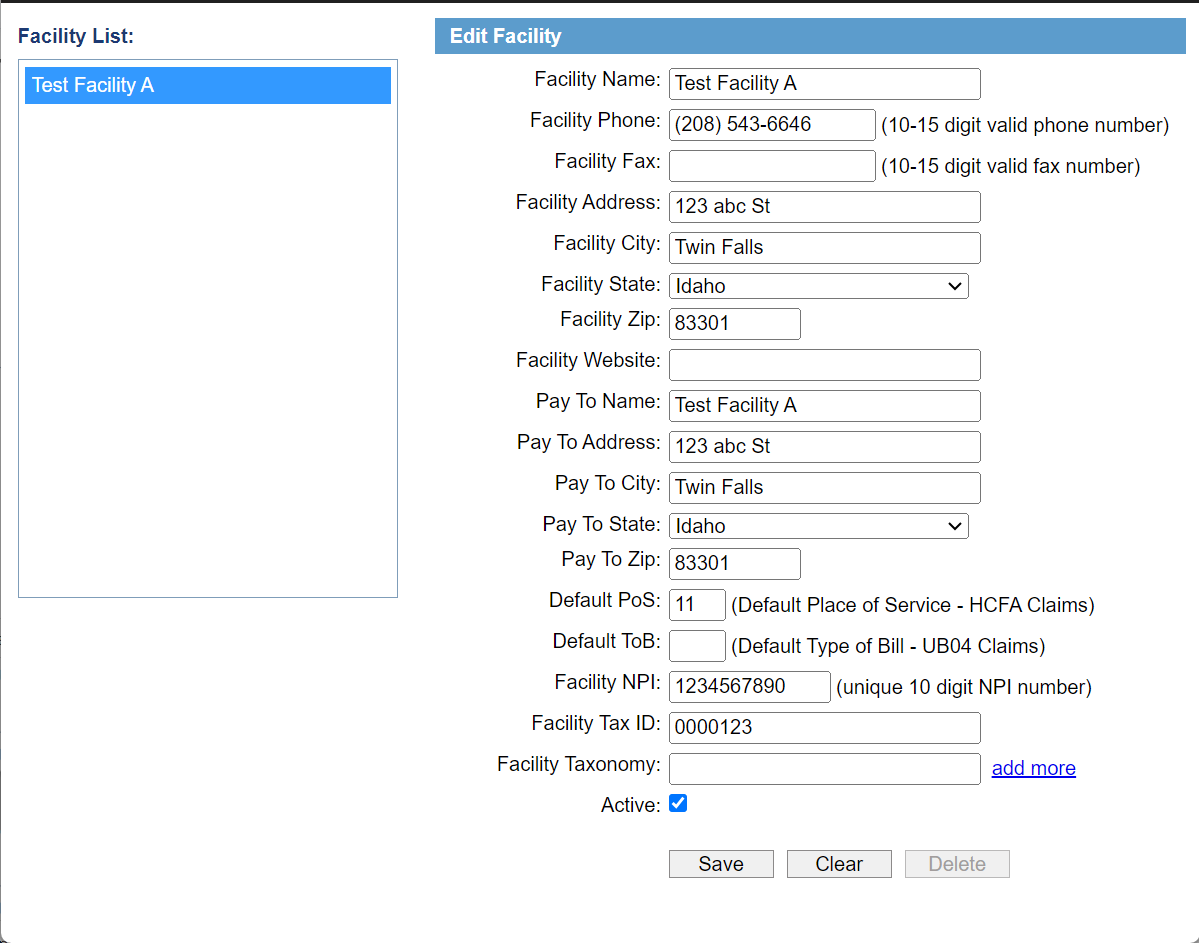
This is Step 1 of setting up billing in BestNotes. This guide will walk you through Facility Management.
Permissions Required
- Manage Facilities
Managing Facilities
- To manage facilities, you will need the "Manage Facilities" permission.
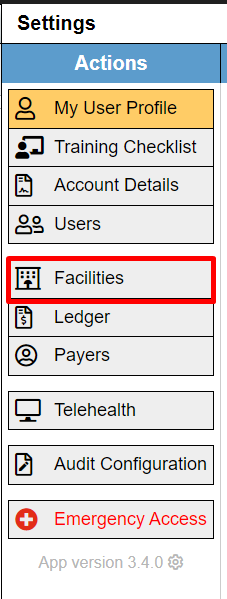
- From the "Settings" menu, select "Facilities."
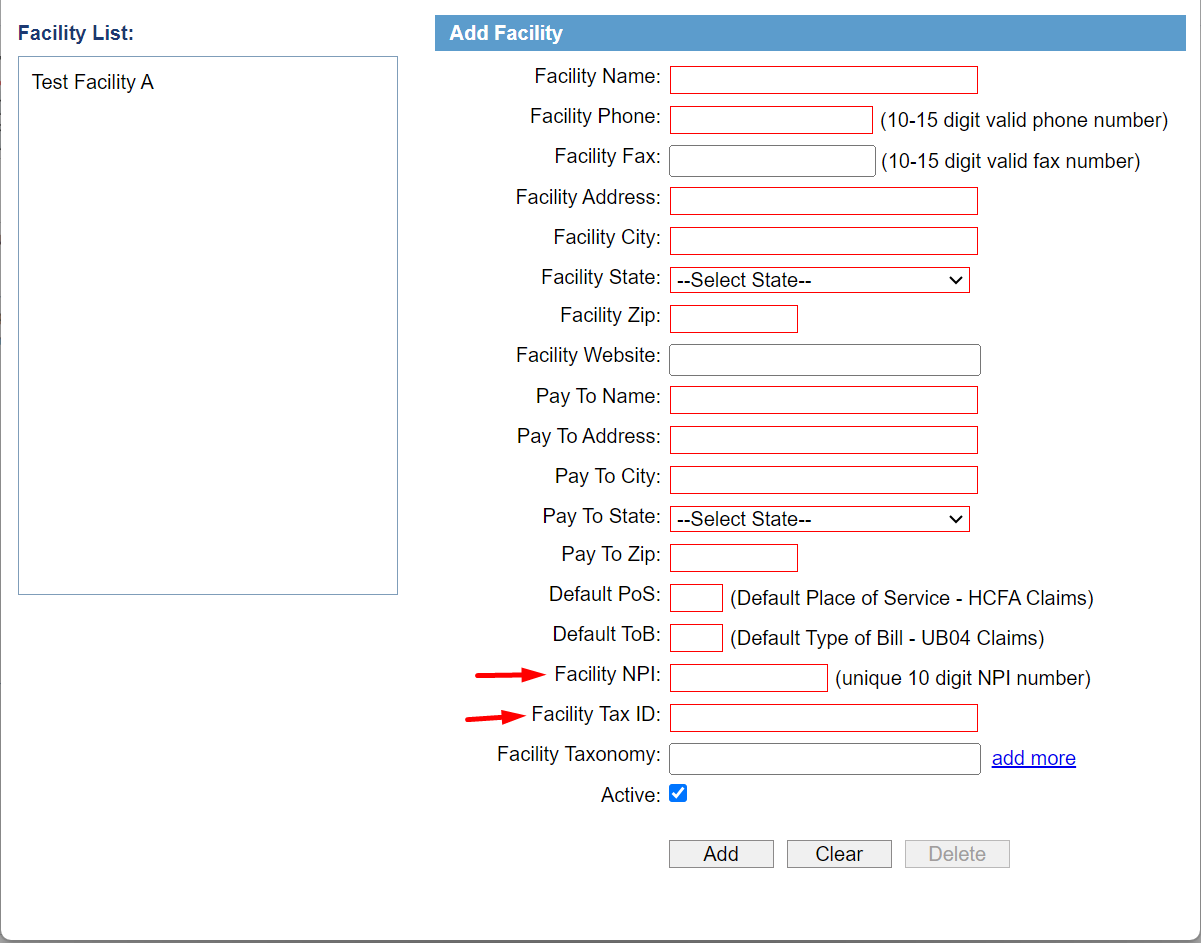
- In the "BestNotes - Facility Management" window, you can add and manage all of your service locations and their billing addresses. This is also where you'll enter the "Facility NPI" and "Tax ID." All fields highlighted in red are required.
- To add a new facility, fill in the required information and then select "Save."
- To edit an existing facility, select the facility's name from the list. The bar at the top of the window will change to indicate you're editing an existing Facility. Make your changes and then select "Save."
- To make a facility inactive, uncheck the "Active" box and save. To reactivate a facility, re-check the "Active" box and select "Save".