Permissions Required
- eMAR Access
- eMAR Configure Settings
- eMAR Manage Patients
- Edit Medications
Visual Tutorial
Setting Up and Accessing eMAR
Before using the eMAR, you will need the following information:
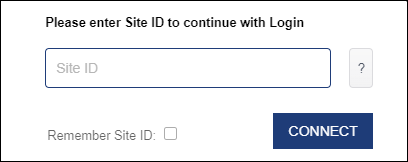
- Your company's "Site Id."
- Your BestNotes username and password.
- To access the eMAR, you will need to navigate to: https://crm.bestnotes.com/apps/sso/
- To use the Signature app, you will need to navigate to: https://crm.bestnotes.com/apps/sigpad/
There are several permissions associated with the eMAR, and each has a specific purpose.
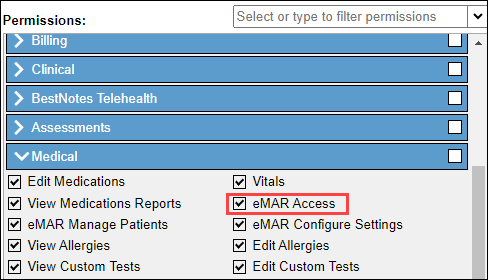
eMAR Access
The eMAR Access permission allows you to access the eMAR, administer medications, and view reports.
This permission will activate the "eMAR" button when you log in to the apps page. Any user that needs to access the eMAR for any reason must have this permission.

eMAR Configure Settings
The eMAR Configure Settings permission allows you to configure settings in the eMAR. This permission should be heavily restricted. You must also have the eMAR Access permission.
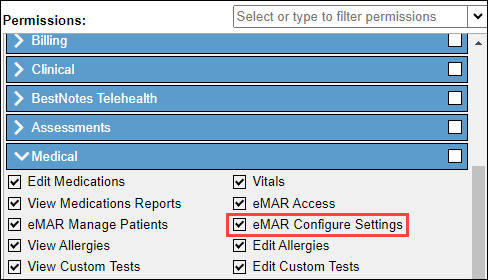
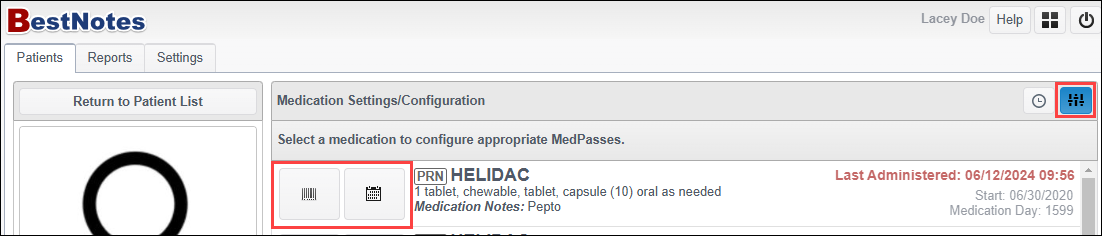
This permission allows you to access the "Settings" area to create MedPass Groups, configure medpass settings, and set up the SigPad.

eMAR Manage Patients
The eMAR Manage Patients permission allows you to access the patient settings.
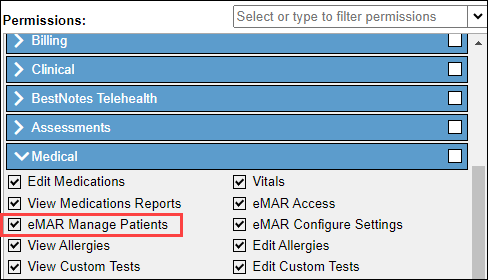
This permission allows you to manage medication inventory and MedPass configuration on each patient's medications.
Edit Medications
This Edit Medications permission allows you to create and manage medications in BestNotes.
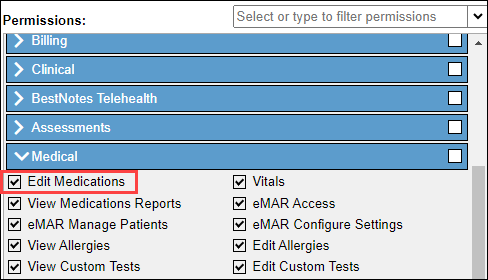
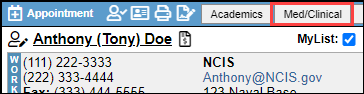
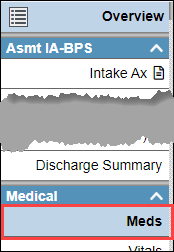
The medications entered in the "Meds" tab in the Med/Clinical in BestNotes will be the medications that appear in the eMAR. If you are using DrFirst, those medications will also appear in the eMAR. You cannot add or update medications in the eMAR; this will need to be completed in DrFirst or BestNotes.
Navigate to eMAR
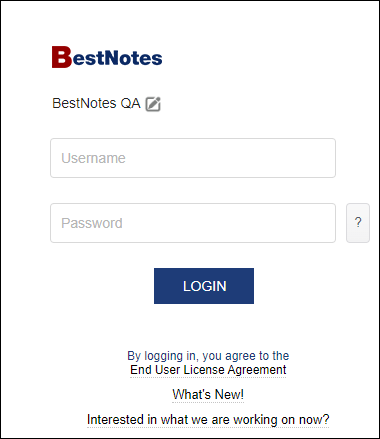
- Navigate to the BestNotes App (https://crm.bestnotes.com/apps/sso/).
- Add your Site Id.
- Enter your BestNotes Login information.
- Once you have logged in, select the "eMAR" button to access the eMAR.
