This article provides step-by-step instructions on how to manage patient medications and configure MedPasses within the eMAR system in BestNotes, including adding medications, managing inventory, and setting up MedPass schedules.
Permissions Required
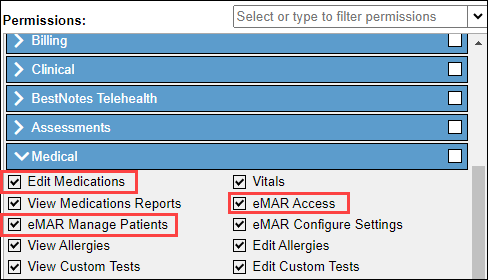
- Edit Medications
- eMAR Access
- eMAR Manage Patients
Visual Tutorial
Managing Patient Medications in eMAR
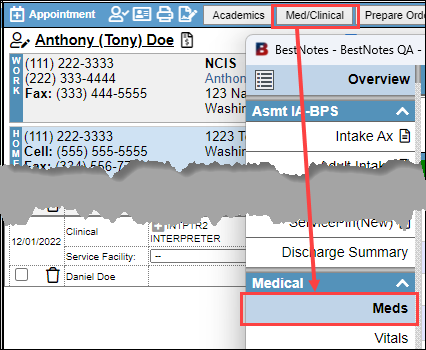
Before you can start a MedPass, you have to verify that the client has active medications in the BestNotes "Meds" tab in the Med/Clinical.
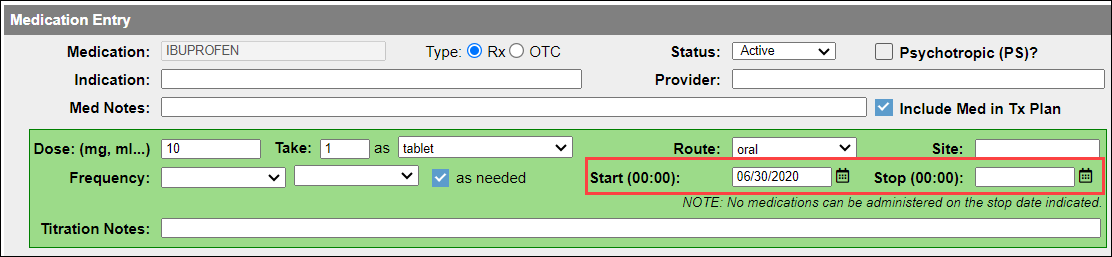
The medication "Start" and "Stop" dates will determine if a medication will display for the MedPass.
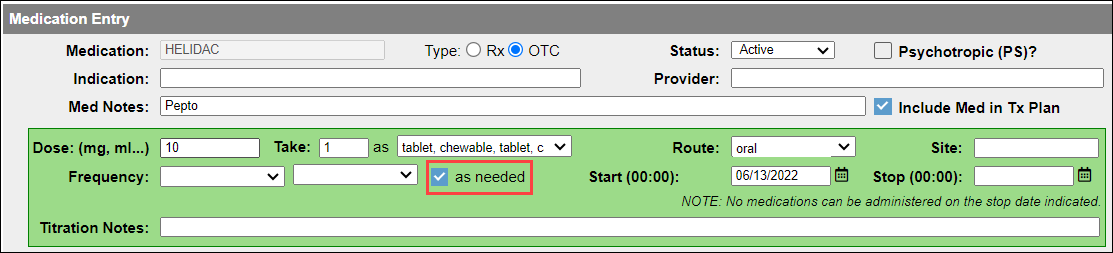
In order for a medication to appear on the PRN list, the "As Needed" checkbox must be selected.
To manage Patient Medications and set up MedPasses, you will need the "Edit Medications", the "eMAR Access" and "eMAR Manage Patients" permissions.
Navigate to eMAR
- Navigate to the BestNotes App: https://crm.bestnotes.com/apps/sso/
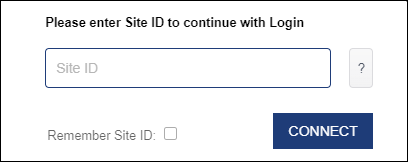
- Add your Site ID.
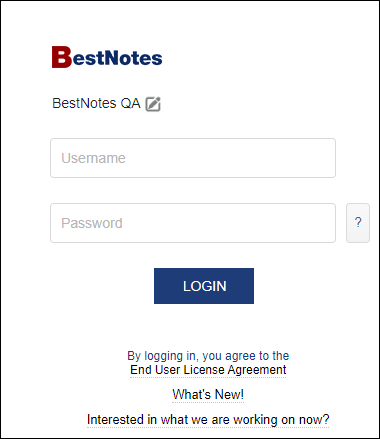
- Enter your BestNotes Login information.
- Once you have logged in, select the "eMAR" button to access the eMAR.

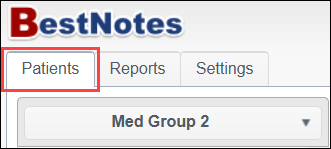
- Select the "Patients" tab.
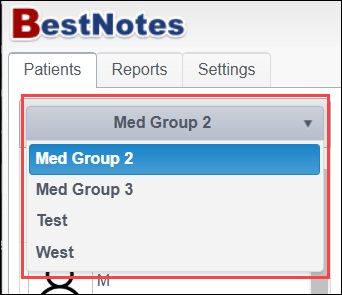
- Select the drop-down to select your Group.
- Select the patient you need to manage the medication for.
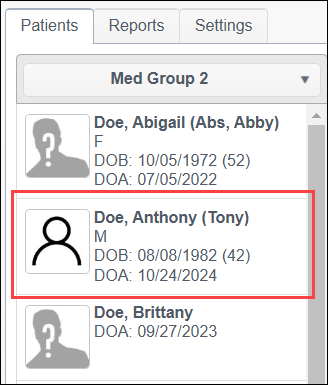
- In the top right corner, select the "Settings" button.

- This will take you to the Medication Settings/Configuration page for that patient. You will be able to manage the Inventory of each medication, and to configure the appropriate MedPass for each medication.
Inventory
- Select the "Inventory" button for the medication you need to record inventory for.
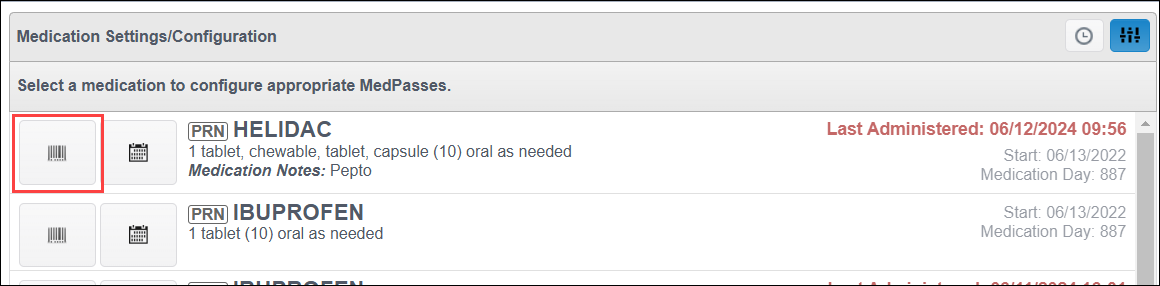
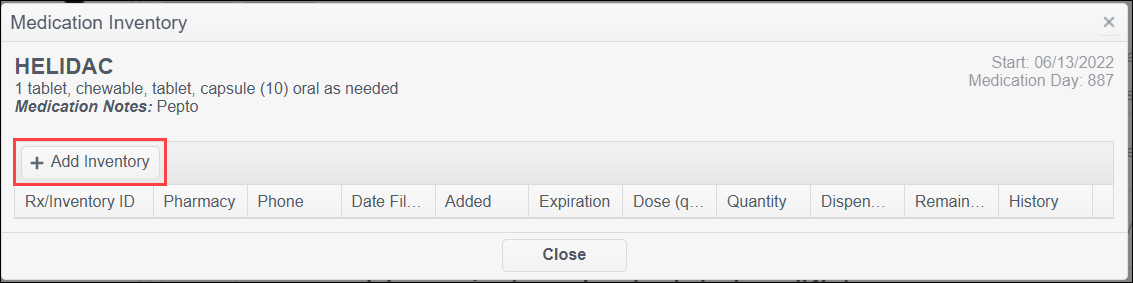
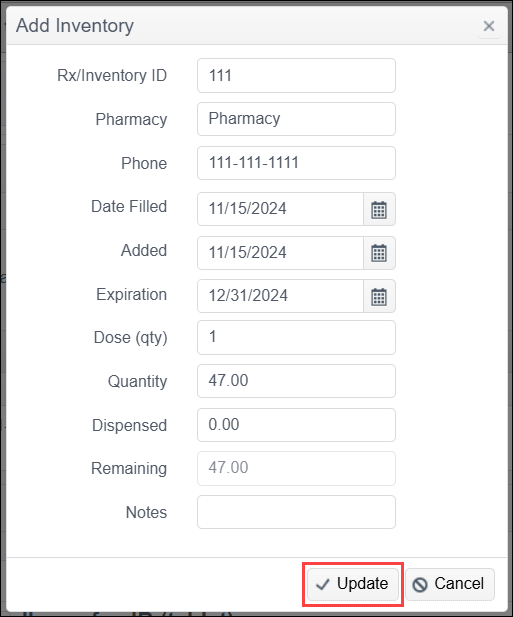
- Select "Add Inventory."
- Enter the inventory information.
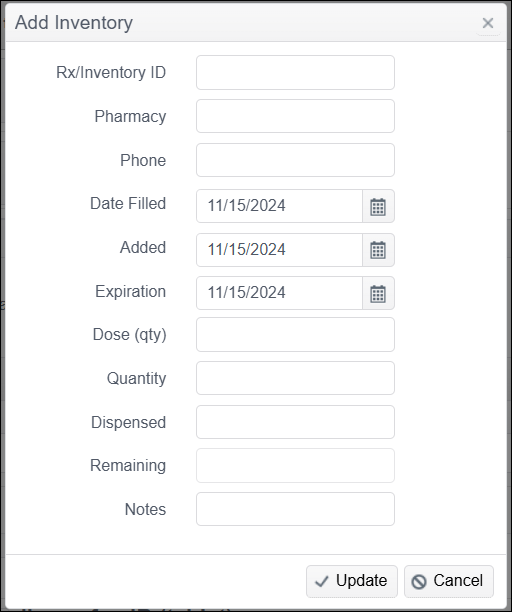
- Select "Update."
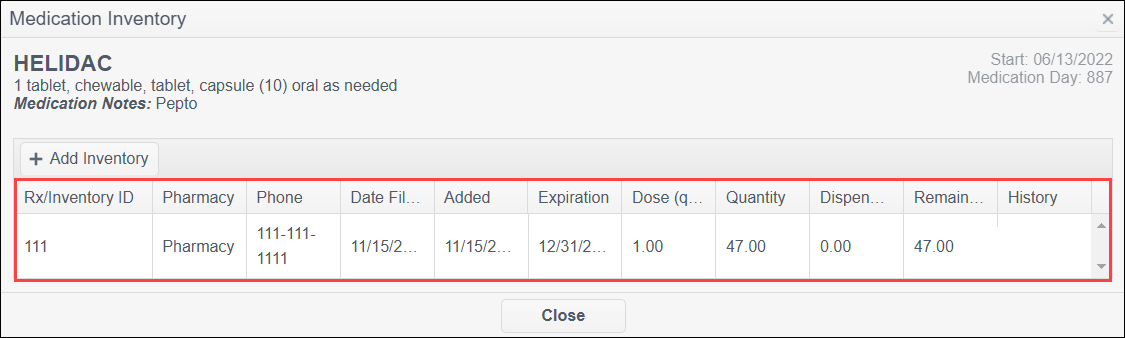
- You will then see the inventory information listed. To edit this inventory item, select anywhere in the row.
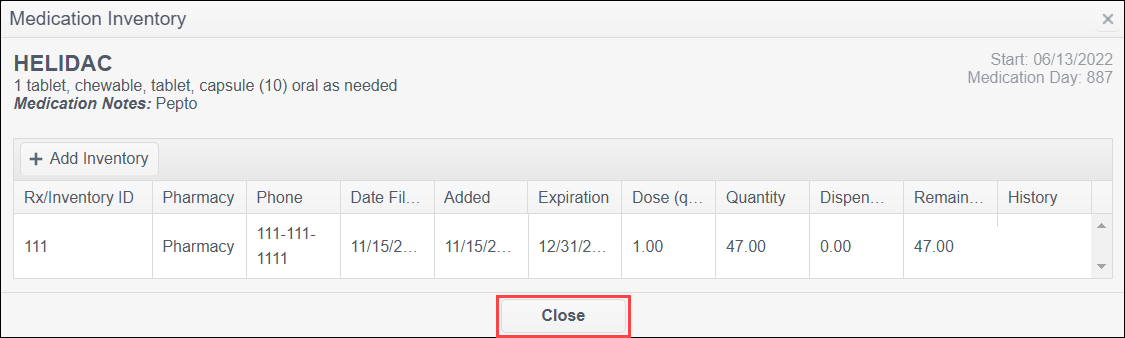
- When you are finished, select "Close."
- Repeat this for each medication as necessary.
MedPass Configuration
- Select the "MedPass Configuration" button for the medication you would like to add to a MedPass.

PRN
PRN medications can't be added to a MedPass, but the MedPass Configuration will allow you to mark the medication as "STAT."
- Select "STAT."
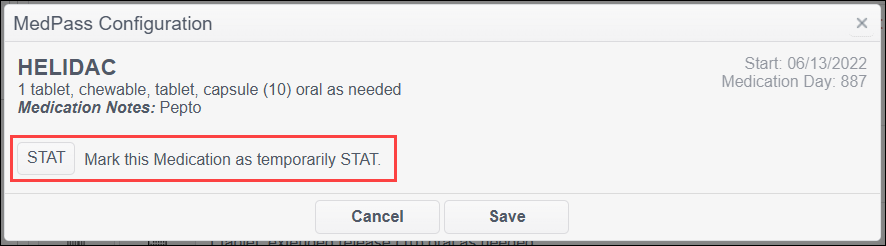
- Select "Save."
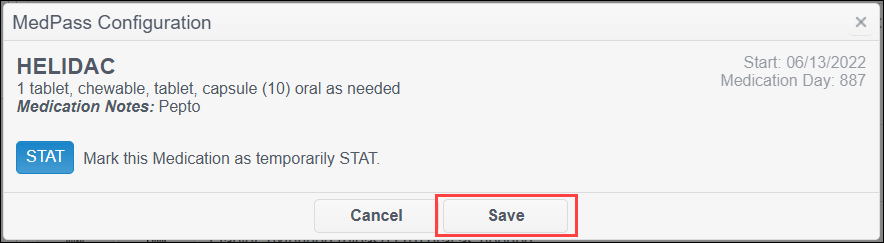
- The medication will be marked with "STAT."

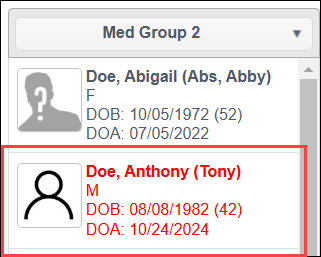
- The patient's name will turn red.
Prescription
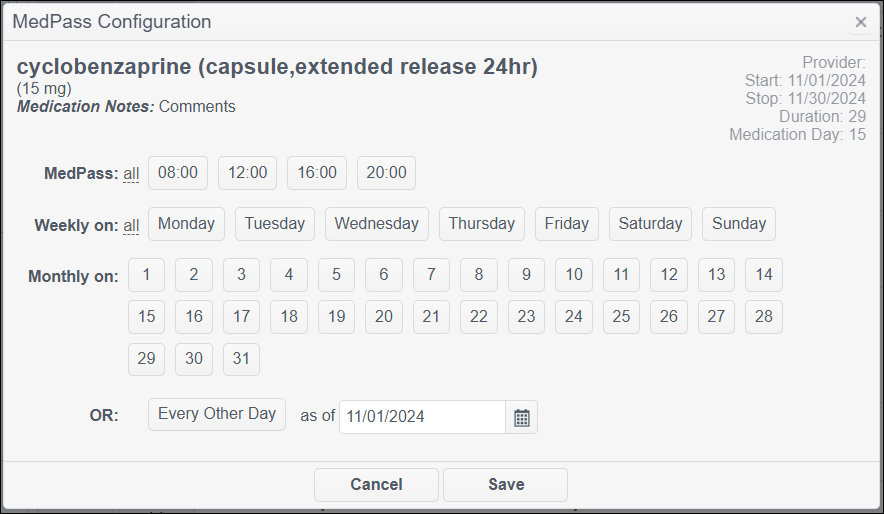
- Select the dates and times that you would like this medication to be added to. You will have the following options:
- MedPass - This is the time of day the MedPass will be performed.
- Weekly on - You can choose which days of the week the medication should be administered.
- Monthly on - You can choose which days of the month the medication should be administered.
- Every Other Day - Or you can choose to have the medication administered "Every Other Day" as of a specified date.
- Once you have made the appropriate selections, select "Save."
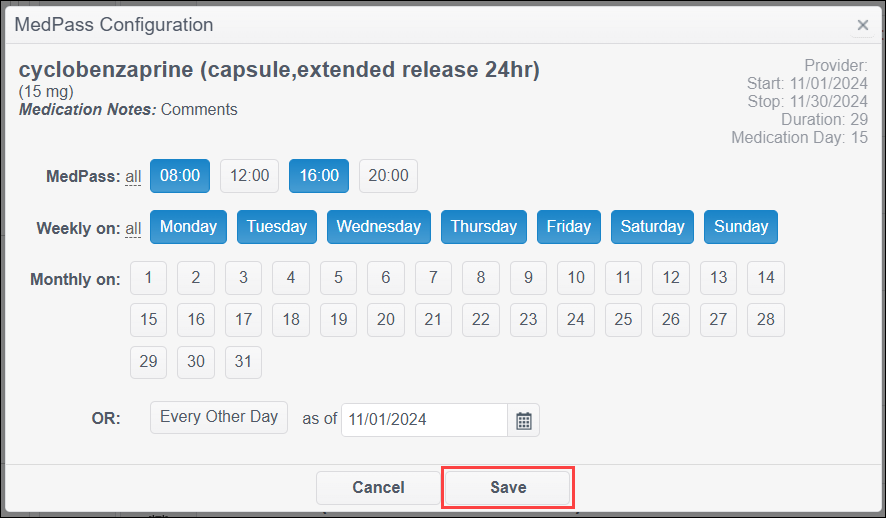
- Repeat these steps as necessary for each medication.