This article provides instructions on how to access and utilize the various eMAR reports available in BestNotes, including Expiring Meds, History by Group, History by Patient, and Scheduled by Group reports.
Permissions Required
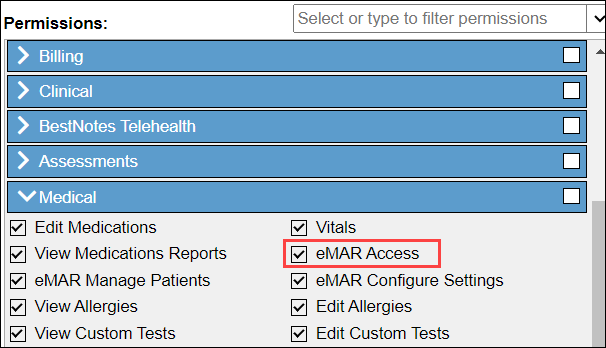
- eMAR Access
Visual Tutorial
Accessing and Using eMAR Reports
To access eMAR reports, you must have the "eMAR Access" permission.
The BestNotes eMAR is designed to be used in the "Chrome" web browser, with a resolution of at least 1024x768. If you don't have Chrome, you will want to download it before using the eMAR.
Navigating to eMAR Reports
- Navigate to the BestNotes App: https://crm.bestnotes.com/apps/sso
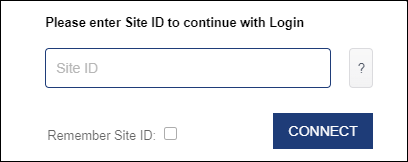
- Add your Site ID.
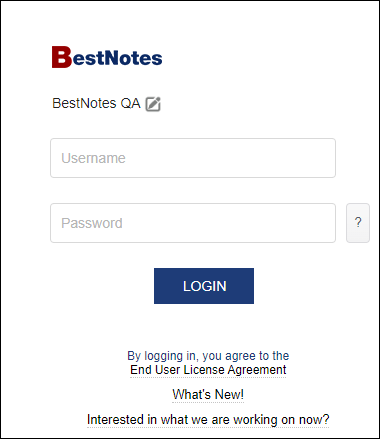
- Enter your BestNotes Login information.
- Once you have logged in, select the "eMAR" button to access the eMAR.

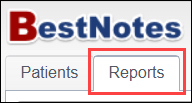
- Navigate to the "Reports" tab.
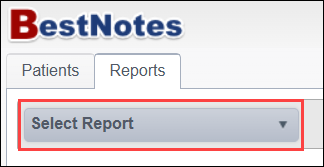
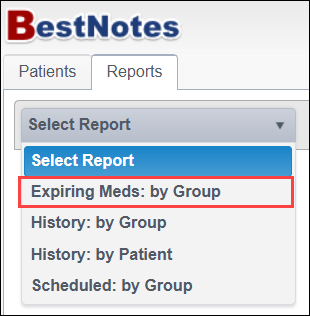
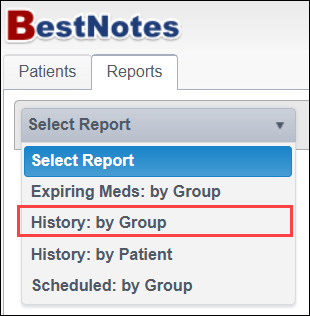
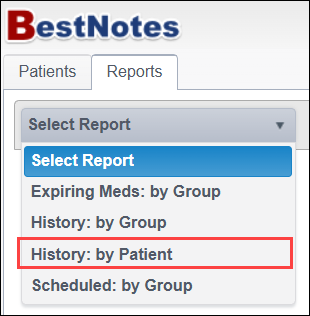
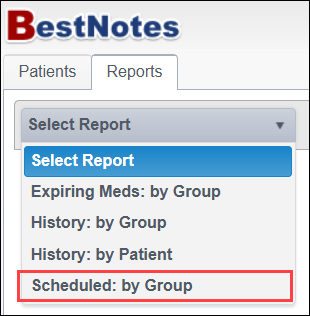
- Then select the desired report from the drop-down.
Expiring Meds: by Group
This report will show you any expiring medications. This is based on the "Expiration date" entered into the Inventory.
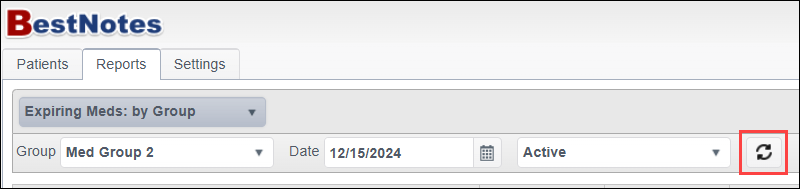
This report allows you to set your filters based on the following:
- Group - Select the group.
- Date - Select the "as of" date.
- Status - Select if you would like to view "Active" or "Inactive."
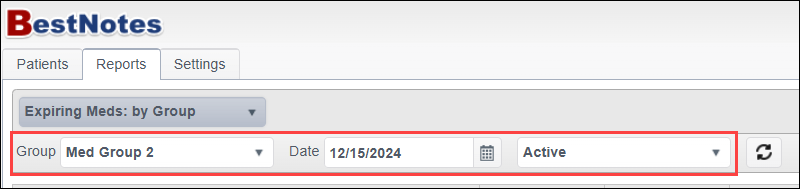
After you have selected your filters, select the "Refresh" symbol.
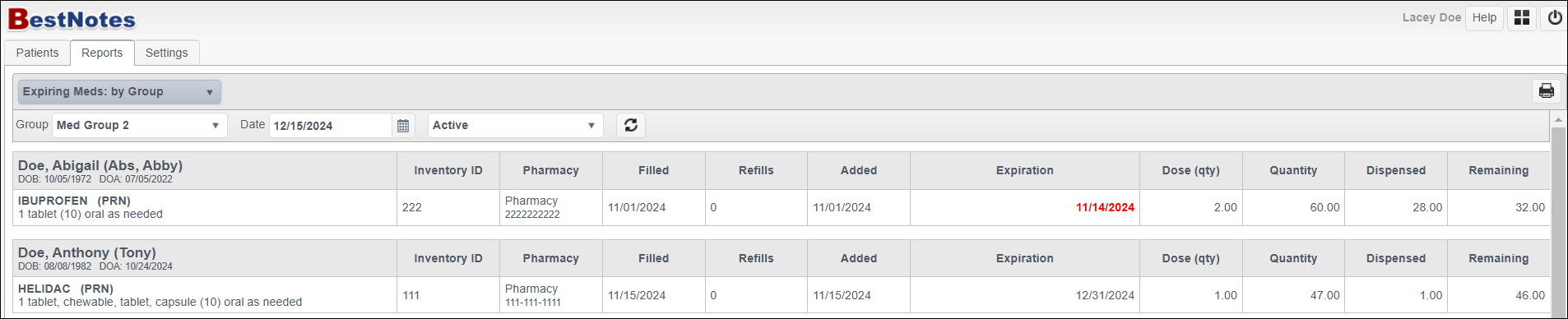
Once you have set your filters, you will see the following information displayed:
- Client Information
- Medication Information
- Inventory ID
- Pharmacy
- Filled date
- Refills allowed
- Added date
- Expiration date
- Dose
- Quantity
- Dispensed amount
- Remaining amount
History: by Group
This report will show you the history of the MedPasses by Group.
This report allows you to set your filters based on the following:
- Group - Select the group.
- Date - Select the "as of" date.
- Filter - Enter in a patient name or a specified medication.
- Show - All, Exceptions, Not Administered.

After you have selected your filters, select the "Refresh" symbol.

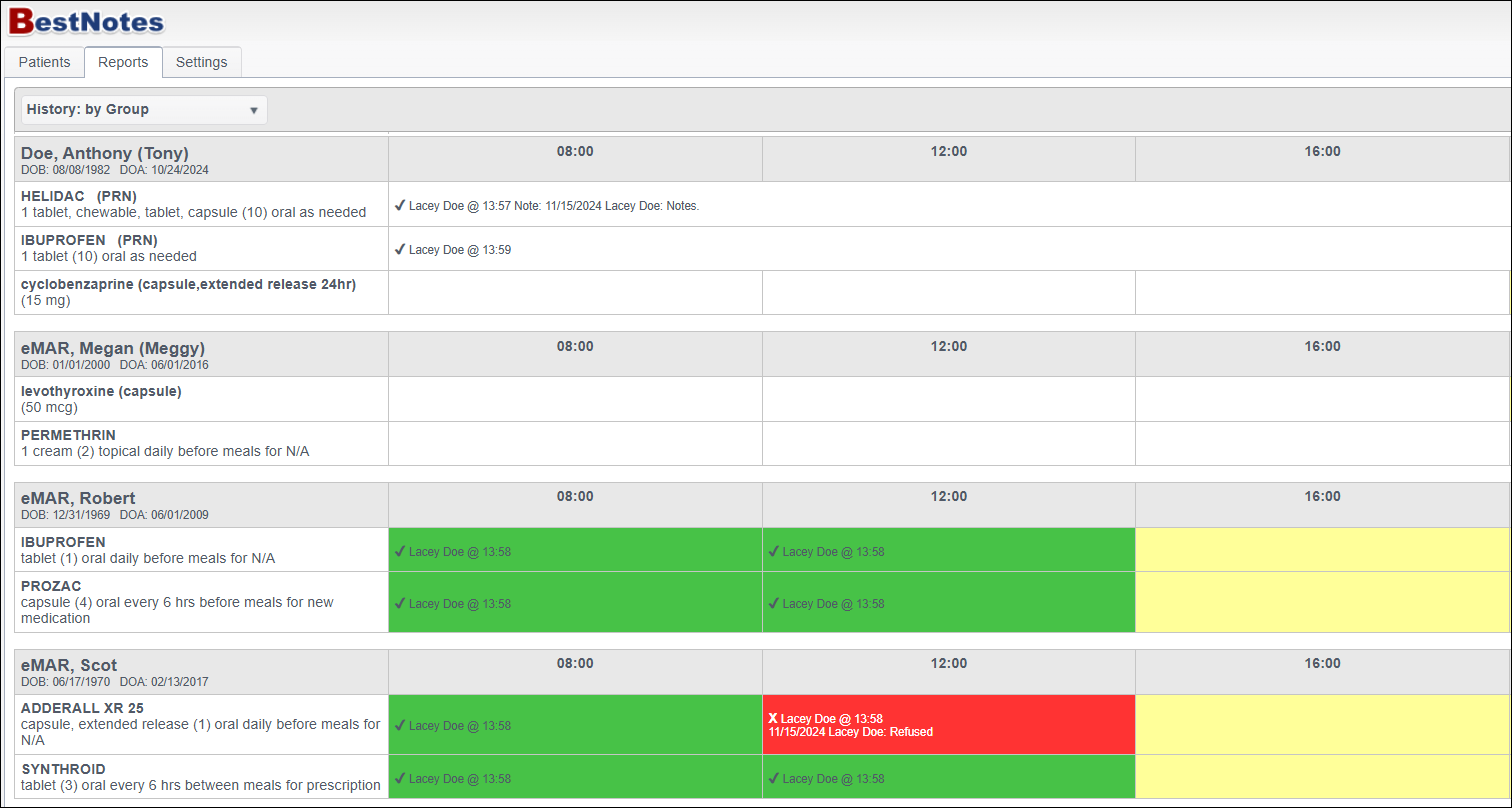
Once you have set your filters, you will see the following information displayed:
- Client information
- Medication information
- MedPass time
- Med Pass Status
- Red - The medication was declined.
- Green - The medication was administered.
- Yellow - The medication is pending.
History: by Patient
This report will show you the history of the MedPasses by Patient.
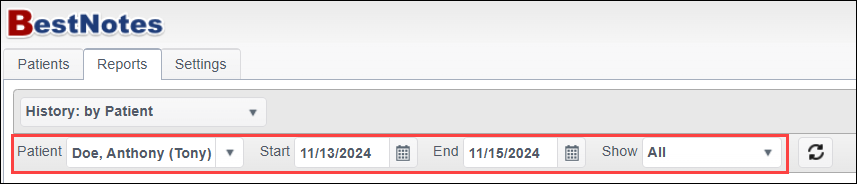
This report allows you to set your filters based on the following:
- Patient - Enter the name of the patient.
- Start and End - Date range of Med Passes.
- Show - All, Exceptions, Not Administered.
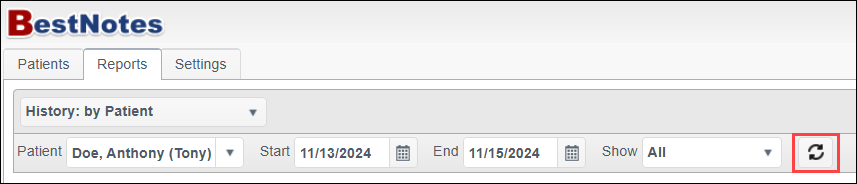
After you have selected your filters, select the "Refresh" symbol.
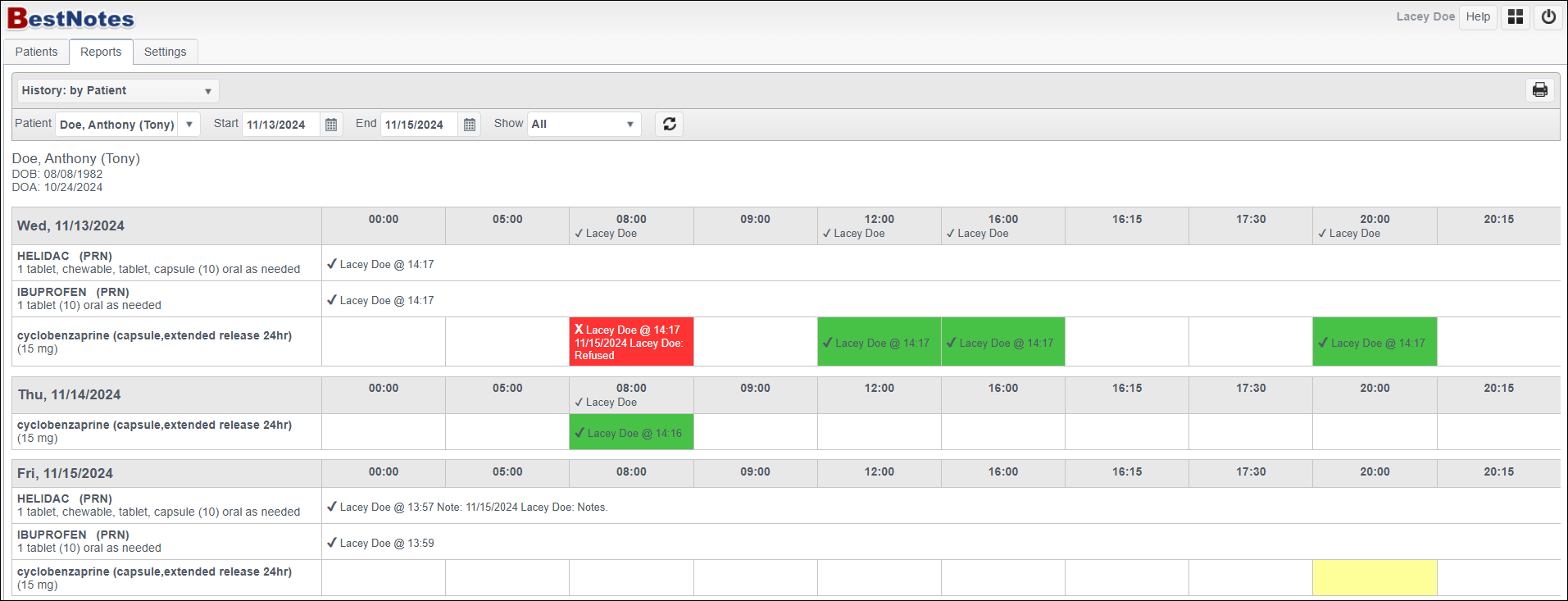
Once you have set your filters, you will see the following information displayed:
- Patient Information
- Date
- Med Pass Times
- Medications
- Med Pass Status
- Red - Declined
- Green - Administered
- Yellow - Pending
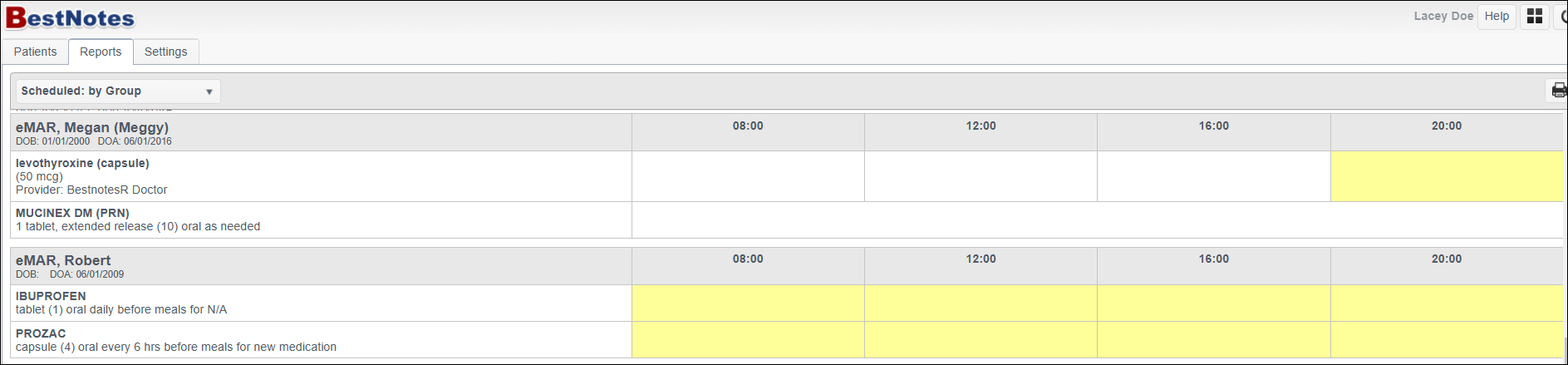
Scheduled: by Group
This report will show you the upcoming scheduled MedPasses by Group.
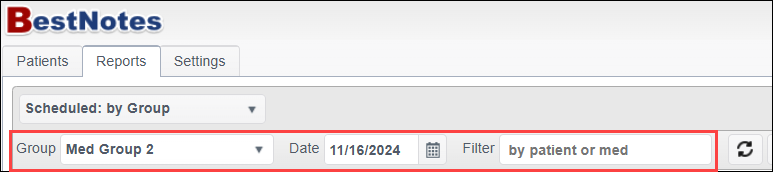
This report allows you to set your filters based on the following:
- Group - select the group.
- Date
- Filter - Enter in a patient name or a specific medication.
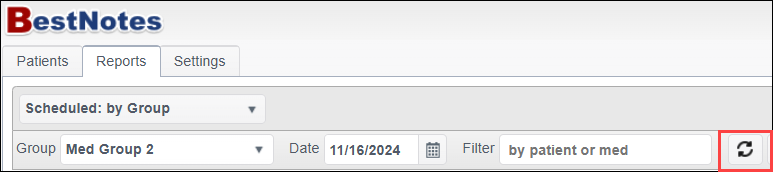
After you have selected your filters, select the "Refresh" symbol.
Once you have set your filters, you will see the following information displayed:
- Patient Information
- Medication information
- MedPass times
- Yellow - Indicates this is a designated time for administering the medication.