The ability to track attendance has been added to our calendar. You can now indicate within the appointment whether the client confirmed (previous functionality), canceled, or was a no show. You will then be able to review this information in the "Appointment Status" report. This document will walk you through the functionality, and how to manage your attendance.
Permissions Required
No specific BestNotes permissions are required.
Tracking Appointment Attendance
Calendar Icons
There are three icons on your appointment view that are associated with the attendance. These icons are Confirm, No Show and Cancel. Confirming the appointment will allow users to confirm that the client will be attending the appointment. Canceling an appointment will indicate that the client called prior to the appointment and canceled. No show will indicate that the user did not show up for the appointment at the appointment time.

Tracking Attendance
Canceling an Appointment
- When a client calls in to cancel an appointment, navigate to the appointment.
- On the "Attendees" tab, next to the client's name, select the "Cancel" icon.
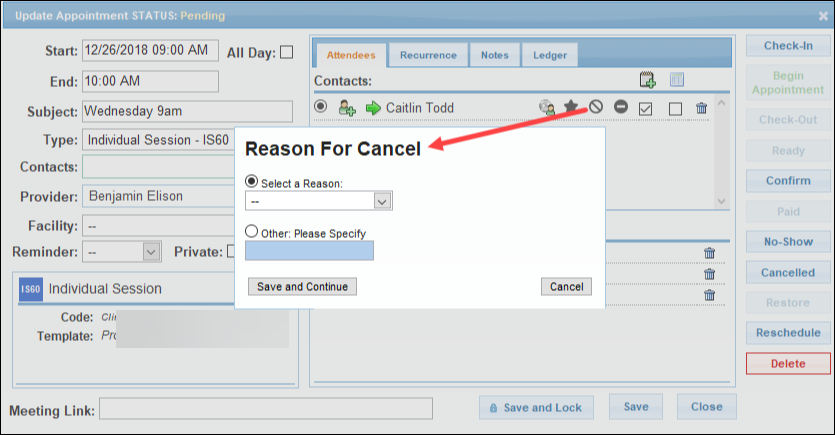
- This will prompt you to enter in the reason for cancellation. You can select one of the predefined options, or enter in the "Other" reason.
- Select "Save". Once you have completed this, the cancel icon will turn red, and upon hover, you will see the reason for the cancellation.
Figure 1-4. Reason for cancellation turns red and shows upon hover.
Marking a Client as "No Show"
- If a client is a "No Show" to an appointment, navigate to the Attendees tab of the appointment.
- Once there, select the "No Show" option.
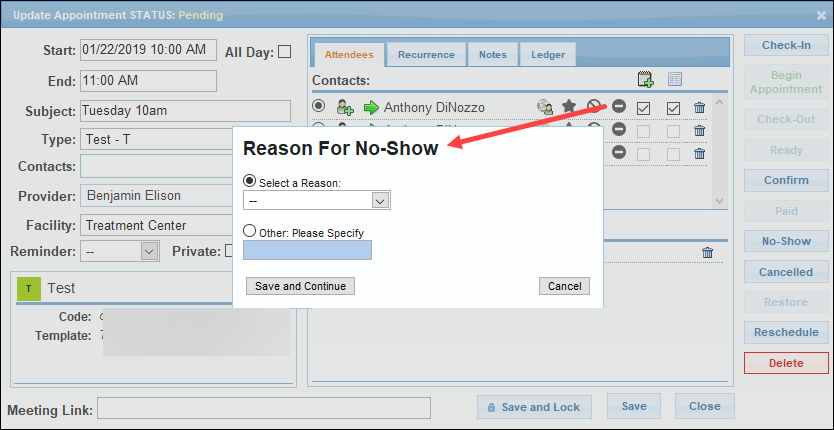
- Again, you will be prompted to put in a reason for the no show.

- The icon will turn red, and upon hover, the reason for the no show will appear.

When an appointment has not been checked in, you can manage all statuses of the appointment. Once the appointment has been checked in, you can no longer Confirm or Cancel the client in the appointment, but you can No Show the appointment. Once the appointment has been checked out, you can no longer change the status of the appointment.
Calendar Icon Interpretation
When viewing the calendar, you will be able to see the status of the appointment from the calendar page. If there is only one client on the appointment, the status icon that shows on the calendar will be a full icon. When there are multiple clients on the appointment, unless the status is the same for all associated clients, there will be a half symbol for the status of the appointment.


Report Updates
For the purpose of explaining the updates to these reports, we will be using the same three appointments. These descriptions will encompass only the features that were added to these reports in support of the "Attendance Tracking" feature. The appointments are as follows.
The first appointment has two participants. Neither of these participants have confirmed, canceled or no showed. This appointment is scheduled for 12:00 PM, and has the participants "Anthony D." and "Abigail S." and has not been checked in.

The second appointment includes one participant, and is scheduled for 2:00 PM. This appointment's participant is "Timothy M." and has been canceled on the contact level.

The third appointment has 3 participants, "Ziva David", "Leroy Gibbs" and "Donald Mallard". This appointment shows "Leroy Gibbs" has no showed, and the appointment has been checked in.

Appointment Time Durations
When viewing this report with "Group By" set to "Provider", the appointment status will display the calendar appointment level first, followed by the number of participants that status, and will be followed by any individual statuses that have been selected, also including the number of clients with that status. When viewing this report with "Group By" set to "None", this report will show the status of each individual client within the appointment, and, when the status is cancel or no show, and a reason entered, that reason will show as well. If the client does not have a canceled or no show status on the individual level, it will display the calendar status.


Appointment Status
When viewing this report with "Group By" set to "Provider", the appointment status will display the calendar appointment level first, followed by the number of participants that status, and will be followed by any individual statuses that have been selected, also including the number of clients with that status. When viewing this report with "Group By" set to "None" or "Contact" the report will display the status of each individual client. If the client does not have a canceled or no show status on the individual level, it will display the calendar appointment status.


Appointment Forecasting
When viewing this report with "Group By" set to "Provider", this report will display the status of the appointment for each individual, and it will be ordered by Provider and Facility. If you select a specific status, such as "No Show" or "Canceled" this will display the appointments with that as the calendar level status only. When viewing this report with "Group By" set to "None", this report will show the status of each individual client within the appointment with the entries ordered by Last Name.


Patients Without Future Appointments
This report will now consider an appointment that was a "cancel" by the client on the individual level.
Schedule by Day
When selecting the status of "All", a no show or cancel that has been recorded on the client level, will show the individual status for the client next to the client's name. If you select a specific status, such as "No Show" or "Reschedule" this will display the appointments with that as the calendar level status.

Next Steps
- Appointment Time Durations
- Appointment Status
- Appointment Forecasting
- Patients Without Future Appointments
- Schedule By Day