This article explains how to transfer a common application within BestNotes, initiating an email to the client to review and submit the application to their chosen companies.
Permissions Required
No specific BestNotes permissions are required.
Transferring a Common Application
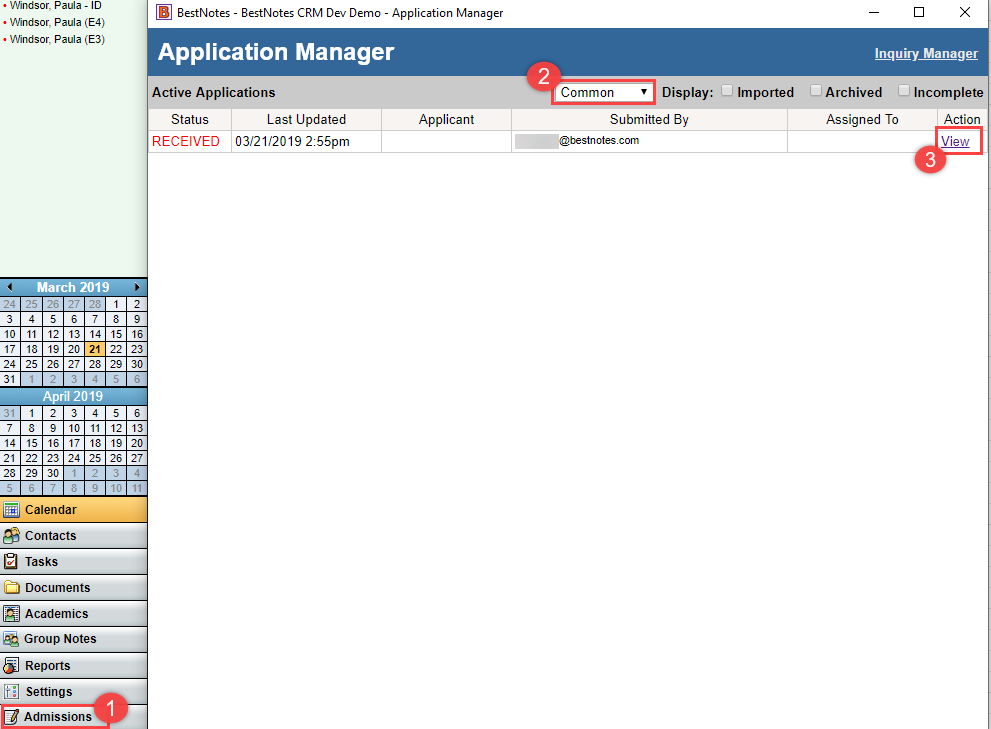
- Once the application has been submitted by the client, you can review the "Common Application" in the BestNotes "Admissions" module. Select the "Common" application and "View".
- Once you are in the application you will have the option to "Transfer Application".

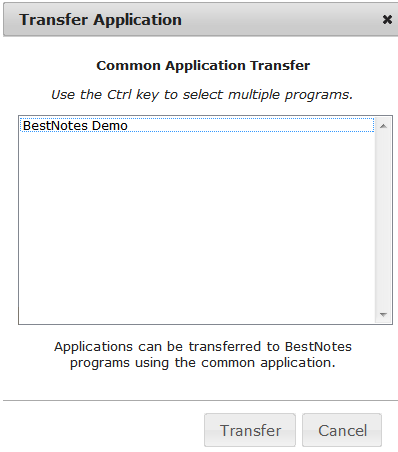
- Within the Transfer Application dialog screen, you will see the other companies that have opted in to allow transfer, and you can select the company(ies) that you are recommending the client send their application to. Once you have made your selection, select "Transfer".
- At this time, you can "Archive & Lock" the application.

- Transferring the application will generate, and send an email to the client. This email will contain links to each company you recommend they send their application to. The client can select the link(s) to send the application to the company(ies) of their choice. The client will then have a portal account created at that company.
