This article provides instructions for setting up and configuring BestNotes Telehealth, a HIPAA-compliant, secure option for individual or group therapy sessions available in the calendar.
Permissions Required
- Generate Session
- Start Session
Visual Tutorial
Setting Up BestNotes Telehealth
Database Setup
If you would like telehealth activated for your company, your system administrator can follow these steps.
- Navigate to "Settings", and "Telehealth." If you do not see this option, you are not a system administrator user, and you will need to contact your system administrator.
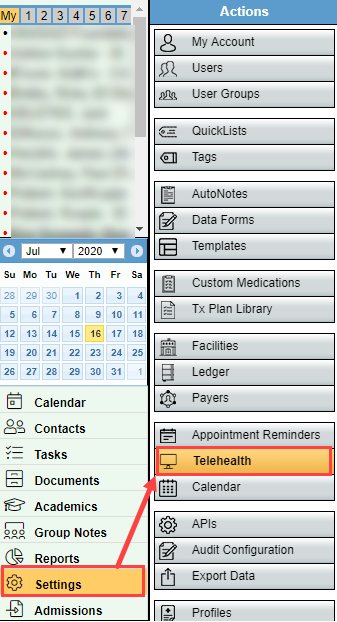
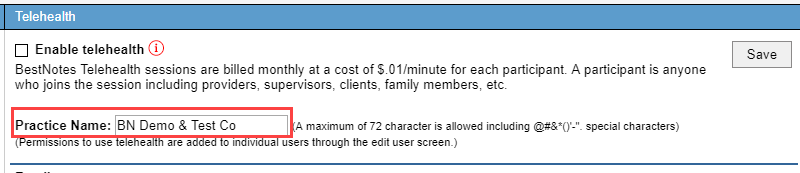
- Select "Enable telehealth" checkbox to activate telehealth for your database.

- Enter the company name you would like to appear in the email messages.
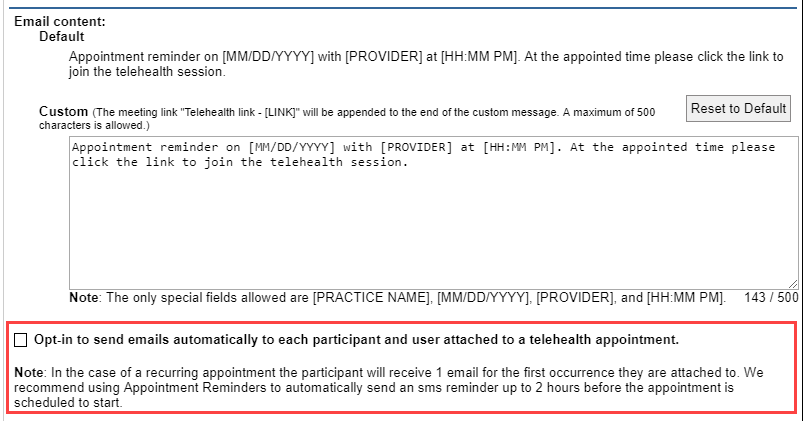
- You can then view and manage what you would like the message to include.

- You can manually send the email notifications to the participants from the appointment, or you can opt-in here to send the email notification to each participant automatically when the appointment is created and saved by selecting the checkbox.
Now that you have enabled telehealth for your database, you will need to give the appropriate permissions to each user that you want to be able to use telehealth.
User Setup
- Navigate to "Settings", and "Users."

- Select the user you would like to use telehealth.
- Scroll down to permissions in the "Edit User" window.
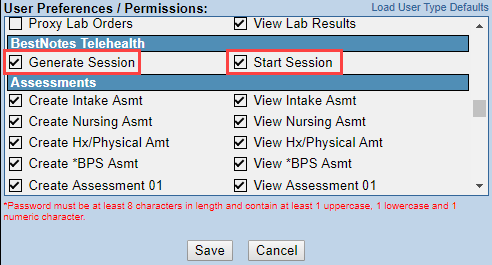
- Select the following permissions as needed per user:
- Generate Session: allows a user to schedule a telehealth session.
- Start Session: allows a user to start a telehealth session.
- Select "Save."
Your database and your users now have the ability to use BestNotes Telehealth. You can also adjust your appointment types to default to telehealth appointments.
Telehealth Appointment Type Setup
You can make any appointment a telehealth appointment by selecting the "Telehealth Session" checkbox on the appointment, however if you have appointment types that will be telehealth sessions most or all of the time you can make these telehealth appointment types.
- Navigate to "Settings" and then "Calendar."
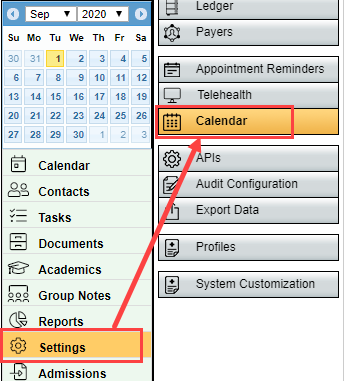
- In the Calendar Settings, when viewing the appointment options, select "Set Telehealth."

- Select "Save" or "Save as New."
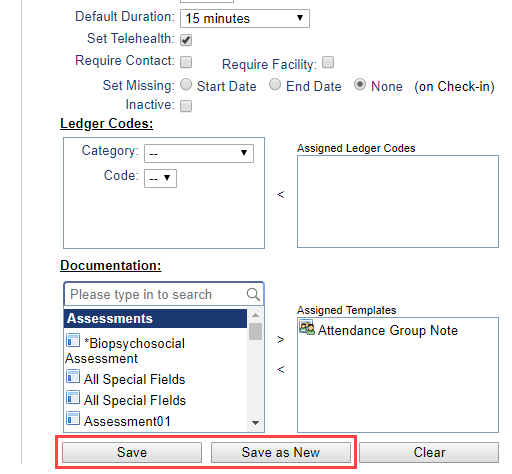
- This appointment type will now select the "Telehealth Session" checkbox by default and will now show as a "Telehealth Appointments" type within the appointment. This can always be unchecked after selecting the appointment type.


Now that your default appointment types are set you can quickly begin creating telehealth appointments. If you are using BestNotes "Appointment Reminders" you can enable your appointment reminders to send a one time message the day of the appointment to your clients.
Appointment Reminders and Telehealth
Your "Appointment Reminders" will automatically send out an SMS message the day of the appointment in addition to the email notifications. This message will remind the user to join the meeting, and give them a link to join.
- Navigate to "Settings", and "Appointment Reminders."
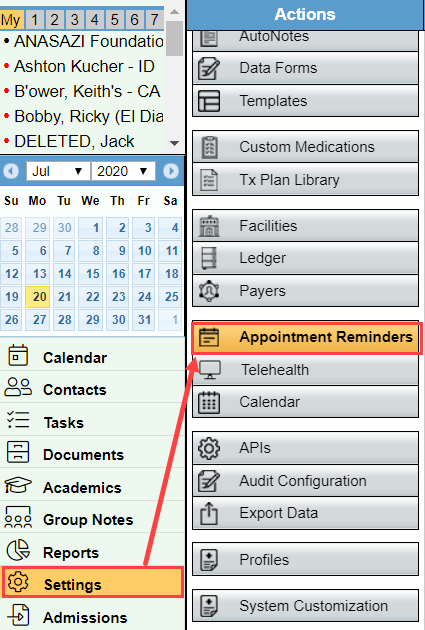
- Scroll down to the section titled, "Telehealth/Meeting URL Options."

- In the drop-down, select the best option for your company.
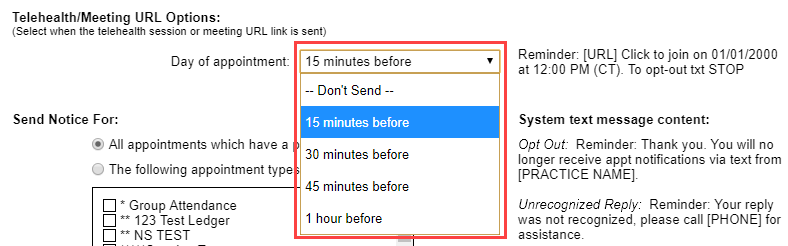
- Select "Save."

Once this setup is complete, your clients will automatically receive a text message appointment reminder for the telehealth appointment.
Pricing
There is a charge for telehealth. For more information on pricing, visit: BestNotes pricing