This article guides you through starting, navigating, and rejoining a telehealth session in BestNotes, ensuring a smooth virtual appointment experience.
Permissions Required
No specific BestNotes permissions are required.
Starting and Managing Telehealth Sessions
Start Session
Once all of your participants have received their telehealth notifications, you can begin your telehealth appointment. You will want to treat the appointment just as you do any other appointment, depending on your workflow. Once you are ready to begin the session with your client you can follow these steps.
- From the calendar, open the telehealth appointment.
- Select "Start Telehealth Session."
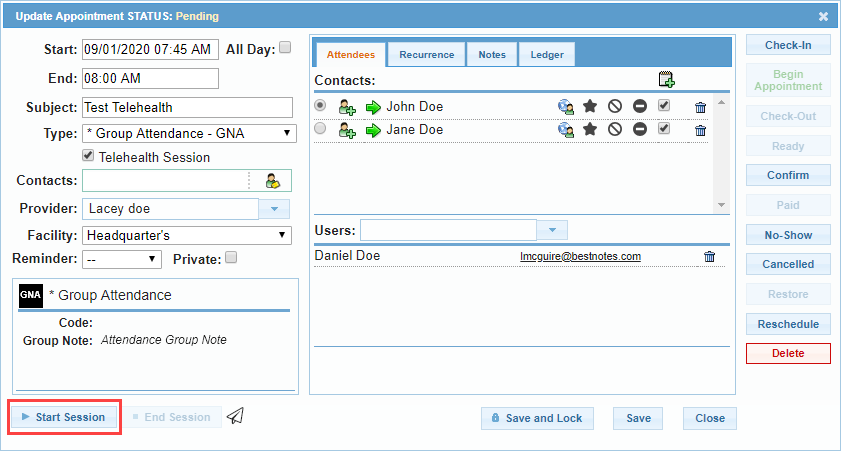
- This will open a window in your default browser.
- The first time, you will need to allow access to use your microphone.
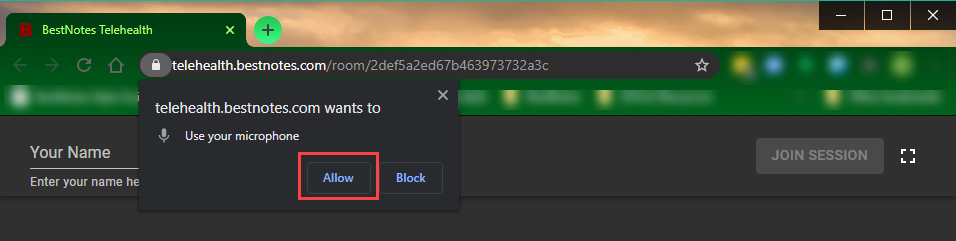
- The first time, you will also need to allow access to use your camera.

- You will see a preview of your video, and the controls at the top of the screen. Enter your name into the "Your Name" text area.
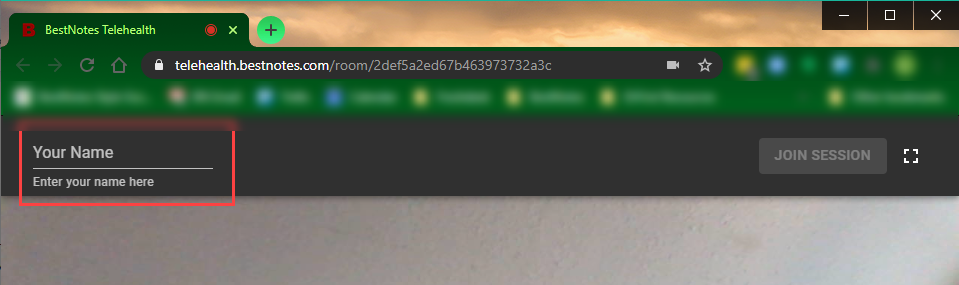
- The Join Session button will turn red, select "Join Session" to start the meeting.

- Once you have completed your session, you can select "Leave Session."
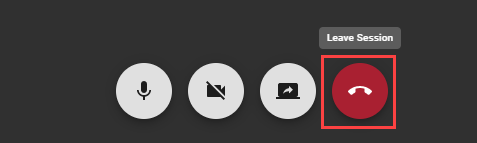
- You will then select "End Session" to end the session for all participants. If you do not select "End Session" the session will automatically end 5 minutes after the last participant leaves.

Navigate the Session
Once you have joined the session, there are a few things you can do within the session.
You will see each participant listed on the left hand side of the screen. If you would like to see a particular participant at the top of the list, you can click anywhere on the clients window, and they will be pinned to the top. For each participant, you will see their video, name, signal strength, video status, and if they are a pinned participant.

In the bottom center of the screen, you will see four options. You can manage your audio, and video, but you can also share your screen. This give you the option to review documents with clients. This is also where you will leave the appointment.

Rejoin the Session
Once you have started the session, you will have the ability to rejoin the session, until you select the "End Session" button or the session times out. In order for a session to time out, there has to be no one actively in the session for five minutes.
