This article explains how to access and interpret the Telehealth Usage Report in BestNotes, which provides details on telehealth appointment costs and participant activity.
Permissions Required
No specific BestNotes permissions are required.
Viewing and Understanding the Telehealth Usage Report
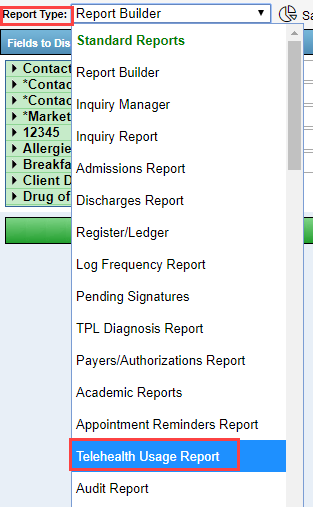
- When using BestNotes Telehealth, you will have access to the "Telehealth Usage Report." This data is collected from the telehealth appointments in your calendar. If you use the "End Session" button within the calendar appointment, this information for that appointment will immediately be reflected in this report. If you do not use the "End Session" button, the information for that appointment will not be reflected in the report until the following day. This report can be found by navigating to the "Reports" tab on the bottom left corner of BestNotes, and selecting "Telehealth Usage Report" from the "Report Type."
Report Breakdown
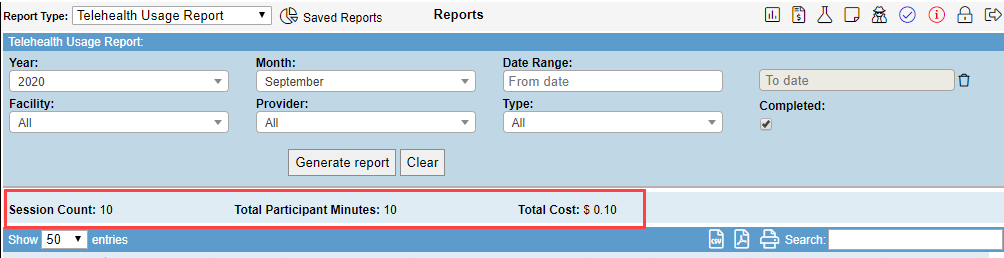
Once you have opened the report, use the top portion to select the information you would like to see, such as the dates, facilities, providers, and appointment types. You will also have the option to only see appointments that have been completed. Once you have made your selections, select "Generate report." This example shows information for completed appointments in September of 2020, including all facilities, providers, and appointment types.

- The top header in the report will display the number of sessions, participant minutes, and total cost. This shows that there have been 10 completed sessions, with a total of 10 participant minutes. The cost to date for the month of September will be $0.10. This portion of the report gives you an "at a glance" view of what your telehealth cost will be for the period selected. The charges are based on the active minutes a participant is connected, and there may be differences between the duration and the participant minutes.
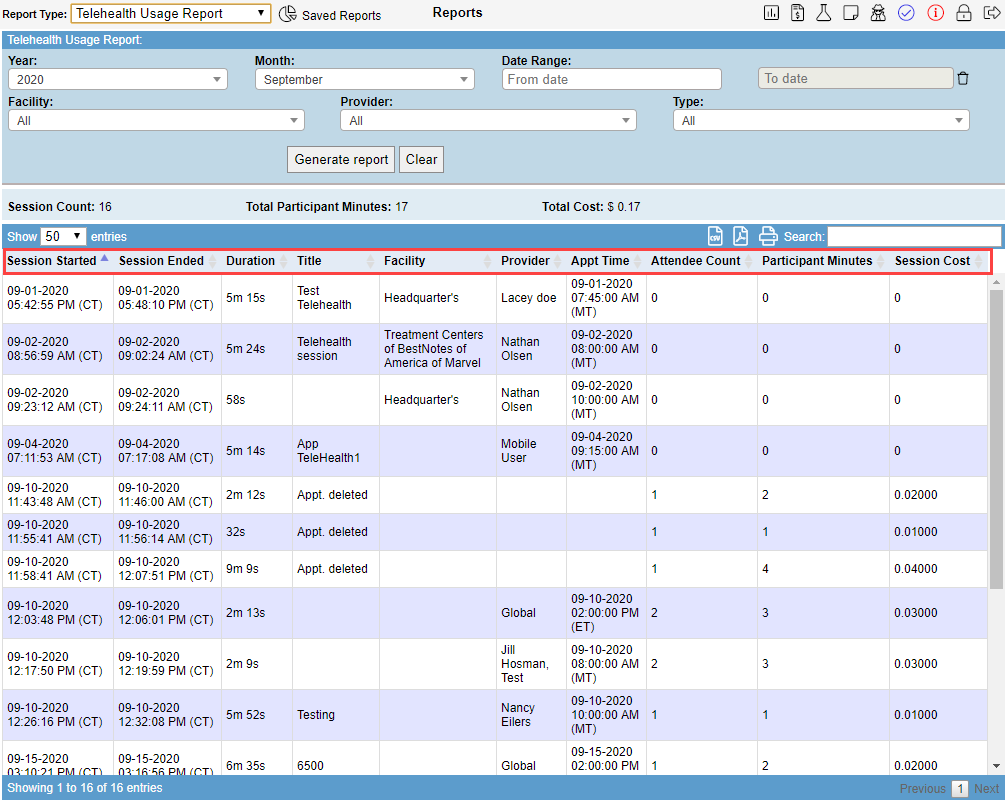
- Below this information, you will find the specific details of each appointment:
- "Session Started" and "Session Ended" is when the actual session is started and ended, displayed in Central time.
- "Duration" will be displayed in hours, minutes, and seconds, and is the duration of the appointment.
- "Title" is the subject of the appointment.
- "Facility" is the facility that is selected for that appointment.
- "Provider" is the provider that is logged to the appointment.
- "Appointment time" is the date and time the appointment was scheduled.
- "Attendee Count" is the number of attendees that participated. If an attendee has to reconnect, they will count as two attendees.
- "Participant Minutes" is the number of active minutes that the participants were connected in total.
- "Session Cost" is how much this specific session will cost.