The snapshot status report can be used to ensure all clients have a snapshot of Med/Clinical data in their Activity Log. This report compares the last update date of Med/Clinical assessments or treatment plans against the date their snapshots were completed and saved to the patient's activity log. If you are planning to opt-in to a BestNotes Profile, review of this report, and collecting all snapshots for a year prior to today's date are required.
Permissions Required
No specific BestNotes permissions are required.
Using the Med Clinical Snapshot Status Report
Access the Med Clinical Snapshot Status Report
- Navigate to "Reports."
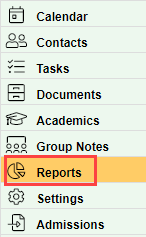
- Select "Report Type" drop-down, and Select "Med Clinical Snapshot Status."

Set Up the Med Clinical Snapshot Status Report
You can now set your filter criteria to view the status of each document's snapshot status. The filters are as follows:
- Facility: Only clients with the selected facility on their episode tab. Selecting "All" will display those without a facility.
- Med/Clinical Tab: Review all or a single tab. Only active tabs are available to select. Selecting "All" will show active and inactive tabs.
- Provider: Any provider that is found in the client's "Edit Contact" window. Selecting "--" will remove any provider restrictions.
- Snapshot Status: This can be set depending on which types of statuses you would like to view. Selecting "--" will show all statuses.
- Date Range: All Med/Clinical documents that were created during this time frame.
If you are using this report to prepare to opt-in to a BestNotes Profile, you will need to set the filters as follows:
- Facility: All
- Med/Clinical Tab: All Med/Clinical
- Provider: --
- Snapshot Status: --
- Date Range: Select 1 year prior to today's date, to today's date.
Once you have set the filters to accommodate your needs, select "Go."
Interpret the Med Clinical Snapshot Status Report and Update Snapshots
Now that you have set your filters and selected "Go," you are ready to use this report to your advantage. To ensure you have taken all necessary snapshots, you will need to review the "Snapshot Date" column on the right side of the report. Here is what to look for, and the action necessary:
- Yellow highlighting: This means that there has never been a snapshot taken.

- Yellow highlighting with a date: This means that the document has been updated since the last snapshot was taken.
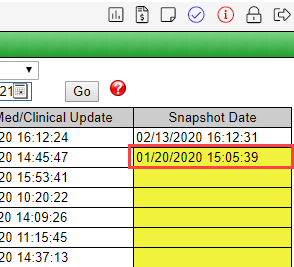
- Date without highlight: This means that an updated snapshot has been taken.
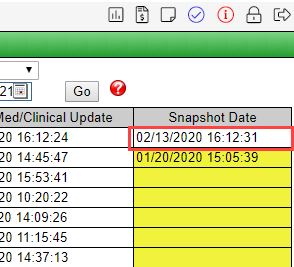
For any lines that have yellow highlighting, you will want to update the snapshot. You can do so by performing the following steps:
- Identify the required snapshot and note the "Med/Clinical Tab."
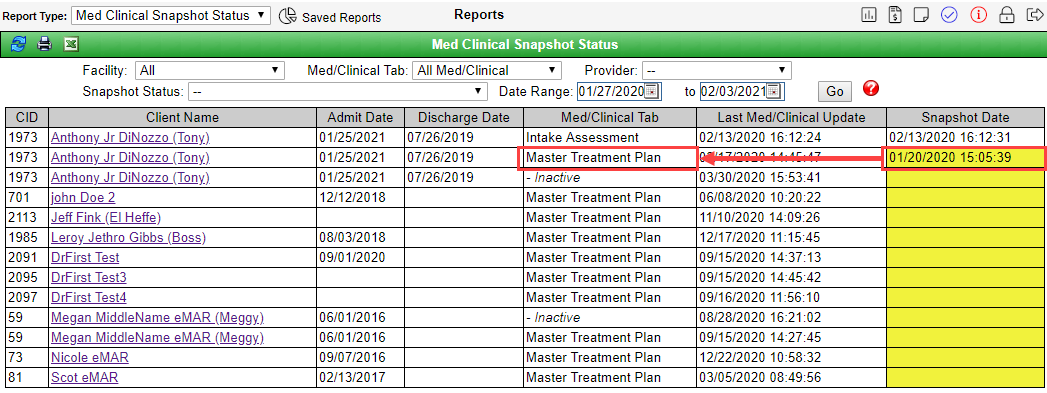
- Select the client name in the "Client Name" column.

- This will take you to the client's chart. Now select the "Med/Clinical" tab.
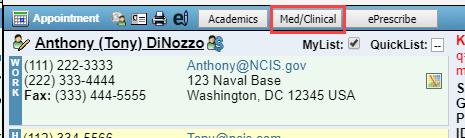
- Select the document identified from step 1.

- Select "Publish Snapshot."
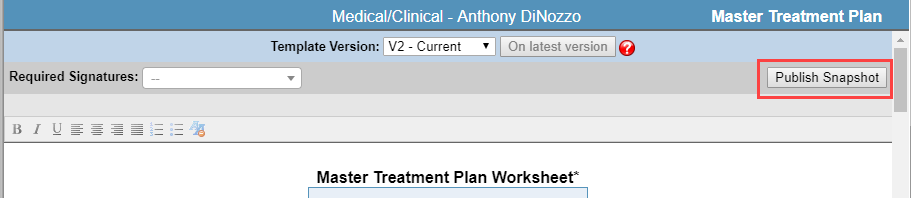
- Follow the on-screen prompts to verify and confirm the snapshot is published.

- Close the "Med/Clinical" window, and select the "Report" tab to return to the report.
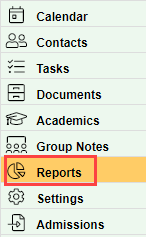
- Your report will still be there, and you can select "Go" to update the information. You will now see a date, without highlighting, for the client you just saved a snapshot for.

Repeat these steps for each document that requires a snapshot.
Back to top of page