The Master Dashboard provides an administrative overview of OutcomeTools, allowing you to review questionnaire results across all clients, set up user accounts, export data, and track questionnaires due or completed within the last seven days.
Permissions Required
- OutcomeTools Administrator
Using the Master Dashboard
- To access the Master Dashboard from BestNotes, you must have the OutcomeTools Administrator permission.
- In BestNotes, select the graph icon in the top right-hand corner.

- This action will take you to the Master Dashboard.

OutcomeTools includes reporting features that help staff identify clients who are actively completing questionnaires and those who are not participating. To view a list of assigned questionnaires, select the red "Show" button to display all expired questionnaires.

When questionnaires expire, they remain in the expired folder until a staff member updates the "Expires" date. From the "Edit Instance Details" page, staff can update the "Instance," "Method," "Active Date," "Expiration Date," or select the "Dismiss" button next to the expiration date.

Client List
This tab displays contacts added to OutcomeTools, including their admit date, discharge date, delivery method, and assigned series. You can navigate between contacts from this screen.

Reports
There are two available reports: "Average Scores" and "Questionnaire Response Rates."

The Average Scores report aggregates all client scores for a specific questionnaire. This feature allows organizations to demonstrate the average progress of clients through treatment based on a particular questionnaire.

The Questionnaire Response Rates report displays response rates based on the status of the questionnaire.

Manage Users
A Level 5 user is required for this section.
The Manage Users tab is where staff import users from BestNotes. If your company uses OutcomeTools exclusively, you will add users directly from this tab. For additional information, visit How to setup users.

Account Settings
A Level 5 user is required for this section.
The Account Settings tab lists the questionnaires available in your company's database. The Kiosk/URL is located here, along with an area to update your company's contact information.

Another setting that can be updated on the Account Settings tab is the auto-dismissal of expired questionnaires.
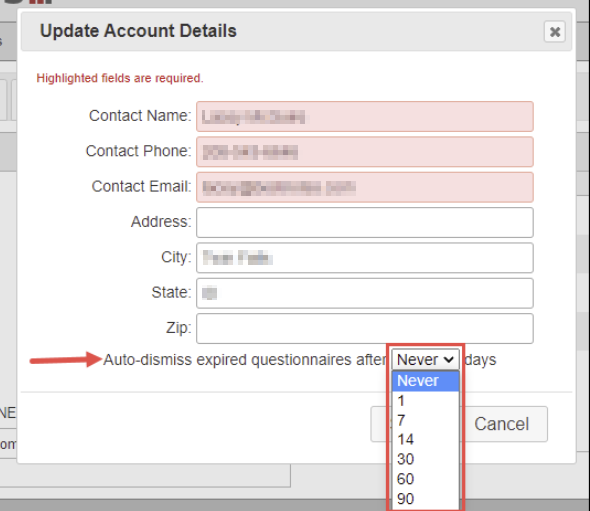
When questionnaires expire, they remain on a client's assigned questionnaires list until a staff member selects the "Dismiss" button, unless your company has configured an auto-dismiss number of days. For example, if auto-dismiss is set to 7 days, an expired questionnaire will be listed for 7 additional days before being automatically dismissed.
Export
A Level 5 user is required for this section.
Many companies using OutcomeTools participate in research initiatives and require access to their raw data. The Export tab allows you to select the instrument and date range for your export, then download the data as a CSV file. This Excel file contains your raw data for any necessary data analysis.

Resources
Some questionnaires have an associated PDF copy or scoring manual. These resources are included for your reference.

Next Steps
- See also: How to setup users
- See also: OutcomeTools Permission Levels