If an application is imported and attached to the incorrect client, you can remedy this by re-linking the application.
Permissions Required
- Admissions
Re-linking an Application
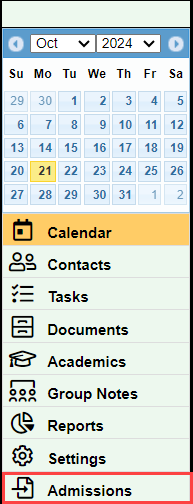
Navigate to Admissions
- Select the "Admissions" in the bottom left hand side of your BestNotes dashboard.
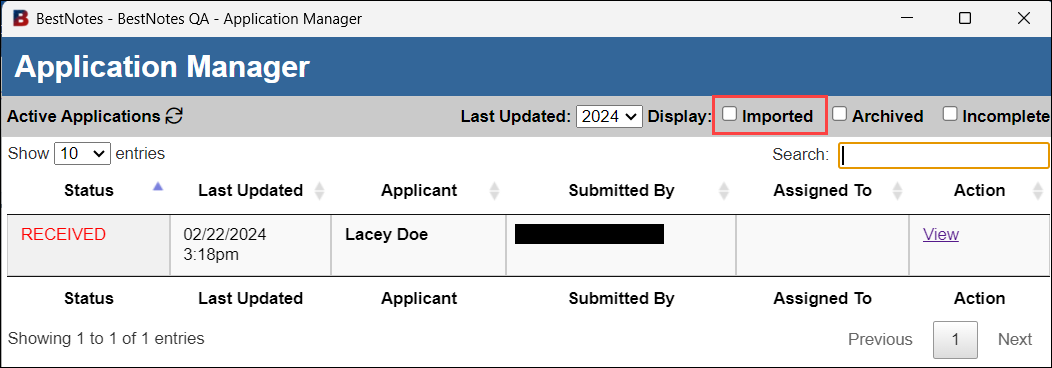
- Select the "Imported" checkbox.
Re-link Application
| Caution: When unlinking an application from a client, the application is removed from that client's Activity Log. Any Data Forms or Med/Clinical documents that received imported information are NOT cleared out. That information will need to be manually deleted by the user. |
- Select "View" for the application that you need to re-link.

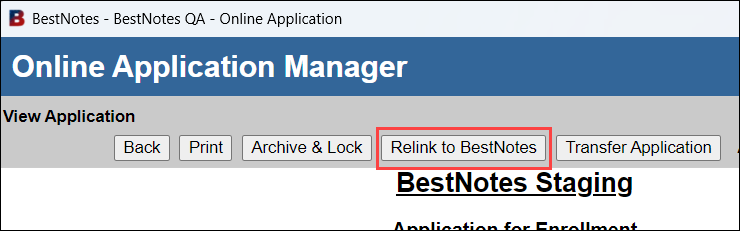
- Select the "Relink to BestNotes" button.
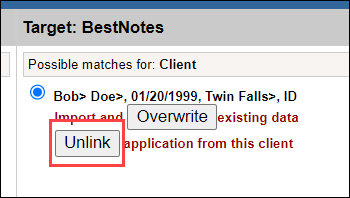
- Within the "Possible matches for: client" select the "Unlink" button.
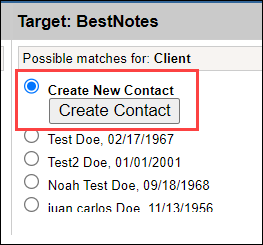
- If the client is new and doesn't match any entries listed, select the "Create New Contact" option, and select "Create Contact."
- If the client is an existing client, select the client from the "Possible Matches." You will then have the option to "Overwrite" or "Keep." If you "Overwrite" this will pull the latest information entered on the application overwriting the existing content and import the application to the Activity Log. If you "Keep" this will keep the existing data in your BestNotes and only import the application to the Activity Log.
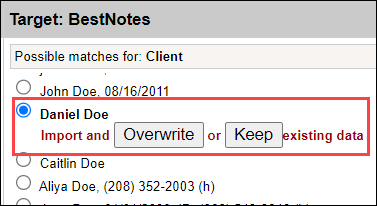
- Next, you will move down to any related contacts that you would like to add the the client's chart. Select the "Create New Contact" for any new related contacts, or select the match from the "Possible Matches." You will have the same "Overwrite" and "Keep" options here.
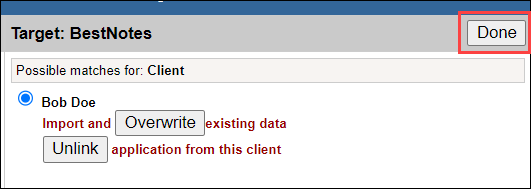
- Once you have all of your contacts import options selected, select "Done" in the top right corner.
- Your application has been imported. You can further review the application if necessary.
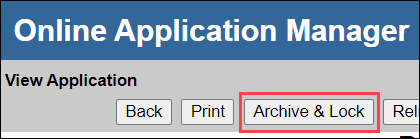
- If you are done with the application, select "Archive & Lock." This will remove the application from the portal so the client can no longer make changes to the application, and you will be taken back to the application to review any other applications as necessary. Otherwise, you can close the application manager.