If a client needs to make changes to their original application, but that application has been "Archived & Locked", then that application will need to be re-activated.
Permissions Required
- Admissions
Re-activating an Application
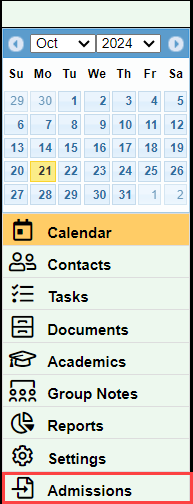
Navigate to Admissions
- Select the "Admissions" in the bottom left hand side of your BestNotes dashboard.
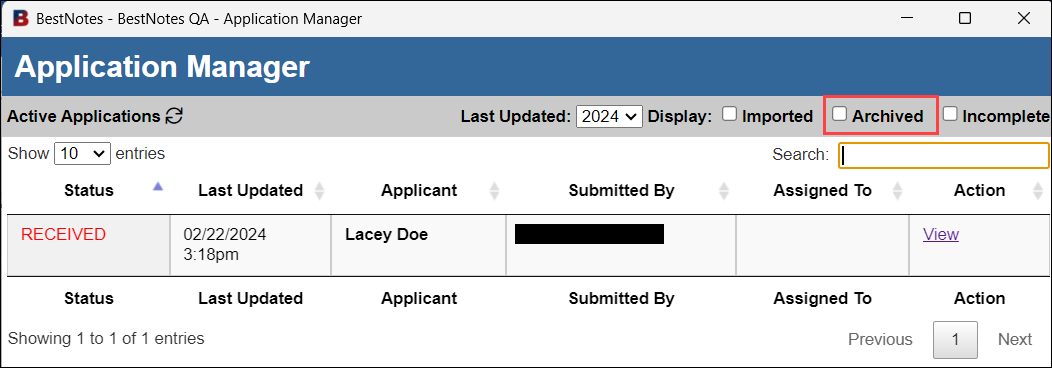
- Select the "Archived" checkbox.
Re-Activate Application
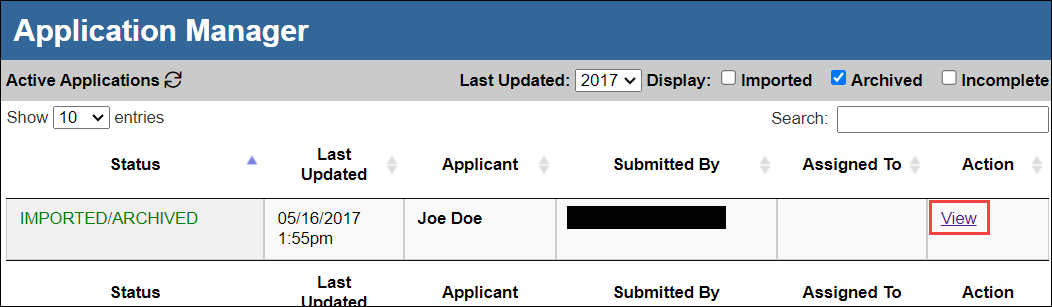
- The "Status" of the application will be "IMPORTED/ARCHIVED".
- Select the "View" action on the application that you would like to Re-activate.
- Select the "Re-Activate" button.
