This article explains how to set up payers, manage authorizations (Auths), use auth templates, record services against authorizations, and generate reconciliation reports in BestNotes.
Permissions & Prerequisites
- Contact: View/Edit
- Note: The Authorizations feature must be enabled for your database by BestNotes Support before the Authorizations bar will appear.
1. Payers Setup
Payer information is located directly within the dedicated Payers tab in the client's chart. By default, new charts are set to Cash Only.
Adding a Payer
- Uncheck Cash Only and click Add Payer.
- In the Payer Detail field, type the payer name. The auto-complete dropdown pulls from your agency's predefined payer list in Settings.
- Select the payer and fill out necessary details.
- Enter the Member ID (required to save).
- Click Save Payer.
Note: If a payer is marked Inactive in the client's Payers tab or in Settings, any associated Auths will not be used, counted, or tracked.
2. Creating & Managing Authorizations
Once an active payer exists and Authorizations are enabled, an Authorizations bar displays beneath your active payers.
Click Add Auth to open the authorization form.
Authorization Form Fields
- Auth #: Enter the authorization number supplied by the insurer.
- Description: Add a brief description (e.g., "Testing Auth").
- Units Authorized / Open Auth: Select Units, Days, or Open Auth. Enter the authorized total (e.g., 150).
- Auth Length: Specify duration in Weeks or Months.
- Start / Stop Date: Select a Start Date; BestNotes automatically calculates the Stop Date based on your Auth Length.
- Dollar Limit: (Optional) Input a monetary cap if applicable.
- Code Search: Type and select all clinical procedural codes tied to this authorization. Selected codes appear as yellow badges beneath the field.
- Contact, Phone & Notes: Additional optional fields for clinical or administrative details.
Using Auth Templates
If your agency frequently issues identical authorizations (e.g., standard Medicaid/Medicare packages):
- Complete the standard Auth form fields.
- Check the Template box at the bottom.
- Type a template name (e.g., "Blue Cross") and click Save.
- To use it on future entries, click Add Auth and select your saved template from the Template dropdown at the top to auto-fill the form.
Active Auth Indicators
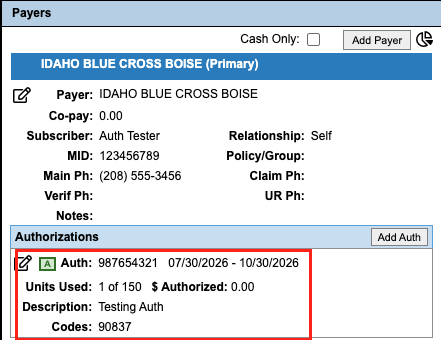
Once saved, active authorizations display beneath the payer with key usage details:
- Green "A" Icon: Indicates an Active Auth.
- Usage Tracker: Shows current unit usage (e.g.,
0 of 150 Used). - Details: Displays description, date ranges, and associated procedural codes.
3. Register Service Entry & Automatic Usage Tracking
When services are entered into the patient's Register/Ledger, BestNotes checks for a matching active Auth.
- Navigate to the client's Register tab.
- Add a service charge using a procedural code associated with the Auth (e.g.,
90837). - Fill out facility/provider details and click Create.
Visual Confirmation
- Green Highlight: The new charge row turns green in the register, confirming it successfully linked to an active Auth.
- Automatic Counter Update: Returning to the client's Payers tab shows the unit usage automatically updated (e.g., from
0 of 150to1 of 150).
Alert Note: If a procedural code is entered into the Register without an active, matching Auth, BestNotes displays the following alert warning: "No Open Authorizations Found For This Service."
4. Reporting & Authorization Reconciliation
To audit or manually link charges agency-wide, open the Payers/Authorizations Report from the main Reports module.
Auth Reconciliation Tab
This tab defaults to the last 7 days and offers two operational views:
1. Matched Services View
Displays charges successfully tied to authorizations.
- Unlinking a Service: To unlink a charge from an authorization so it does not count toward its allowed units or dollar amount, click the Broken Chain icon next to the entry and confirm. This restores the authorization's unit balance and moves the charge to Unmatched Services.
2. Unmatched Services View
Displays rendered services that lack an associated Auth (e.g., charges created before an authorization was entered into BestNotes).
- Manual Matching: Select the appropriate Auth from the dropdown next to the charge and click Apply. The service links immediately and recalculates remaining Auth units.