The activity log allows you to view all activities associated with a contact, including appointments, uploaded files, and notes. You can also use it to add new notes or templates.
Permissions Required
No specific BestNotes permissions are required.
Navigating the Mobile Activity Log
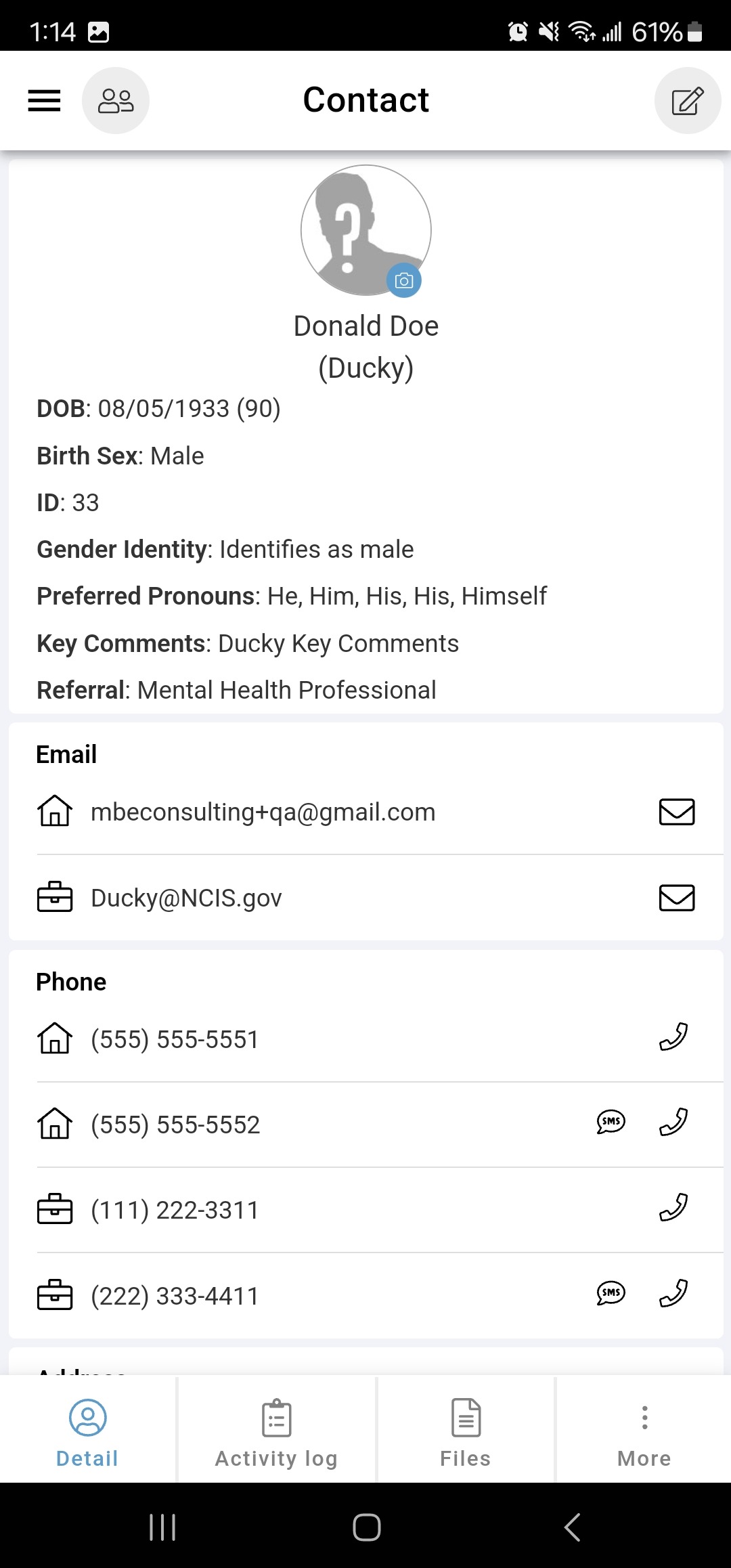
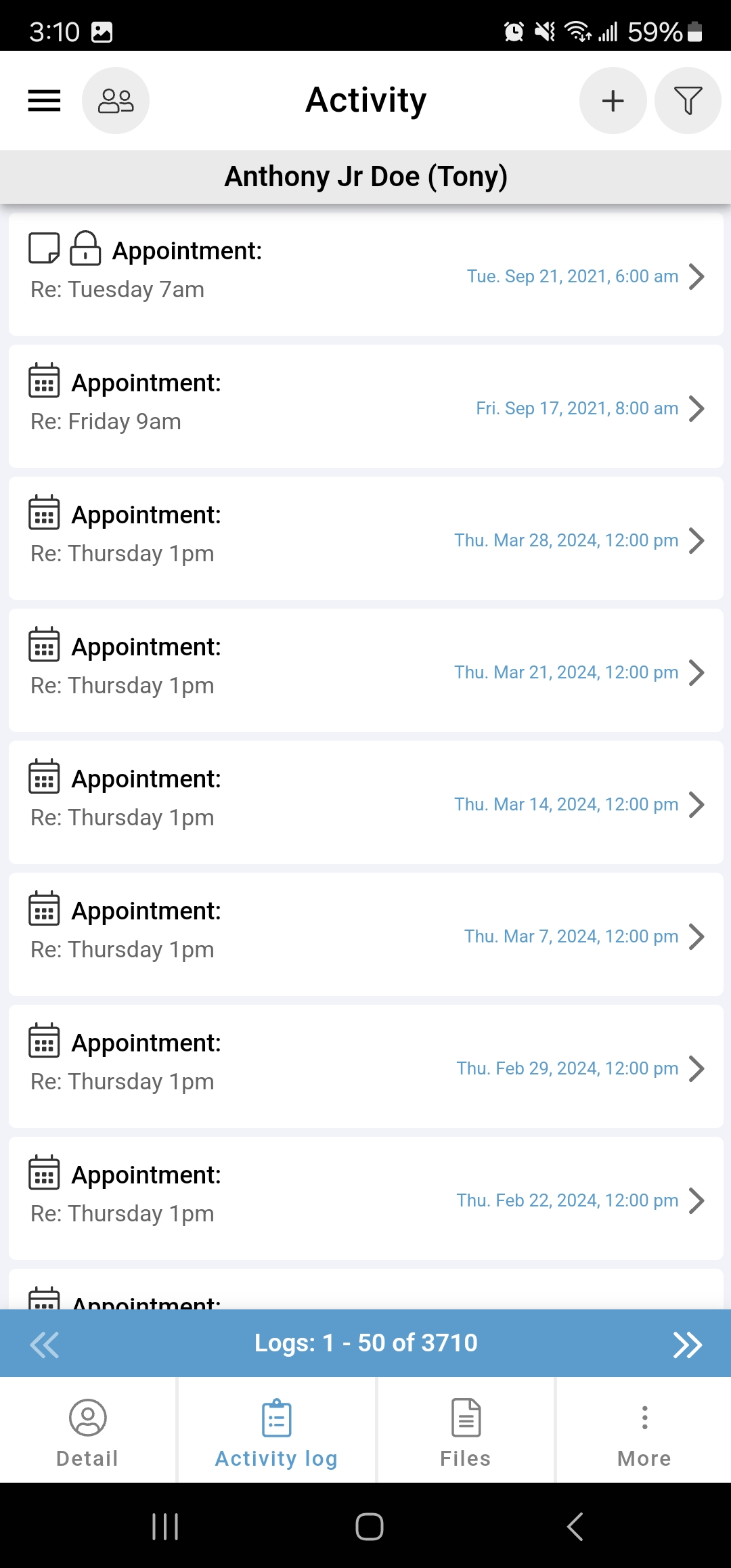
- While on a contact's chart, select the activity log button.
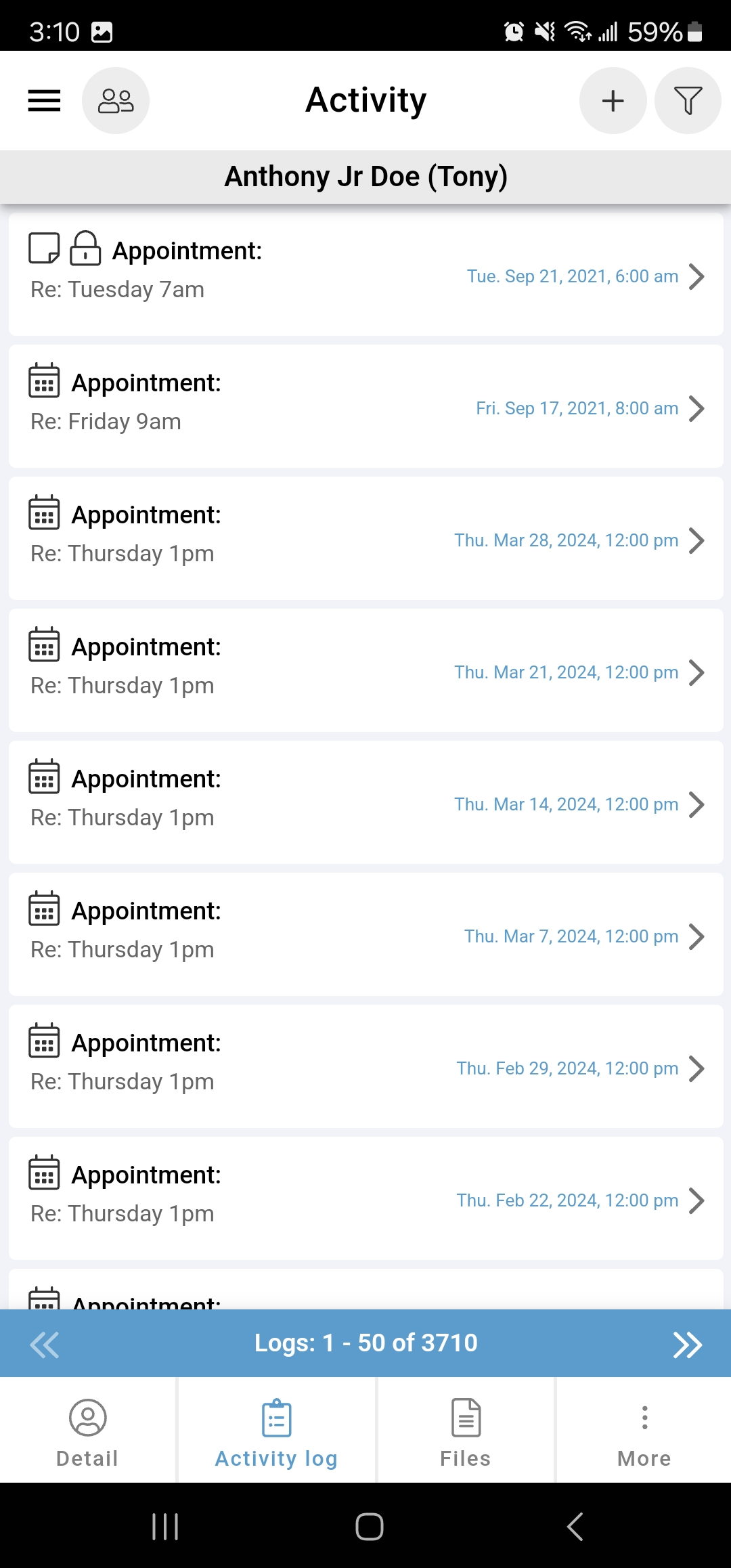
- The activity log displays all activities associated with the contact's chart in chronological order, with the most recent activity at the top.
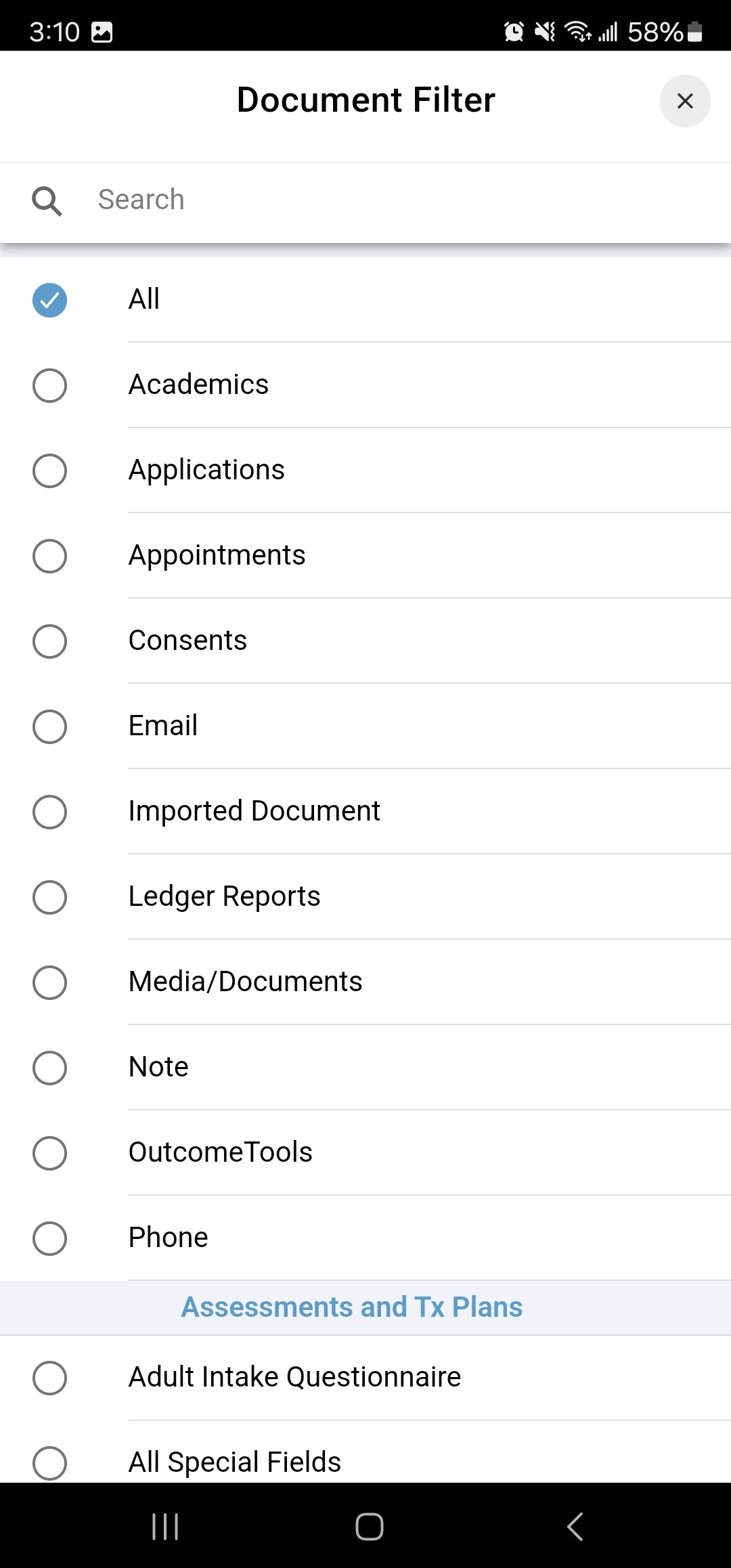
- To filter by log type, select the filter icon in the top right and then select the document type you're searching for.
- To create a new log or note, select the plus icon in the top right.
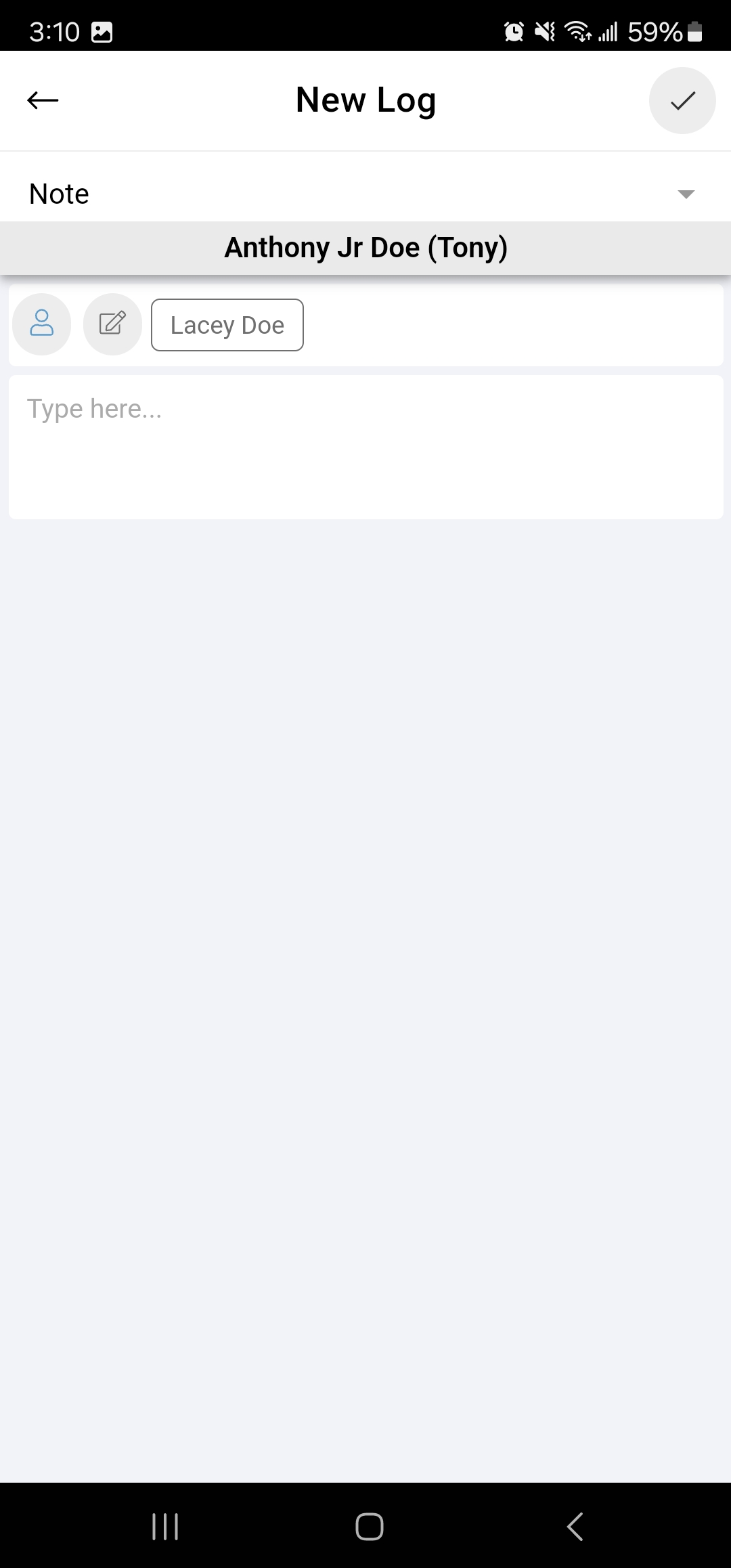
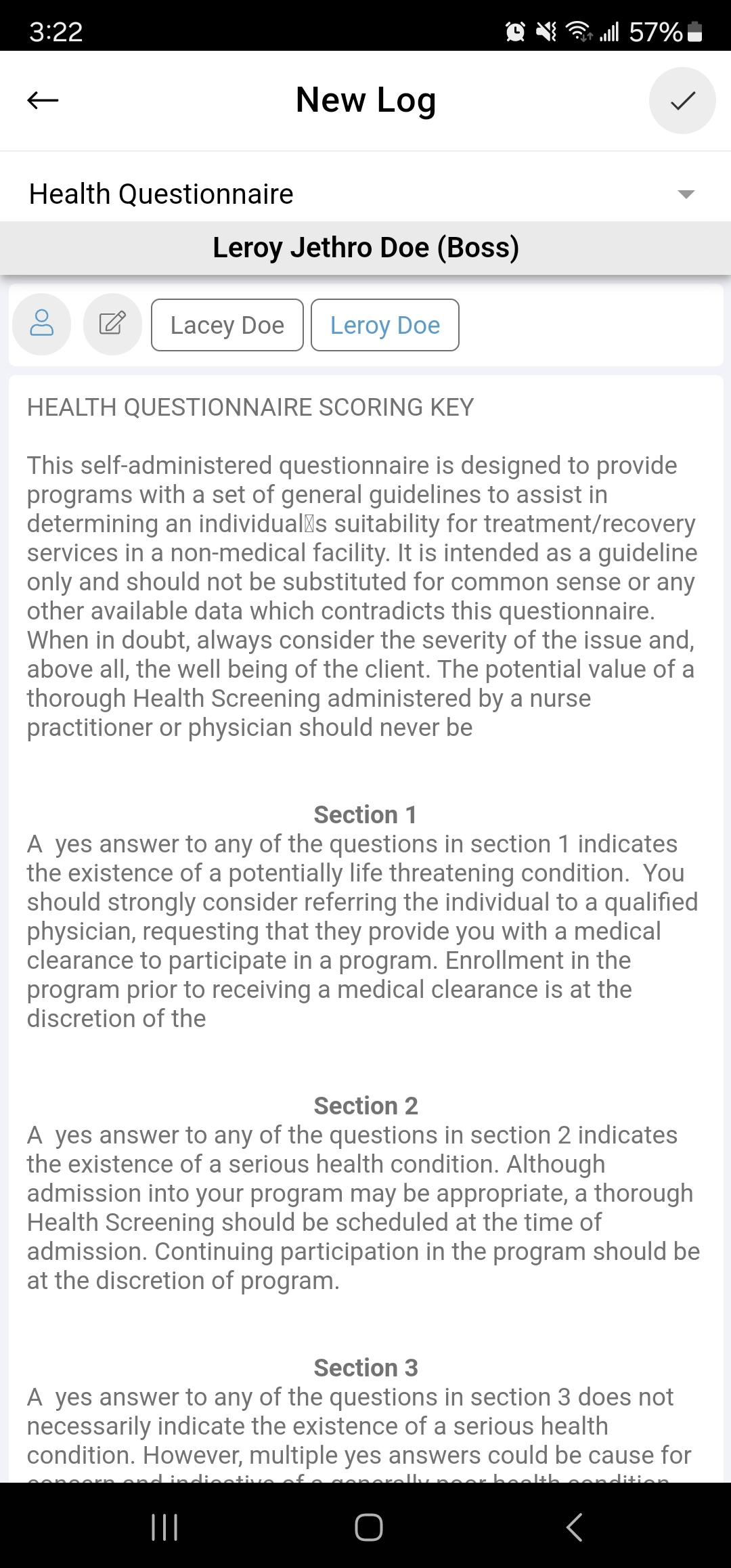
- Select the desired template from the dropdown menu to create a new note.
- Tap the blue person icon to add the client as a signer.
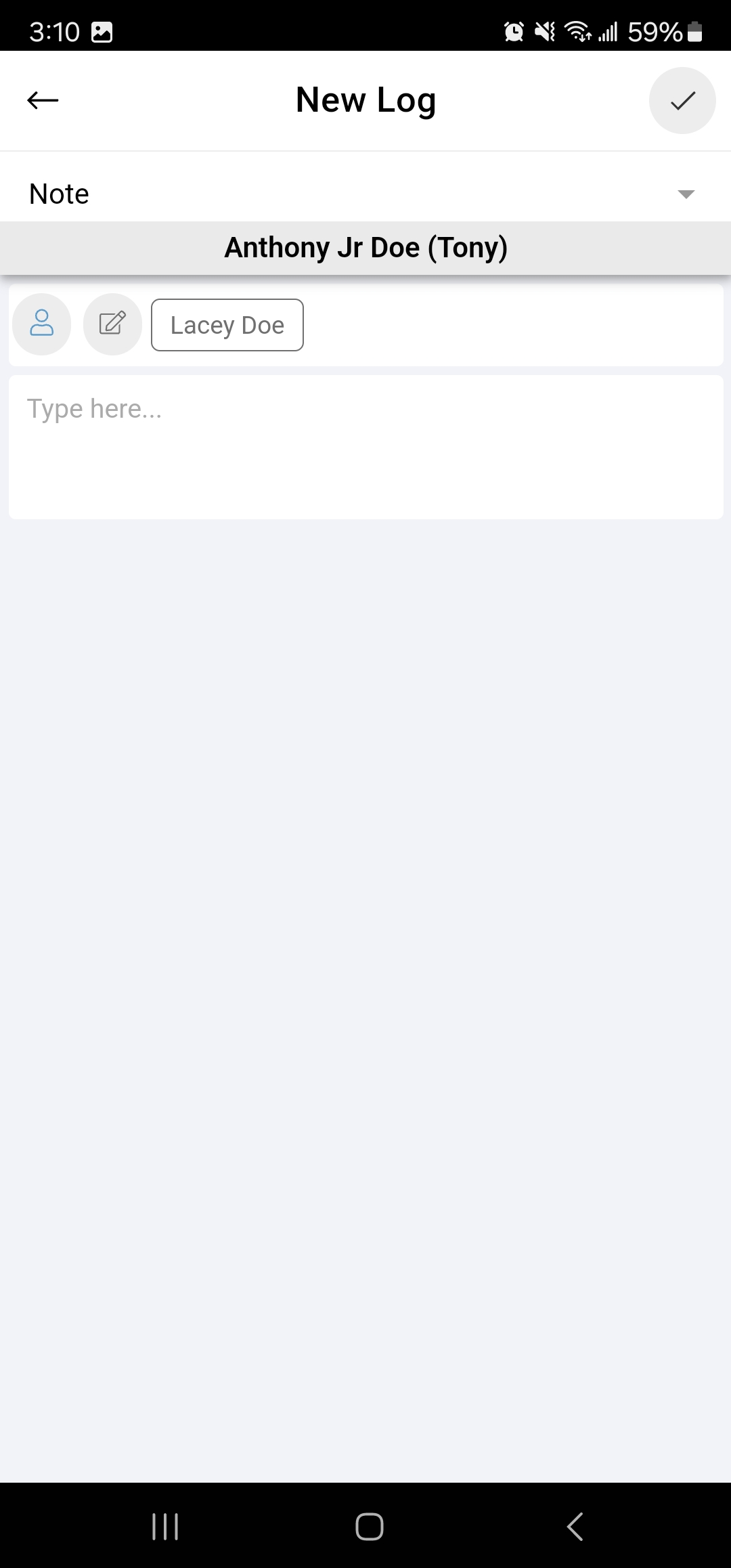
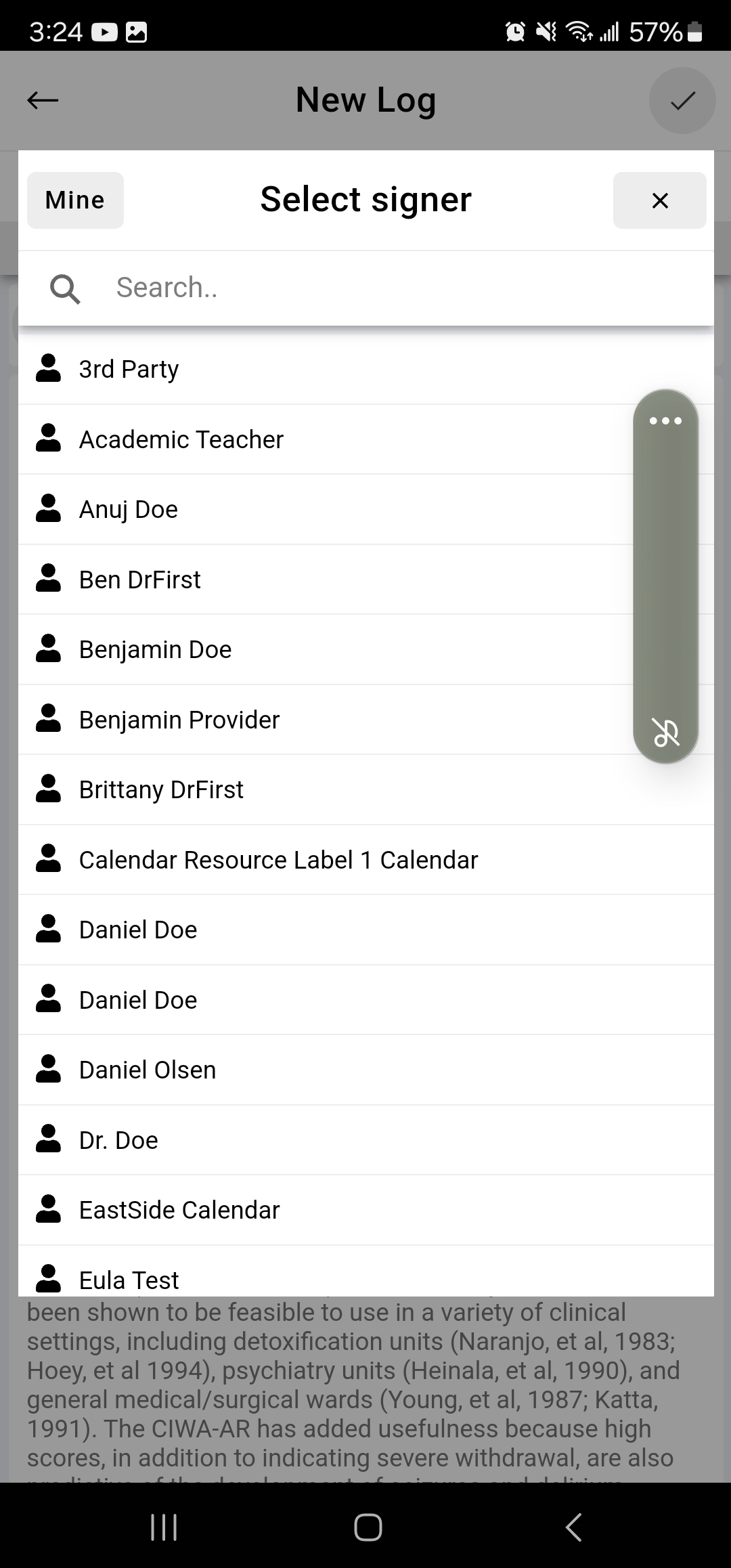
- To add other users as a signer, click the edit icon located to the right of the blue person icon.
- Tap the names of the users you wish to add as signers.
- Once the note is complete, tap the checkmark icon in the top right corner to save.