The Q-Log is the central hub for sending new messages and reviewing both current and past communications.
Permissions Required
No specific BestNotes permissions are required.
Using the Mobile Q-Log
Navigating to the Q-Log
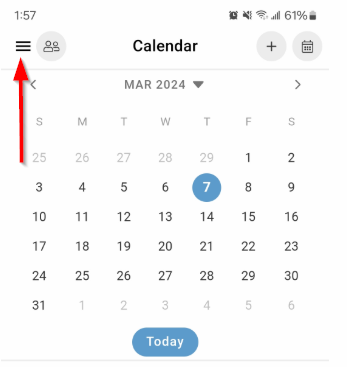
- Locate and tap the three horizontal lines (often called a "hamburger menu") at the top left corner of the screen.
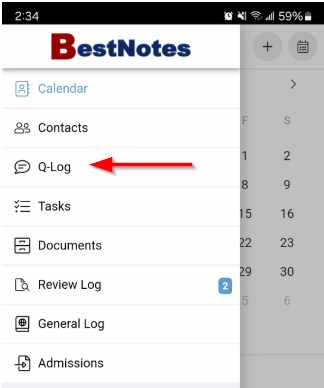
- From the menu that appears, tap on the option labeled "Q-Log".
Viewing Messages
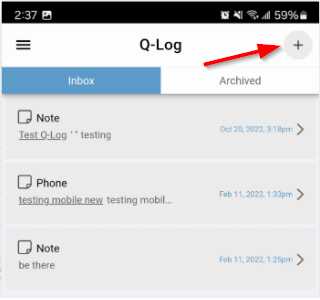
Once in the Q-Log, inbox and archived messages will be visible. Tap on an individual message to view the content.
Creating a New Q-Log Message
- Tap the "plus" (+) icon located at the top right corner of the Q-Log screen.
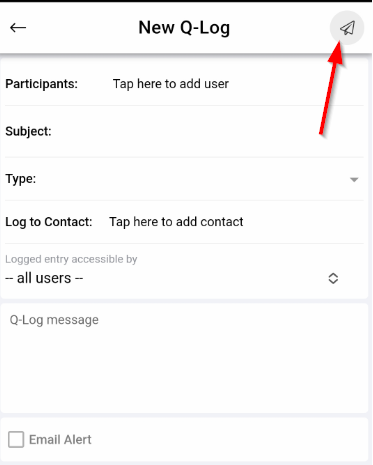
- Fill out the necessary fields and compose the message.
- Tap the "paper plane" icon at the top right corner to send the message.