This article explains how to request a new lab connection in BestNotes through the ELLKAY integration platform and manage user access for electronic lab orders and results.
Permissions Required
- Lab Orders
- View Lab Results
Setting Up Lab Connections and Managing Users
Connect your BestNotes account to laboratory vendors through the ELLKAY integration platform. This allows you to electronically send lab orders and receive results directly within BestNotes.
NOTE: These permissions will not be available until your lab connection has been activated.
Configure New Connection
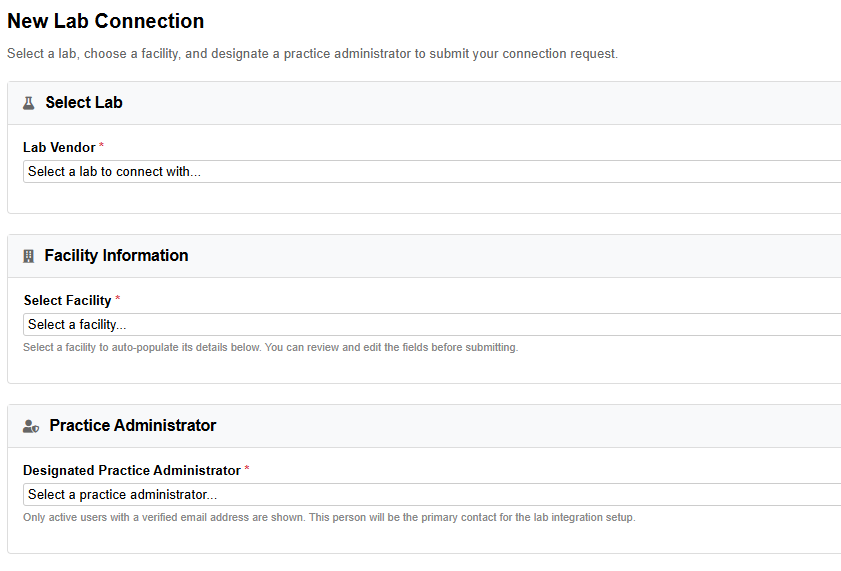
To create a request between your BestNotes account and your preferred lab partner, navigate to the Settings area, then Account Details, and click on the ELLKAY option. To initiate a new lab connection, provide the requested Lab, Facility, and Practice Administrator information:
Prerequisites for Lab Order Creation
Before a user can create a lab order, the following requirements must be met:
- The user's email address has been verified in BestNotes.
- The user's NPI number has been entered in the provider details tab of the user details.
- The user has been added in the "User Management" area in BestNotes' Settings > Account Details > ELLKAY as "Provider" or "Office" and "Full Careevolve Access".
- Each lab connection requires a practice administrator. The Access Level for this user must be Practice Administrator.
- The physical address entered in the Facility must match the address used by the Partner Lab.
For the best experience, it is recommended to add any Insurance Payers your practice may associate with in your account Settings > Payers. Adding these payers will allow your client-specific payer information to import into your lab order upon creation.
Manage Lab Users
To manage users with ELLKAY access, navigate to the Settings area, then Account Details, and click on the ELLKAY option. Click User Management to add, edit, or remove users from ELLKAY.
Select Add to provide ELLKAY access to an existing BestNotes user:
- Choose the BestNotes user in the Select User dropdown.
- Choose the appropriate User Type of Provider for valid providers responsible for the order or Other for any users requiring general access.
- Choose the Access Level of Careevolve Access.
NOTE: Before a user can be added in ELLKAY, they must have a verified email address in BestNotes.
Select Edit to modify the individual User Type and Access Level.
Select Remove on any user to remove ELLKAY access.
Pricing
BestNotes does NOT charge any additional fee to connect to ELLKAY.
Next Steps
- See also: Labs - Order (for creating lab orders)
- See also: Labs - Results and Sign (for lab results & review)
- See also: Insurance Billing Step 2 - Users, Payers, Ledger Setup (for adding insurance payers)