This article explains how to configure Group Note Templates and individual Group Notes to restrict their visibility on a client's Activity Log to specific user groups.
Permissions Required
- Create Group Notes
- Group Notes Admin
- Manage Templates
Restricting Group Note Activity Log Visibility
Configure Group Note Templates for Auto-Restriction
To restrict Group Note visibility, you must first configure the Group Note Template:
- Create or edit a Group Note Template. (For more information on creating a Group Note, see Creating a Group Note).
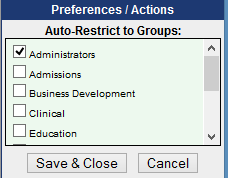
- Within the template settings, check the option to auto-restrict the note to a specific group.
Set Up User Groups (System Administrator)
As a System Administrator, ensure the necessary user groups are in place:
- Create the required user groups.
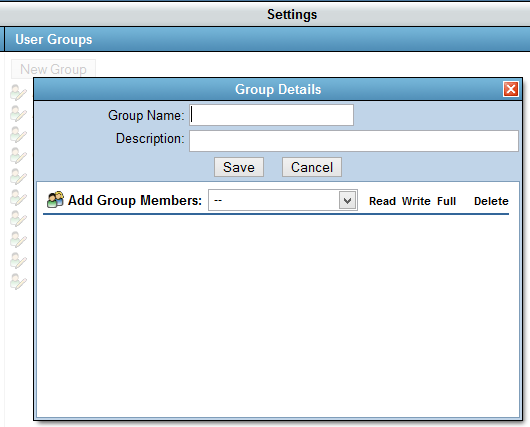
- Create the required user groups.
Assign Group Note Permissions
Give relevant user(s) the necessary Group Note Permission(s). (For more information, see Setting Permissions to Create Group Notes).
Apply Auto-Restriction to a Group Note Instance
When creating or editing a Group Note:
- Open Group Notes.
- Users with the Group Notes Admin permission can click on the Admin tab.
- Create or edit a Group Note.
- Select the New Group Note Template that has been configured for auto-restriction.
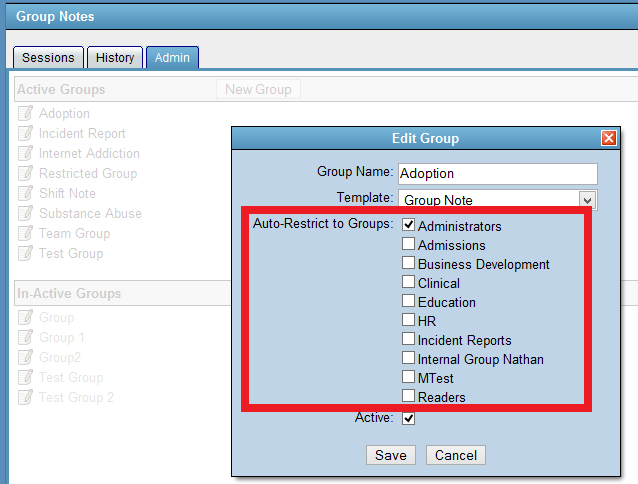
- Auto-restrict the Group Note to the specific Group(s) who can see and create this Group Note.
Save and Lock the Auto-Restricted Group Note
- An Auto-Restrict Group Member will create a Session with the Auto-Restrict Group Note Template.
- Using Save and Lock will make this Group Note on the Client's Activity Log only visible to the Auto-Restrict Group.
Important Notes
- BestNotes Users with the Manage Template permission could unrestrict this Group Note on the Build Template editor.
- Group Notes will not display for users who were part of a deleted Group.
- NOTE: Unrestrict (uncheck) Groups in Group Notes and Templates before deleting the Group.
Next Steps
- See also: Creating a Group Note
- See also: Setting Permissions to Create Group Notes