This article provides instructions for setting up Kiosk Mode on Apple iOS devices (e.g., iPad) using Guided Access, and notes on Android device solutions.
Permissions Required
No specific BestNotes permissions are required.
Setting Up Kiosk Mode
Android Solution
BestNotes only has mobile apps for iOS Apple and Android devices.
Android does not have step-by-step instructions at this time. There are several resources online.
| NOTE: Be careful with any 3rd party, online instructions. |
BestNotes will continue to do research to find a common and safe solution for Android Devices.
Apple (iOS - e.g. iPad)
Use Guided Access to:
- Temporarily restrict your iOS device to a particular app
- Disable areas of the screen that aren’t relevant to a task, or areas where an accidental gesture might cause a distraction
- Disable the hardware buttons
To set up Guided Access:
- Tap Settings -> General -> Accessibility -> Guided Access.
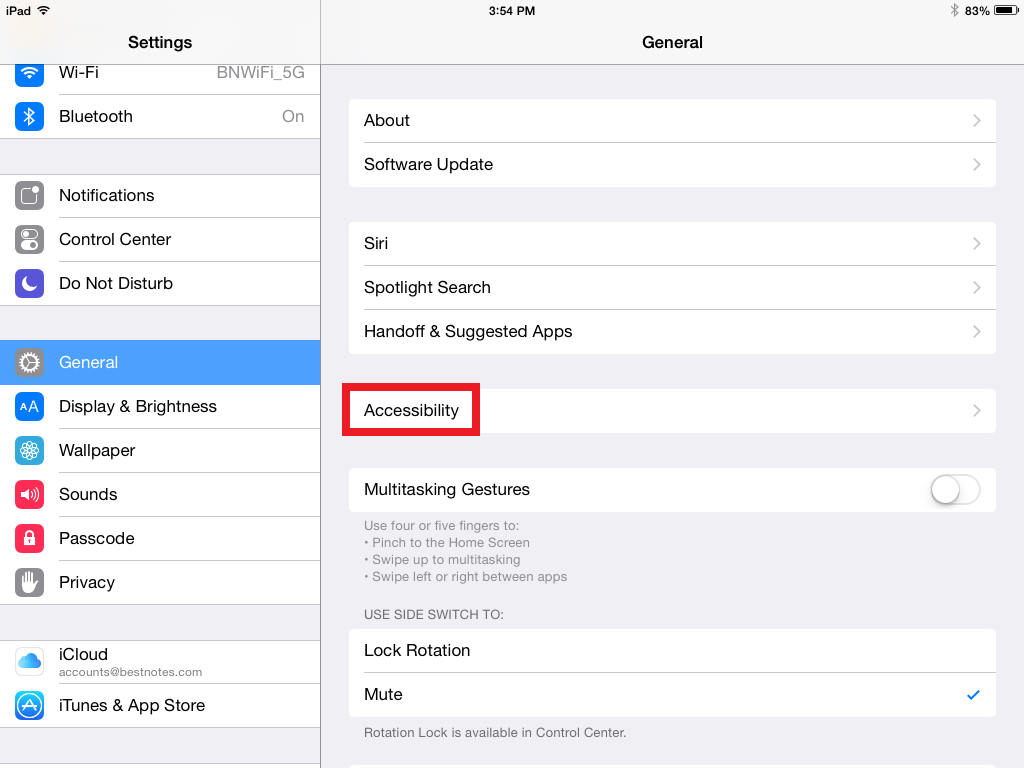
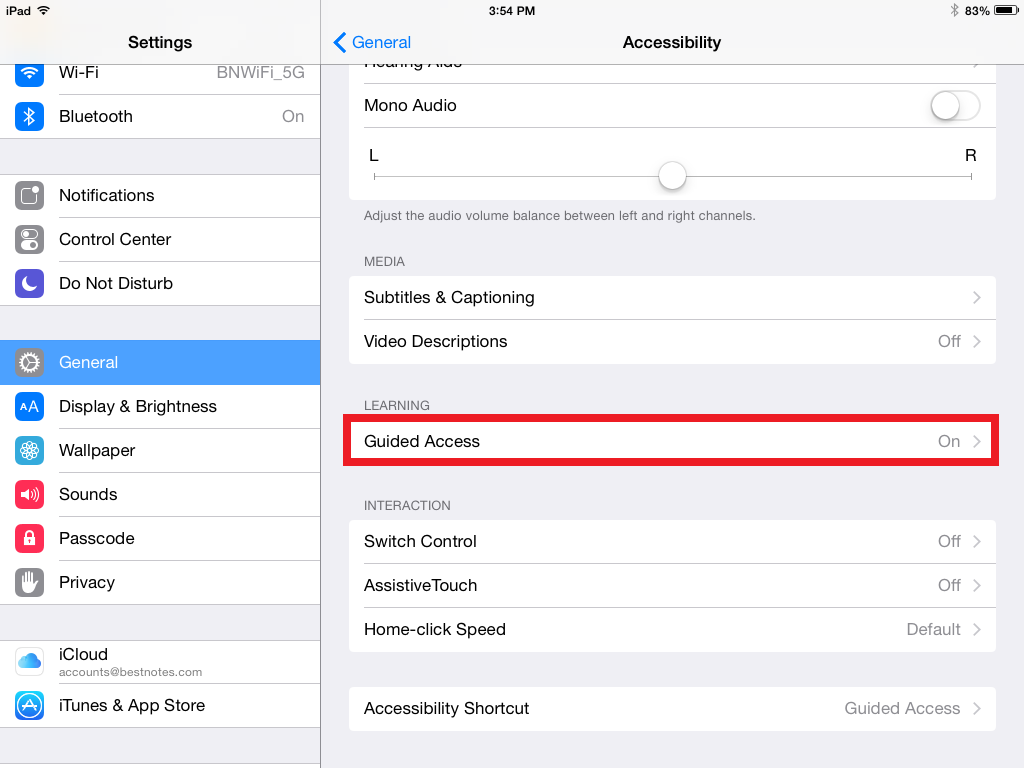
From there you can:
- Turn Guided Access on or off
- Set a passcode that controls the use of Guided Access and prevents someone from leaving an active session
- Set whether the device can go to sleep during a session
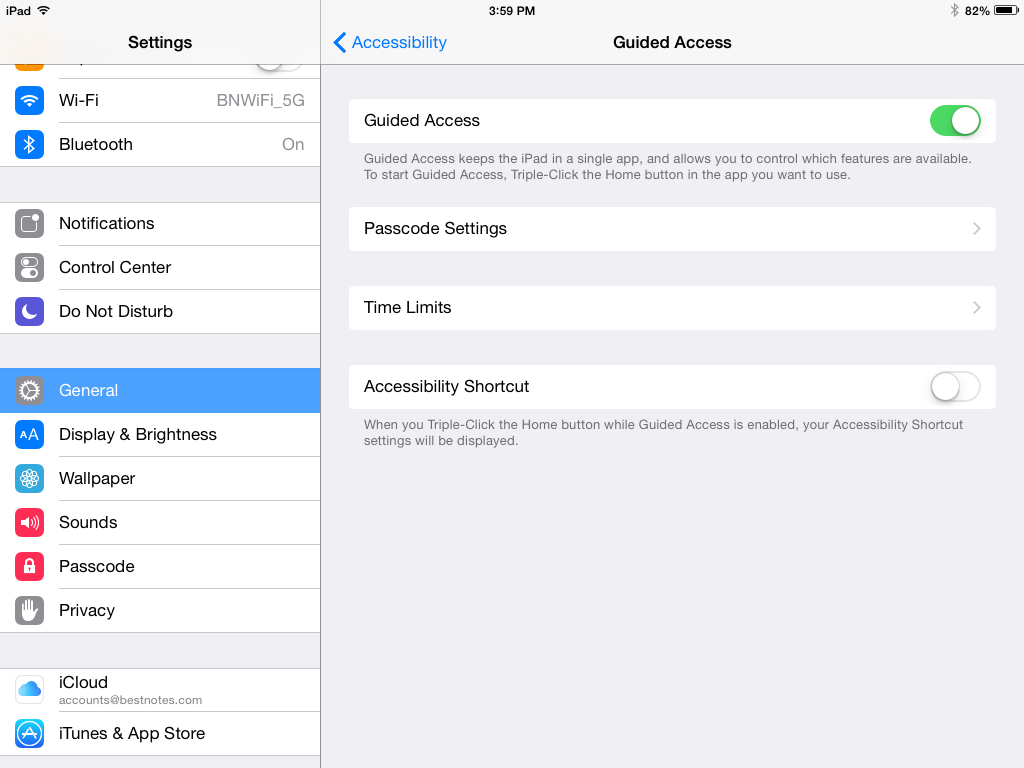
Start a Guided Access session
- Open the app you want to run.
- Triple-click the Home button.
- Adjust settings for the session, then click Start.
Disable app controls and areas of the app screen
- Circle or rectangle any part of the screen you want to disable (e.g. web browser controls/buttons).
- Use the handles to adjust the area.
Keep Touch on
This will allow clients and BestNotes users to enter information (OutcomeTools Survey Key and answers, BestNotes navigation).
NOTES:
- Guided Access has its own Multitasking Gesture (e.g. close webpage).
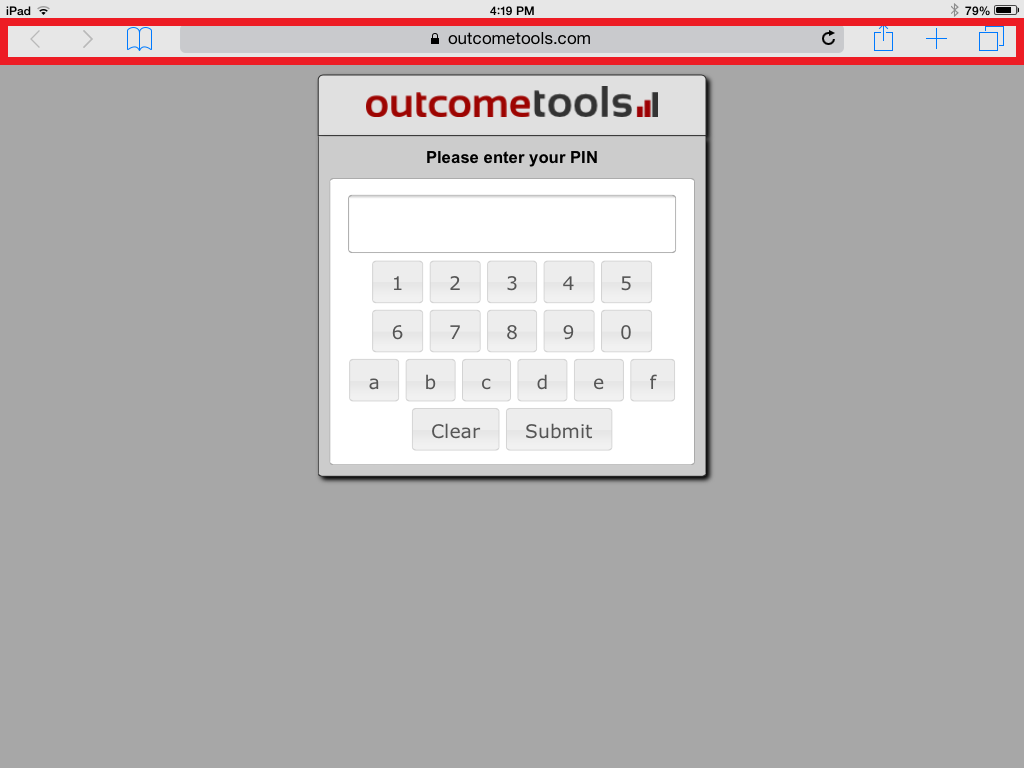
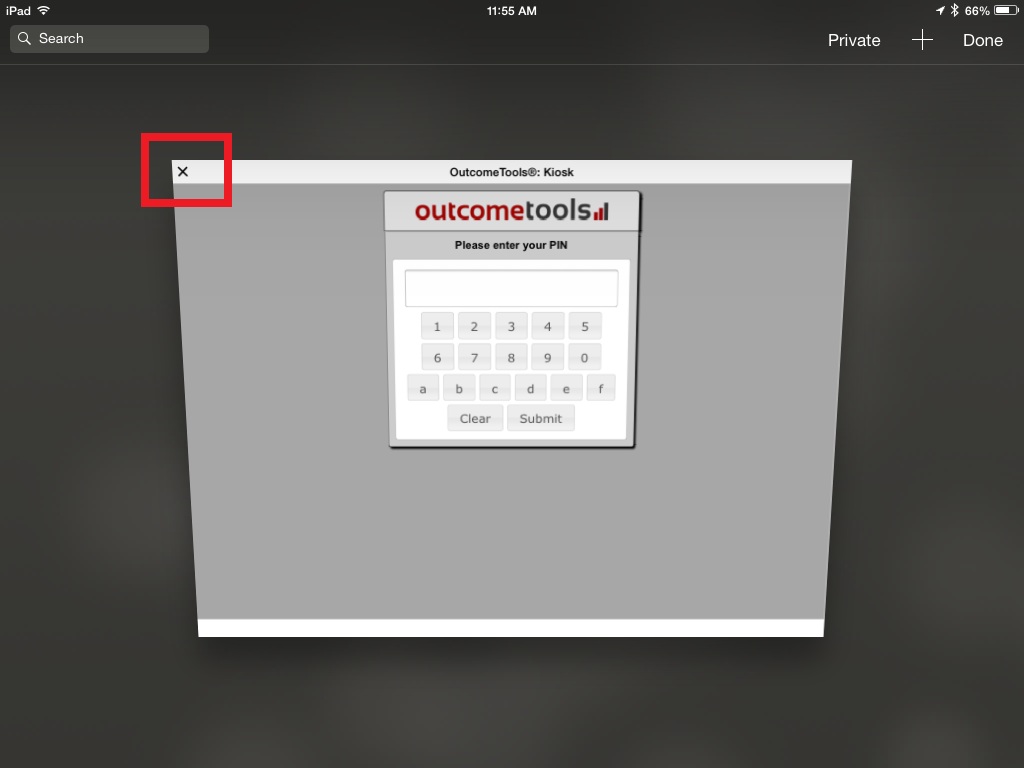
- Only allow one webpage (OutcomeTools Kiosk) to be accessed in the favorites, history and bookmark menu.
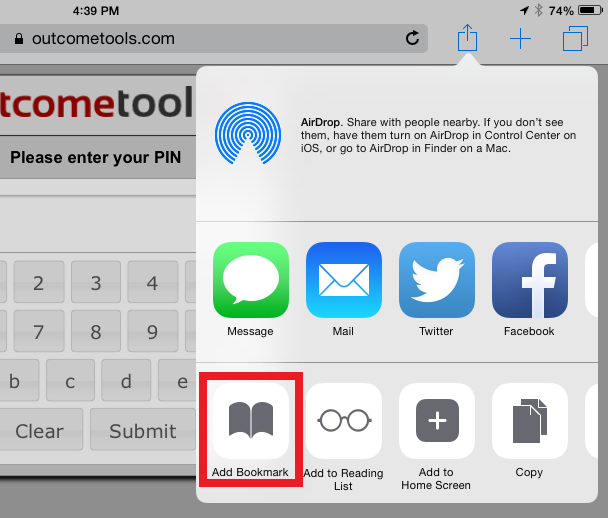
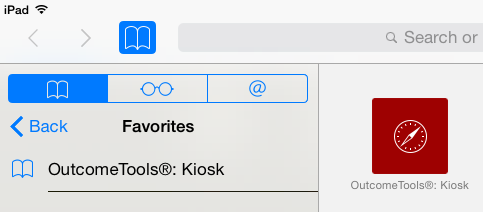
- Do the above, along with disabling part of the screen
Bookmark kiosk website on device app home page for quick access
For quick access (e.g. switching apps, turning device on/off), bookmark the kiosk website on the device app home page.
- Click the Add to Home Screen button:


Kiosk Mode & Battery life
When Guided Access is on, the device will remain in Kiosk mode (awake, asleep and charging). This means, when you wake the device:
- It does not require a passcode
- It will automatically be ready in Kiosk mode
- It will display the last action made
- It will go into sleep mode according to your device's sleep settings
Sleep mode will save the battery life, but periodically check to make sure it is charged for the next use.
End a Guided Access session
To end a Guided Access session (e.g. switching between BestNotes App and OutcomeTools, turning off and changing settings):
- Triple-click the Home button.
- Enter the Guided Access Passcode.