This article explains how to submit multiple applications for different clients (e.g., children) under a single related contact (e.g., a parent) using the BestNotes Web Portal.
Permissions Required
- Multiple Applications
Submitting Multiple Applications
If the Applications section is hidden, your company's on-site System Administrator needs to create a support ticket to request the Multiple Applications feature and to make the applications section available when portalized documents are displayed. Once enabled, perform the following steps for each additional application:
- Once the first application is archived, the first client (e.g., Child) is linked, and the Related Contact has the Web Portal relationship checked, the Related Contact will only see the first client's portal documents.
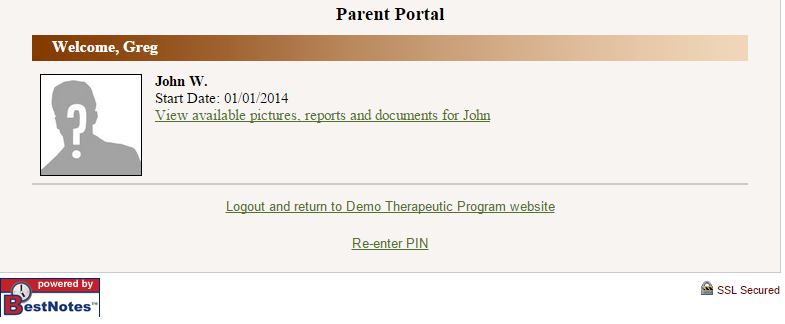
- To add a second client, Unlink the first client.

- Since the first application will be populated with the first client's information, the Related Contact (Parent) will click the link under Begin New Application.
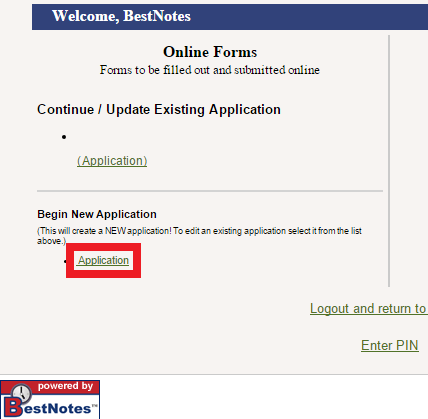
- They will enter the second client's information and Submit for Admission.
- Once the second application is Archived, the second client is Linked, and the Related Contact has the Web Portal relationship checked for the second client, Re-Link the first client.
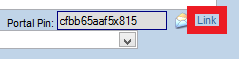
- The Portal will return to the 2-way communication with both clients listed.

Next Steps
- See also: Portal Account for Clients & Their Related Contacts (Parent)
- See also: Portal Permission: PIN, Link, Unlink
- See also: Admissions: Importing Applications with the Application Manager