This article explains how to use custom medications and medication groups within a client's "Meds" tab in BestNotes.
Permissions Required
No specific BestNotes permissions are required.
Using Custom Medications and Medication Groups
Adding a Custom Medication
- From the "Meds" tab, select "New Entry". All custom medications that have been saved in the "Settings" area are available as an option alongside the standard list of medications.
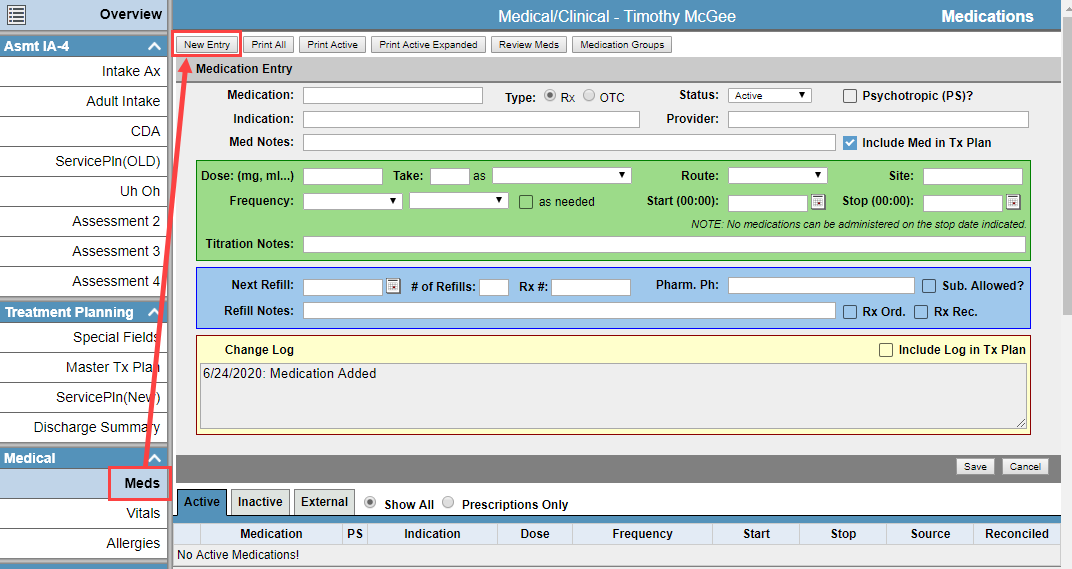
- An indication of a medication being a "Custom Medication" can be found in the last column titled "Custom." If there is a "Y" in this column, the medication and its information were added from the settings area. Select the "Custom" medication to add it to the client's medication list. Once added, edits can be made to the medication.

Adding a Medication Group
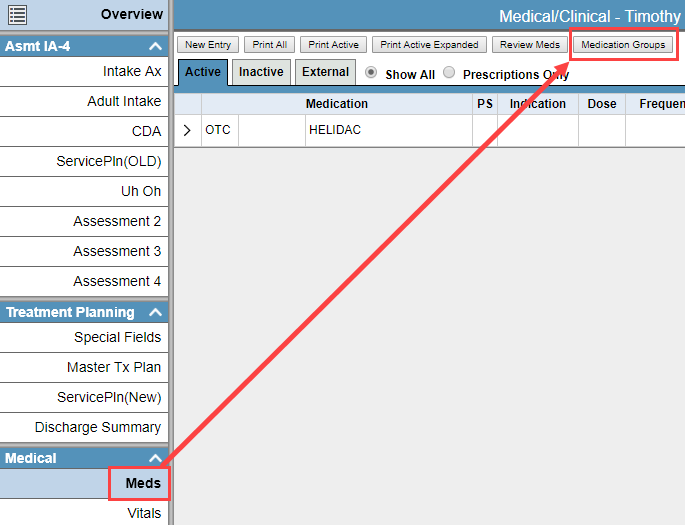
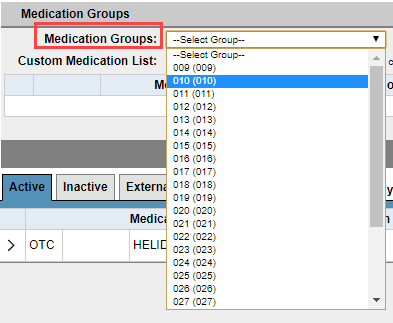
- Within the "Med/Clinical" page, navigate to the "Meds" tab. In the top right corner of the medications page, click the "Medication Groups" button. From the "Medication Groups" list, select the desired group.
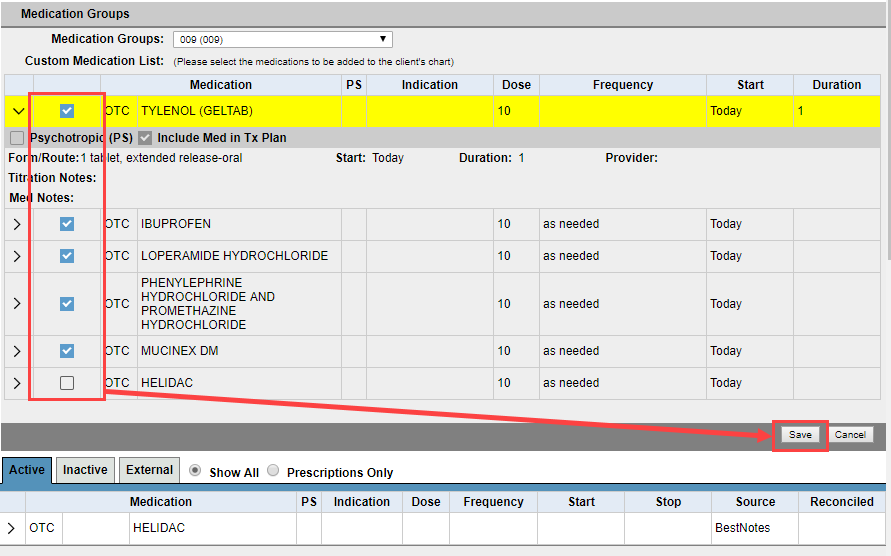
- The medications within the selected group will appear within the "Custom Medication List", and the client's existing medications are listed below. The details of each medication can be viewed by selecting the "Expand" icon next to the medication. If there is a medication that doesn't need to be added to this particular client, un-check the box next to that medication.
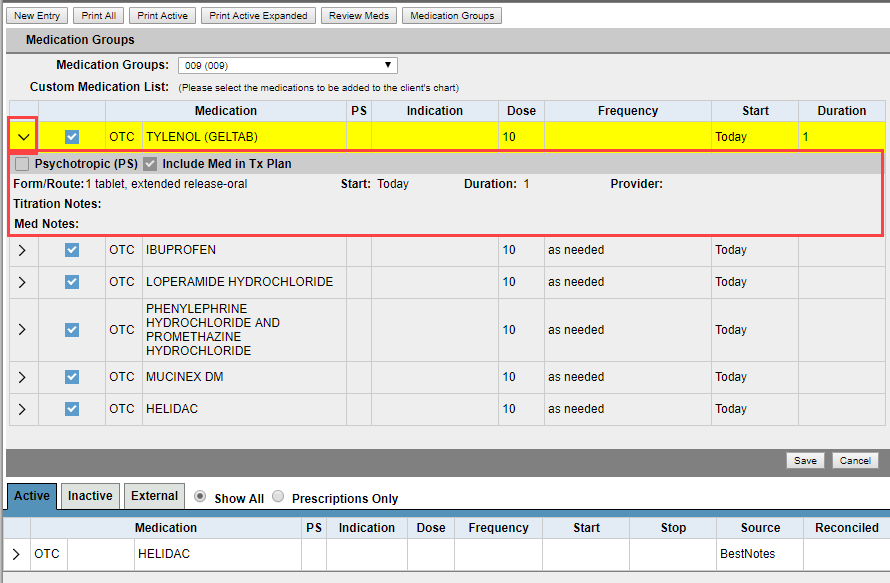
- Upon selecting "Save", all of the checked medications will be saved to the client's medication list.
- The medications can be edited once they are added to the client by expanding the medication and selecting the appropriate action.
