"Custom Medications" are a collection of "favorite" medications available company-wide, allowing staff to quickly add pre-determined medication and dosage for clients, while "Medication Groups" enable the simultaneous application of multiple predefined medications.
Permissions Required
- Manage Custom Medications
- Edit Medications
Setting Up Custom Medications and Medication Groups
There are two permissions associated with "Custom Medications." The "Manage Custom Medications" permission gives the ability to manage "Custom Medications" and "Medication Groups" settings. The "Edit Medications" permission adds the ability to access "Custom Medications" and "Medication Groups" from the client's page.
Accessing Custom Medications
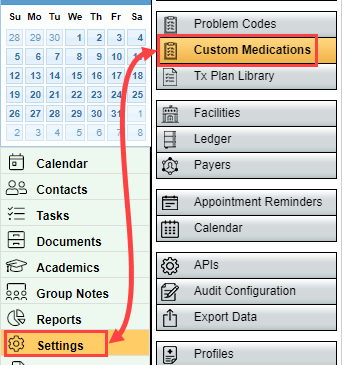
- To access "Custom Medications," select Settings and then Custom Medications.
- Add custom medications by selecting Add Custom Medication from the "Custom Medication" section.

- Enter the name of the medication, and define the dose, frequency, and duration for that custom medication.
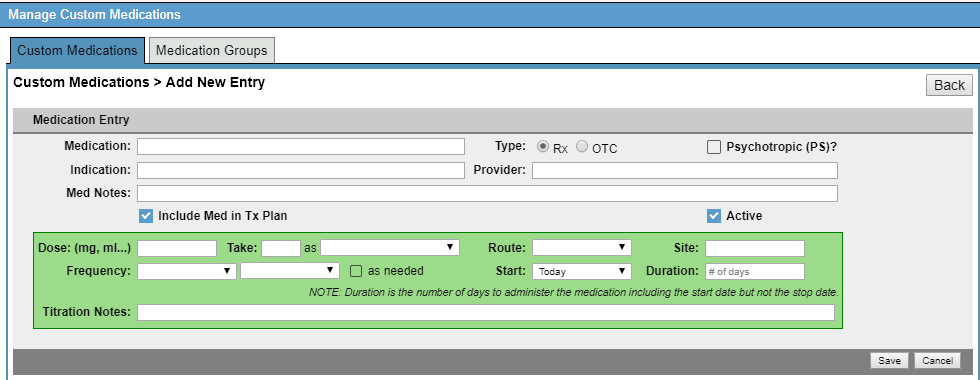
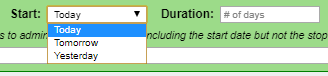
- When selecting the start date option of "Today", "Tomorrow", or "Yesterday", this will determine the start date of the medication in relation to the date it is applied to the client's medications. The "Duration" (number of days) determines how many days the medication needs to be distributed to the client. The information saved will be applied every time you select this medication from the "Custom Medication" list.
Medication Groups
"Medication Groups" are a group of one or more predefined medications that are applied to a client simultaneously. These medication groups can be used in conjunction with "Custom Medications."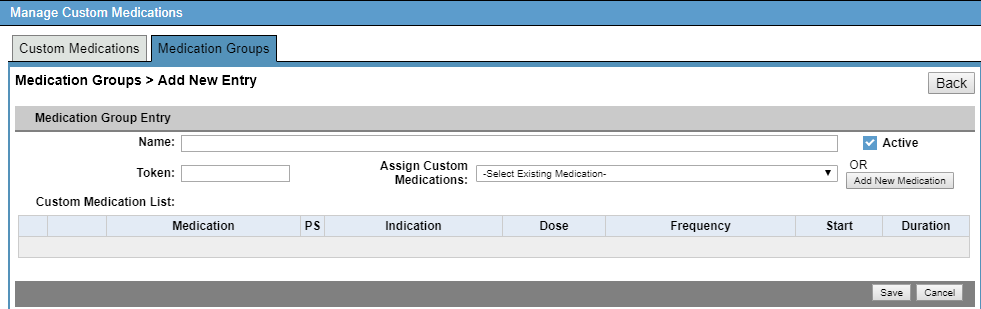
- To create a "Medication Group", select Add Medication Group, then enter the "Medication Group" information.

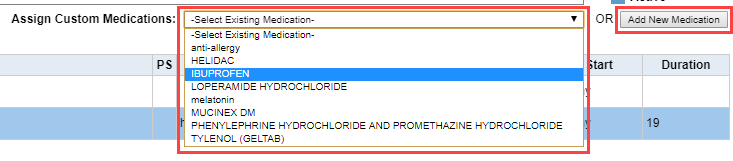
- A unique token (3-6 characters) is required as a shorthand indicator for the group name/type; multiple groups cannot have the same token. When adding a medication to a "Medication Group", select an existing "Custom Medication" from the drop-down, or add a new medication by selecting the Add New Medication option. If a new medication is added from the "Medication Group" page, it will also be added to the "Custom Medication" collection.
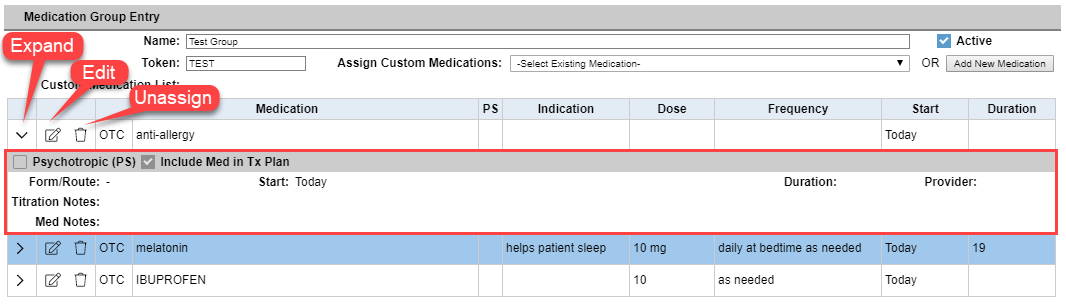
- Once a medication has been added to the group, a preview of information is available by selecting the Expand icon. To make edits, select the Edit Custom Medication icon, or to remove a medication completely from the group, use the Unassign Custom Medication icon.
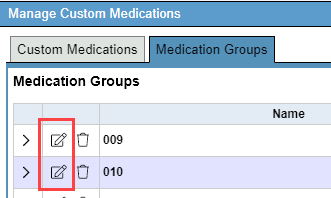
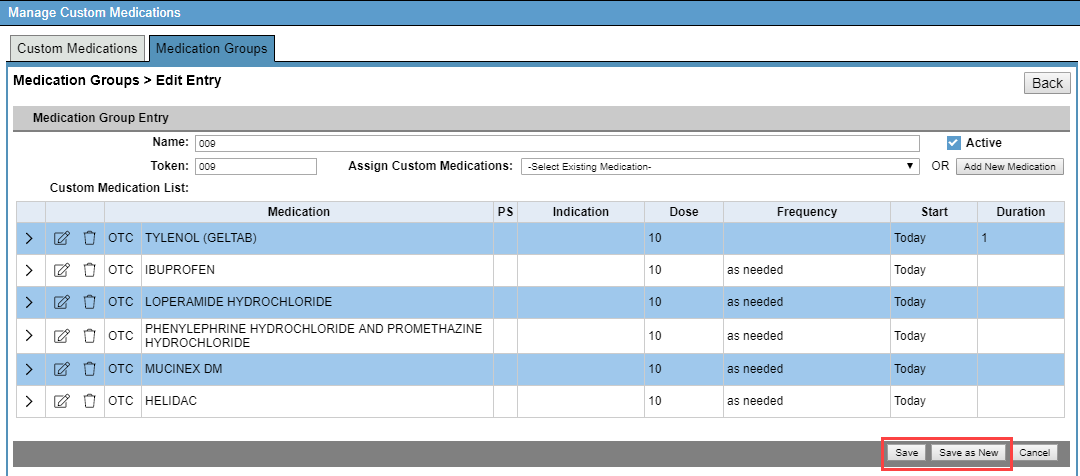
- To update an existing "Medication Group", select the Edit icon next to the name of the "Medication Group". After making changes, you can either click Save to update the existing group or Save as New to create a new "Medication Group" with the changes.
- To remove an entire group, inactivate it by unselecting the Active checkbox and saving the group.

- To reactivate a group, select the Show Inactive button in the top right to view all inactive groups. Once visible, select the Edit Custom Medication icon for the desired group, check the Active checkbox, and then select Save.


