This article explains how to view and record custom test results for clients, including individual tests and test groups, and how to utilize special fields for displaying these results in documentation.
Permissions Required
No specific BestNotes permissions are required.
Managing Custom Test Results
View Test Results on Client Chart
- Navigate to the Med/Clinical.
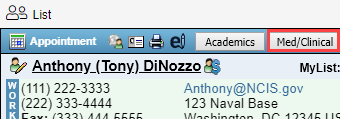
- Select "Test Results."

- You can select the double arrow to view more details, and you can select the edit or trash icon to update or delete the entry with the appropriate permissions.

Record Individual Test Results
- Select "New Test Result."

- Select the test you would like to enter results for.
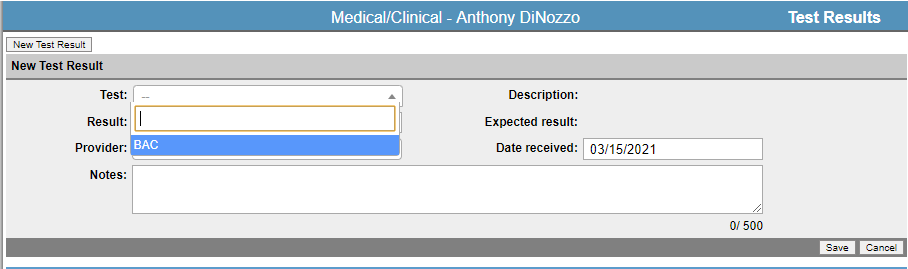
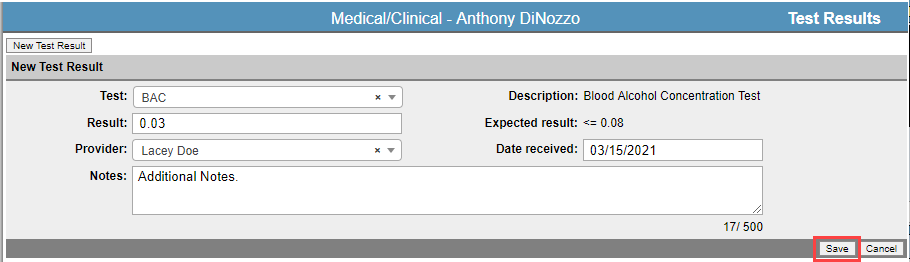
- Fill out or select the "Result", verify the "Provider", verify the "Date received", and add any additional notes.

- Select "Save."
Record Test Groups
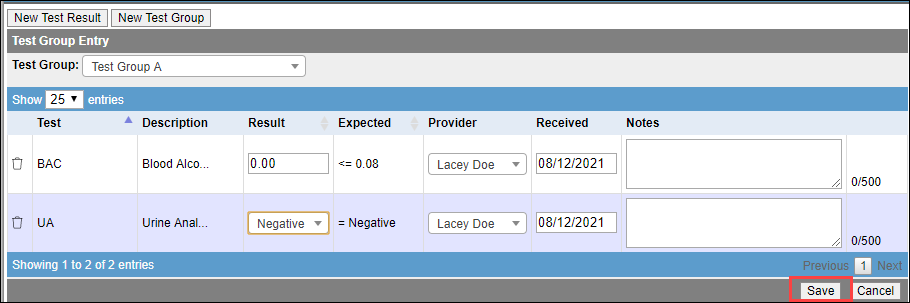
- Select "New Test Group."

- Select the "Test Group" from the drop-down list."
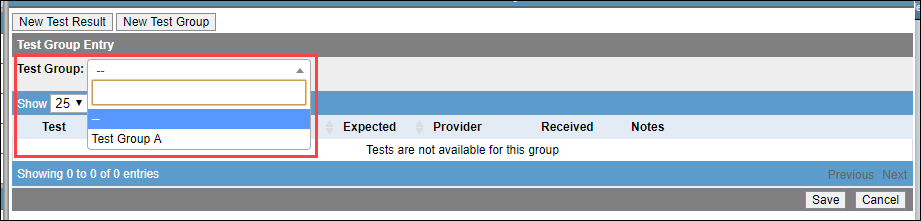
- Enter the test "Results", adjust the "Provider" if necessary, verify the "Received" date, and enter any necessary "Notes" for each test.

- Select "Save."
Special Fields and Test Results
There are several special fields that you can use in reference to the Custom Test results. For a complete list of special fields view the Med/Clinical section labeled Test results in our All Special Fields document.
Med/Clinical
To add this to a med/clinical document, you can send a request to submit a support ticket indicating which document you would like this added to, and where within that document you would like it placed.
Templates and Group Notes
To add this to a template or a group note, navigate to the template builder, select the template you would like to enter the special field into, and add the special field as follows:

Viewing Results in Documentation
Once you have added the special field, and you have entered results into the client's chart, you can view these results in the document. Here are some examples of how the information will appear.
Templates

Med/Clinical

If you have any questions, concerns, or feedback about this feature, you can reach out to submit a support ticket.
Next Steps
- See also: Create custom tests
- See also: All Special Fields